106
7.5. The Touch Pen is not working
If the pointer does not work when you touch the screen, try changing the USB port.
If the problem continues, restart the PC.
If the touch-pen continues not working, you will need to reinstall the relevant drivers contained in the USB
key with MacroPATH Software as per the following instructions:
1) Disconnect the touch-pen from the USB port
2) Open the “Touch Pen Drivers” folder and follow the information provided in the “instructions” file:
- Open folder “eGalaxWorks31xx~4378-01_test1-20180606-Getac-19inch-system” and run file
“eGalaxSensorTester3.exe” to start installation
- Do not touch the screen during installation.
- Connect the Touch-pen to the USB port and start using it
If it still is not working, contact customer support.
7.6. Touch-Pen and Touch Screen calibration
If the pointer does not move correctly when touching the screen or it does not go to the selected point,
recalibrate the touch-screen or the touch-pen as follows:
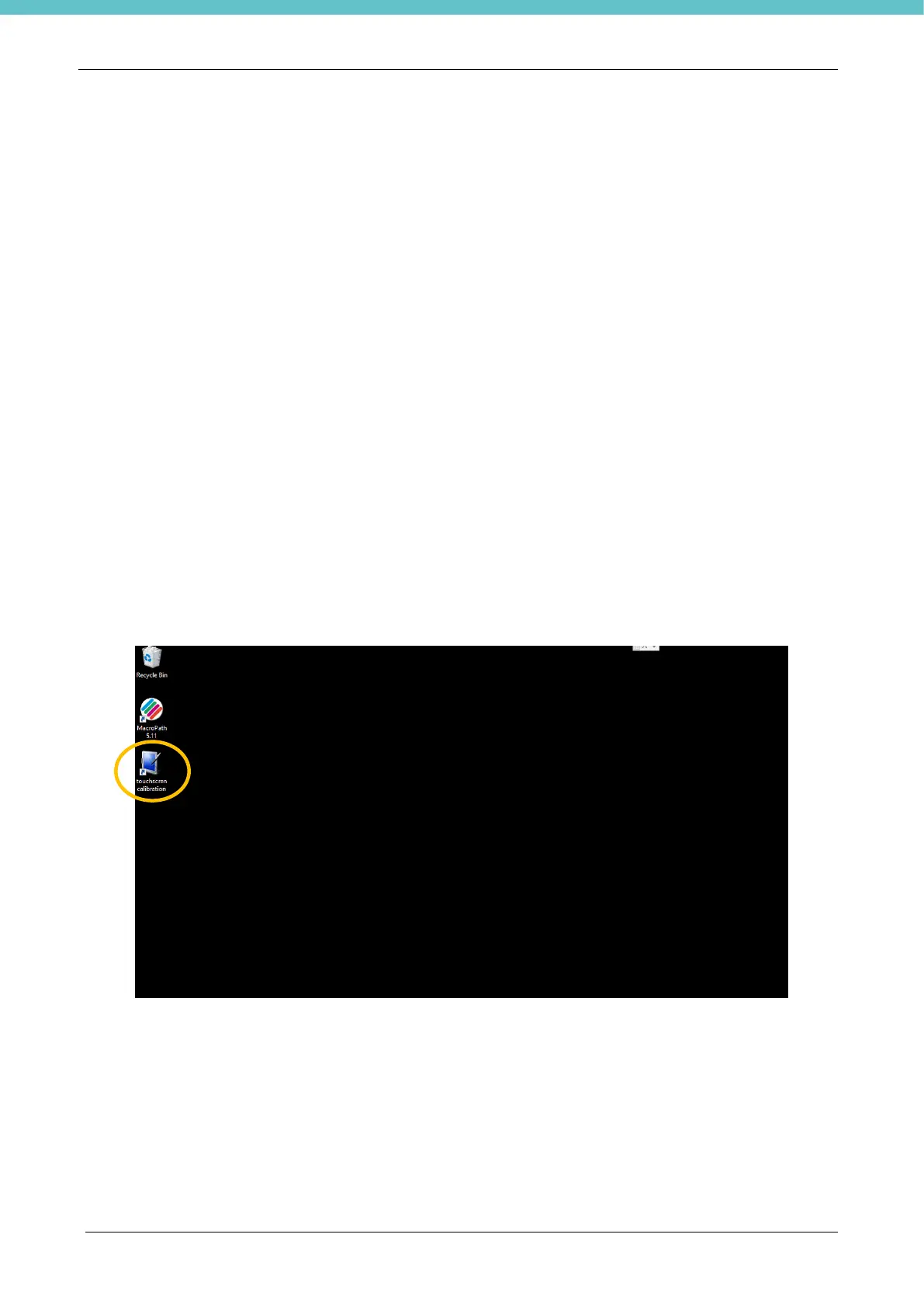
- Select the “Touchscreen calibration” icon on the desktop
or from the “Start” menu go to “Control Panel”


 To Next Page