UC360 Administration and User Guide
Using Remote Desktop (RDP)
RDP stands for Remote Desktop Protocol. It is a proprietary protocol developed by Microsoft®,
that provides a graphical interface to your computer.
The Remote Desktop (RDP) lets you access a Windows session on your PC or laptop remotely
and see the files, programs, and resources exactly as you would if you were sitting at your
desk, while you are using the UC360.
With RDP, you can display your desktop locally to people in the room with you, or you can share
your desktop with remote participants.
• Set up your computer to use Remote Desktop. See Windows help for instructions.
• Have the name of your computer handy
• Make sure your computer is turned on
If you use Remote Desktop on a regular basis, your administrator can preset your computer to
connect automatically when you access RDP. See “RDP Settings” on page 65 for more
information.
Launching Your RDP Session
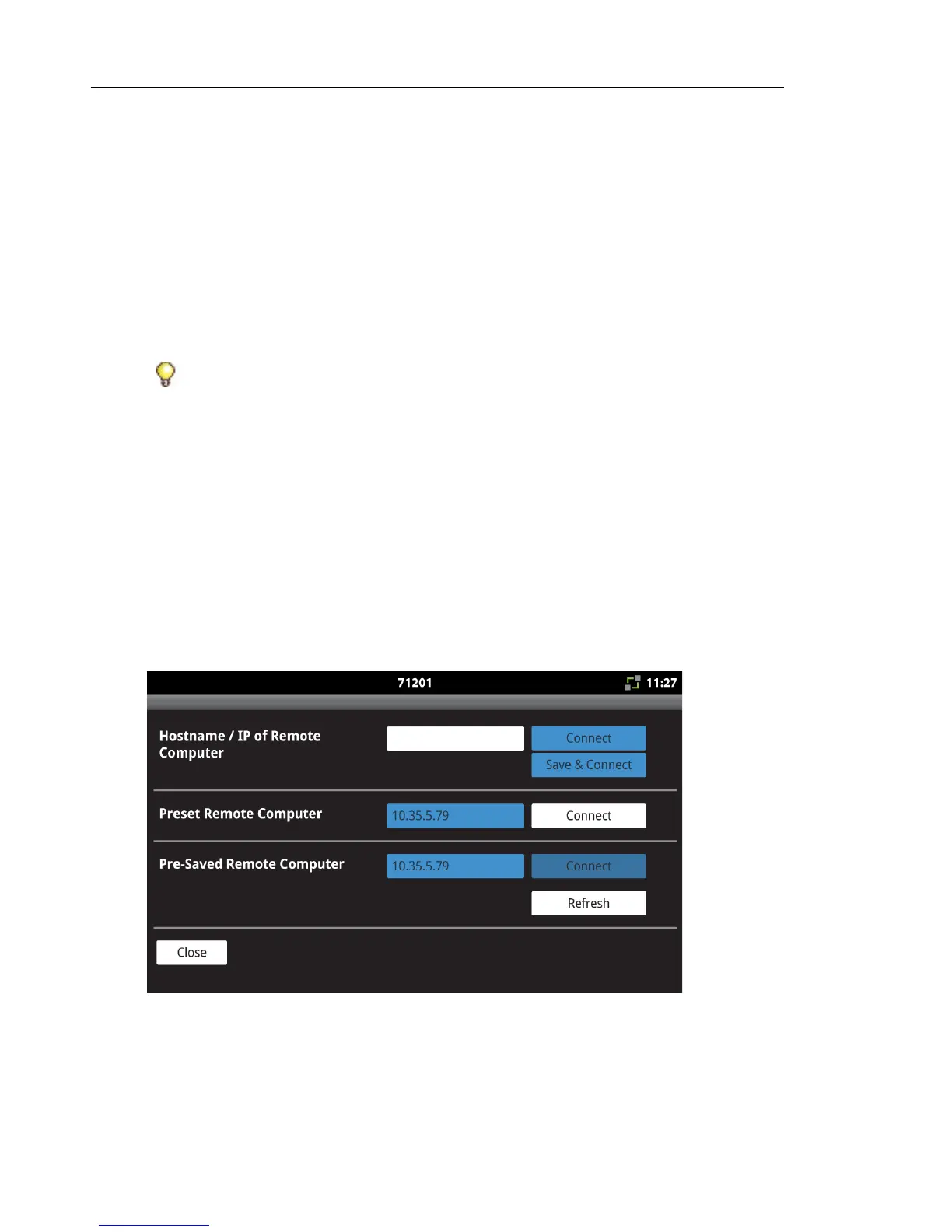
When you tap the RDP icon on the Launch screen, the following screen is displayed:
• Enter the hostname or IP Address of your computer in the first text box and press Connect.
OR
• If your computer’s IP Address has been preset by your administrator, press Connect for
the Preset Remote Computer.
Tip: Before you use Remote Desktop, do the following:


 To Next Page