Moneris Core® Move/5000: Using Your Terminal 9
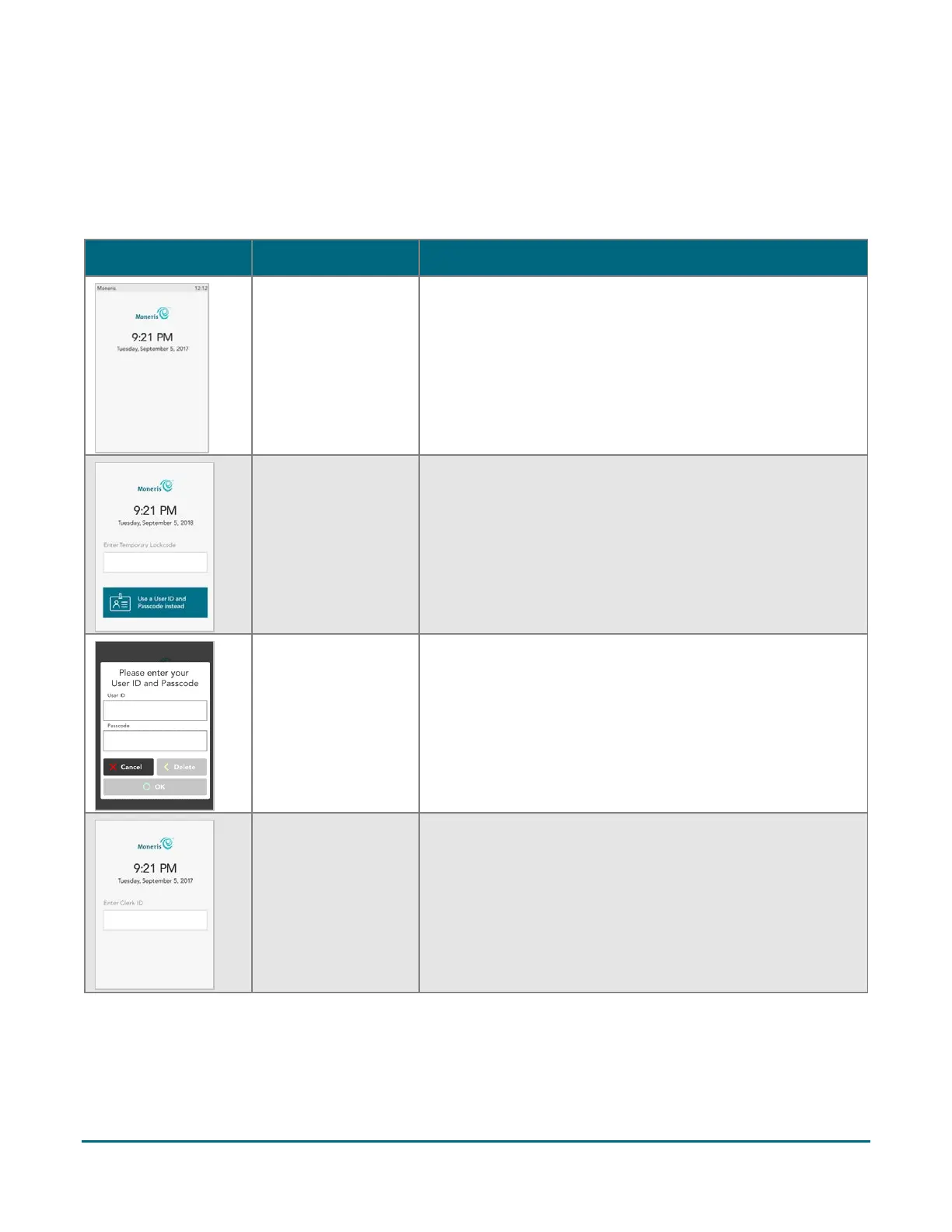
Security prompts
You may see various security prompts before you are able to process transactions and access functions. Some
examples include the screen saver (idle screen), the temporary lockcode prompt, the user ID/passcode prompt,
and the Clerk ID prompt.
Review the table below on how to respond to each prompt.
Screen saver
showing the date
and time (idle
screen)
The application has timed out.
Tap the screen or press any key to continue.
Enter Temporary
Lock code
This screen appears if you locked the terminal using a
temporary lock code.
To unlock, enter your temporary lock code.
You can also tap Use a User ID and Passcode instead. See
below.
Please enter your
User ID and
Passcode
To use protected menus and transactions, you must identify
yourself by user ID and passcode.
1. Tap the User ID field and enter your user ID.
2. Tap the Passcode field and enter your passcode.
3. Tap OK.
Key in your clerk ID, then tap OK. To set up clerk IDs, refer to
the Move/5000 Setting up Your Software guide at
moneris.com/support-move5000.



 To Next Page