Moneris Core® Move/5000: Using Your Terminal 11
Wireless communication
There are 2 variations of the Moneris Core® Move/5000 terminal: one variation supports dual communication
(both 4G cellular and Wi-Fi®), the other supports Wi-Fi communication only.
Terminals with dual communication -- both 4G and Wi-Fi
The terminal uses long-range cellular communication (4G or 3G) to send and receive information to and from
the Moneris host. The terminal communicates via 4G by default for faster communication, and uses 3G as a
fallback where 4G is not available. If you set up a Wi-Fi network, the terminal will switch to Wi-Fi when the
Wi-Fi signal is stronger. To setup a Wi-Fi network, refer to Setting up your terminal on page 3.
Terminals with Wi-Fi communication only
You must set up a connection to your local Wi-Fi network in order to communicate with Moneris. Refer to
Setting up your terminal on page 3. You may disregard any references to 4G in this guide.
Network status indicator
The terminal is currently connected to and using the authorized carrier's 4G wireless network.
The terminal is currently connected to and using the authorized carrier's 3G wireless network
(as fallback).
The terminal is currently connected to and using your local Wi-Fi network.
To test 4G/3G wireless communication:
1. While the terminal is powered on, confirm that the 4G/3G status icons listed above are displayed.
2. Confirm that there is sufficient signal strength (see the Signal strength indicator table below).
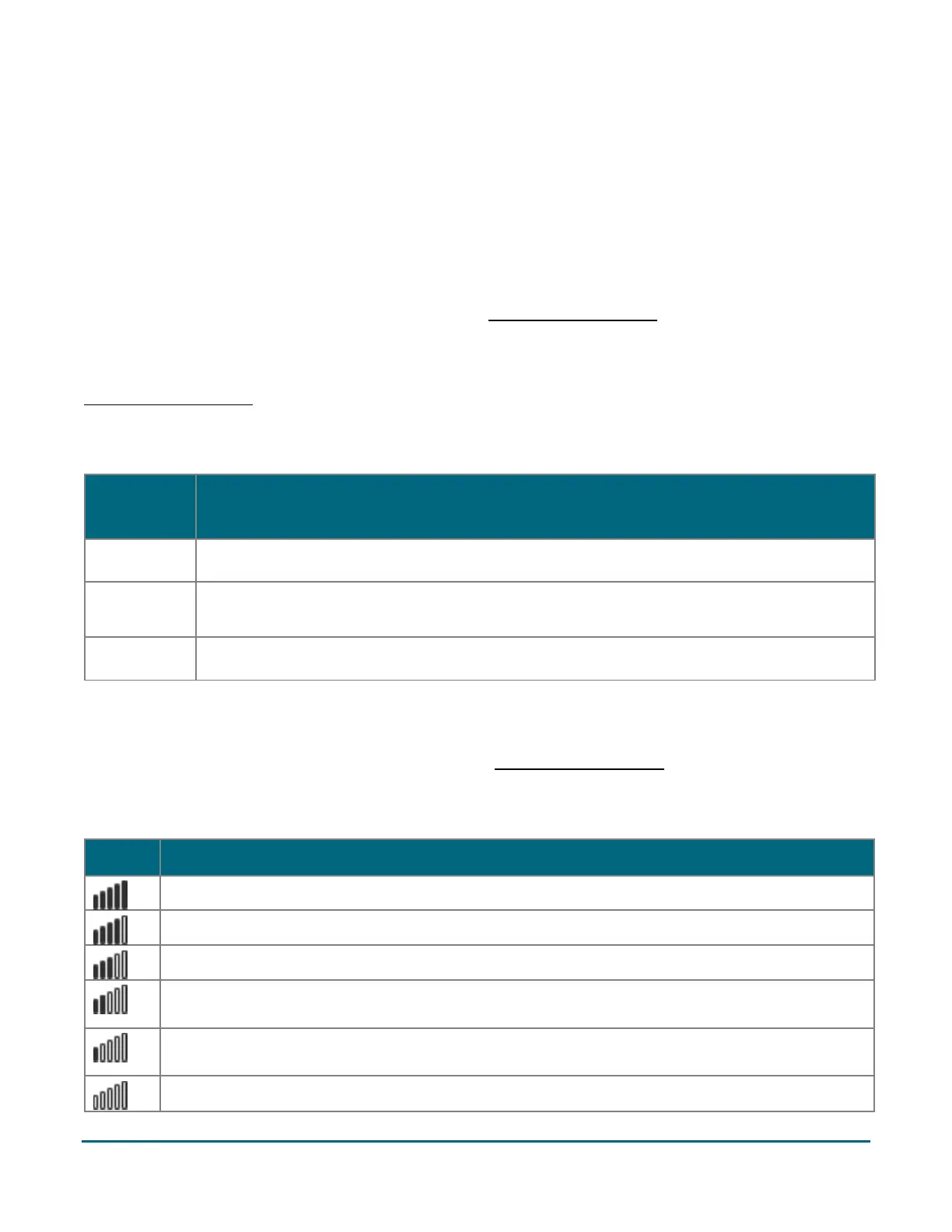
Signal strength indicator
5 bars: Terminal is receiving a very strong signal from the network and can process transactions.
4 bars: Terminal is receiving a strong signal from the network and can process transactions.
3 bars: Terminal is receiving a good signal from the network and can process transactions.
2 bars: Terminal is receiving a signal from the network and can process transactions but may take
longer to complete them.
1 bar: The terminal is receiving a weak signal and may not be able to process transactions and/or
print receipts.
0 bars: The terminal is not receiving any signal and CANNOT process transactions.



 To Next Page