User & Service Manual Natus Quantum Amplifier
53
9. Amplifier Usage and Features
9.1. Getting Started
NOTE: In the event of a power failure, the current recording will resume using the last
programmed settings upon the restoration of power.
9.2. Placement of the Operator and Patient
It is expected that the operator of the system will stand or sit in front of the computer, but not
continuously. The patient is typically lying in a bed located beside the system cart or amplifier and is in
no way supported by the equipment.
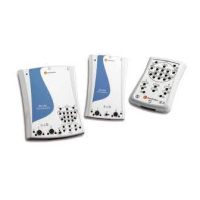
Amplifier units are patient-worn. Refer to the section Adding the Quantum breakout box(es) to a harness
or belt for details on the placement of the Quantum breakout boxes on the patient.
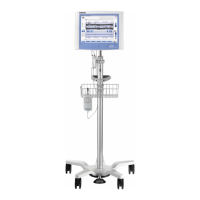
At no point should the system be leaned against or rested upon. Refer to the Transport System
Specifications and Maintenance section for placement, details, and cautions for the different cart
transportation options.
Refer to the corresponding Instructions for Use for all system components prior to use. This should
include, but is not limited to: cameras, computers, stimulators, and software.
9.3. Creating acquisition profiles for Studies with Quantum or
Quantum 64 Breakouts
The acquisition profile defines which
channels are recoreded and and at which
sampling frequency. The settings from the
the acquisition can be configured from the
“Edit” menu in the acquisition/review
program, provided that no study is open.
Note: When using the Quantum
64 breakout, it is required to
activate the second pin-board in
the Software (Edit > Settings >
Acquisition (tab)), and switch
channels 65 to 128 OFF.
The acquisition profile to be used for the
study can be selected in the Study
Information window.
The acquisition profile to be used for the
study can be selected in the Study
Information window.






 To Next Page