Connect to WiFi using the SSID and
password
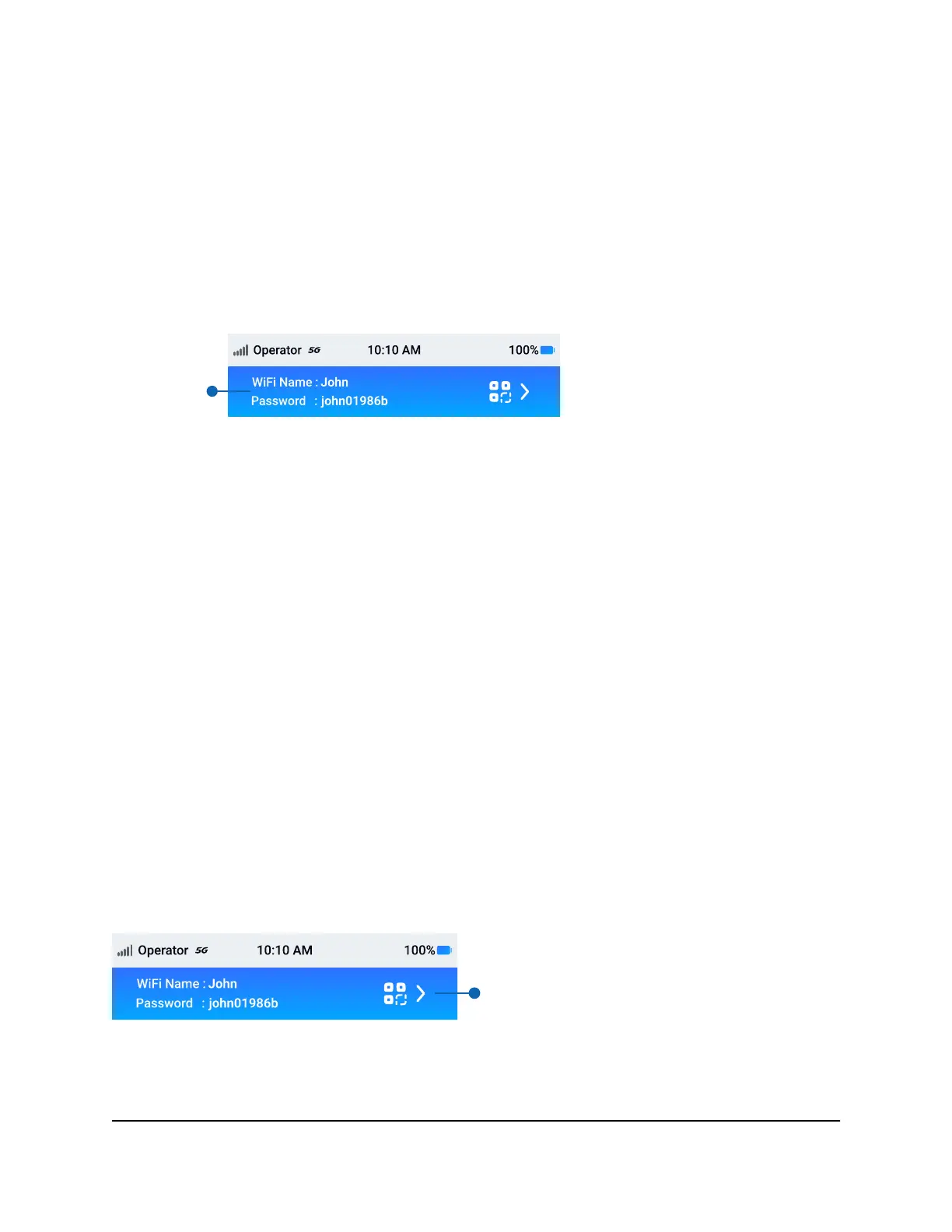
When your mobile hotspot is powered on, it broadcasts a WiFi network name (SSID)
and password. You can connect to the Internet by selecting your hotspot's SSID and
entering the password on your WiFi devices.
WiFi network
name and
password
To connect to WiFi using the SSID and password:
1. Quickly press and release the Power button to wake your mobile hotspot.
The lock screen displays.
2. Swipe up to unlock your mobile hotspot.
The home screen displays, with your mobile hotspot SSID in the WiFi field and your
hotspot password in the Password field.
3. From your WiFi device, open your WiFi network connection manager.
4. Select or enter the SSID shown on your mobile hotspot's home screen.
5. Enter the password shown on your mobile hotspot's home screen.
Your WiFi device connects to your mobile hotspot's WiFi network.
Connect to WiFi using the QR code
You can tap the WiFi credentials on your mobile hotspot's home screen to display a
large QR code. Scanning the QR code on mobile devices like smartphones and tablets
connects you to WiFi without manually entering the SSID and password.
To connect to WiFi using the QR code:
1. Quickly press and release the Power button to wake your mobile hotspot.
User Manual21Connect devices to the Internet
Nighthawk M7 Pro















 To Next Page