The lock screen displays.
2. Swipe up to unlock your mobile hotspot.
The home screen displays, with a QR code icon displayed to the right of the SSID
and password.
3. Tap the QR code icon.
A larger QR code displays.
4. Open your mobile device's camera application and aim the camera at the QR code.
Depending on your mobile device, you might need to tap the QR code in your
camera app to proceed.
Your mobile device connects to your mobile hotspot's WiFi network.
Connect a computer to the Internet
using tethering
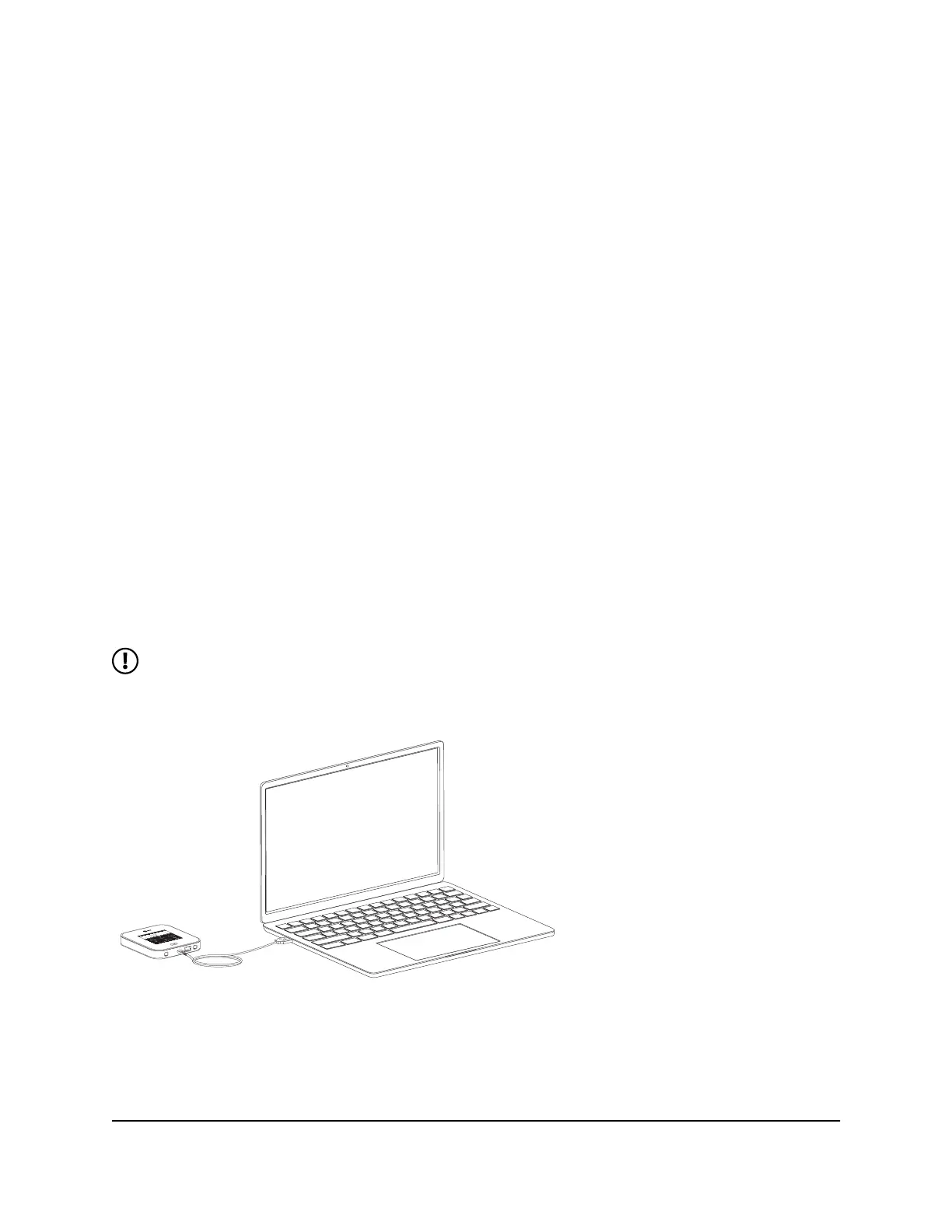
You can connect a computer to your mobile hotspot using the included USB cable
instead of connecting with WiFi or over Ethernet. This kind of cable connection is called
tethering.
NOTE: There might be a brief delay when your computer's operating system
detects the mobile hotspot the first time you use the USB cable to connect your
mobile hotspot to your computer.
Figure 10. Nighthawk M7 laptop tethering
User Manual22Connect devices to the Internet
Nighthawk M7 Pro















 To Next Page