Page | 23
7. Click ‘Obtain IP and DNS automatically’.
8. Agree to activate Windows. This activation is permanent, and you won’t see these
screens again. (Registration with Microsoft is optional).
9. Assign a name to the administrator account. You may type your name, company, or
perhaps simply “3Play”.
10. Click Finish, and the system will re-start.
After restarting and accepting NewTek’s User Agreement, the interface will load automatically.
Tip: This might be a great time to review the matter of creating a custom backup drive. See
Section A.5.6 for instructions.
3.3 REGISTRATION
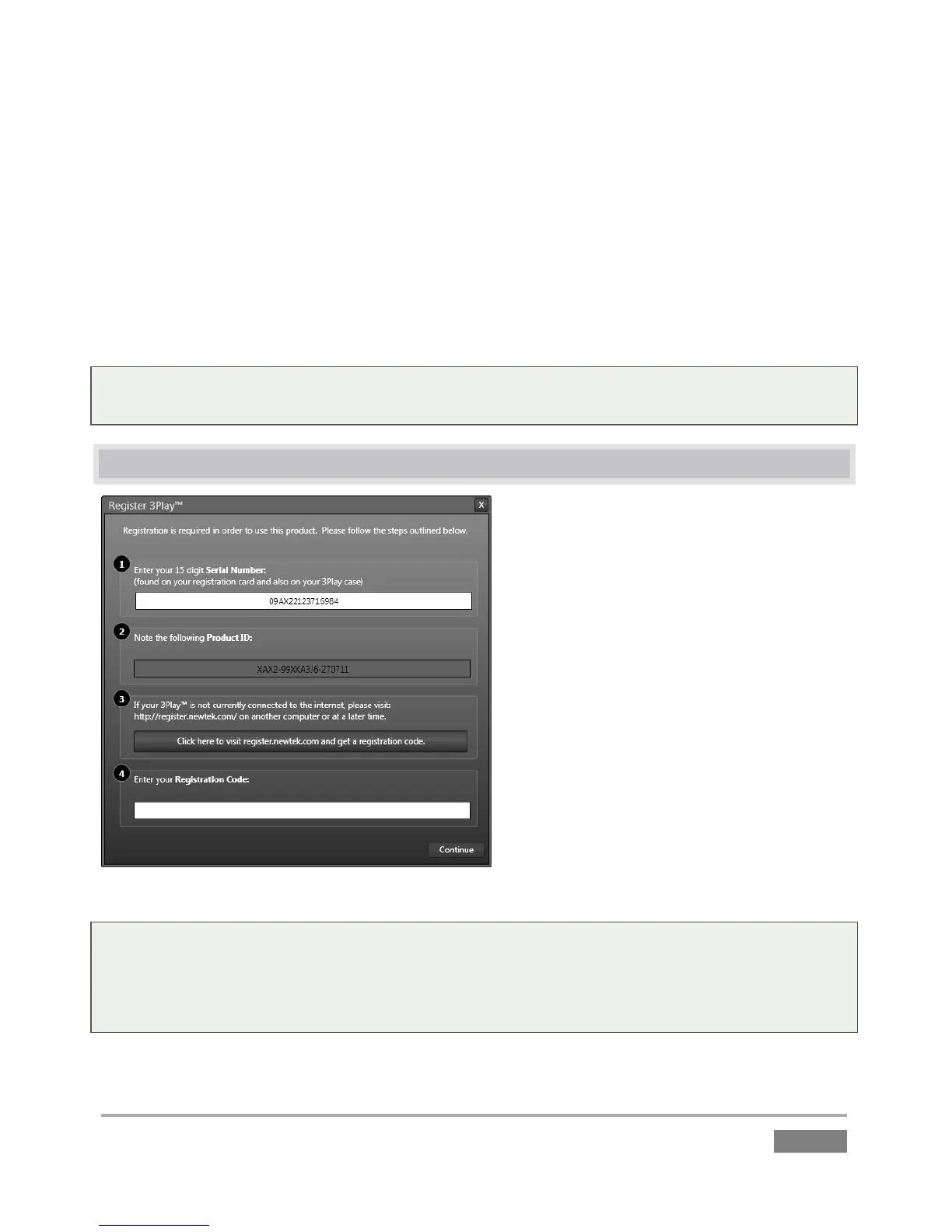
On launch, 3Play will display an End User
License Agreement dialog. If you accept this
agreement, the Registration dialog shown
in Figure 19 provides the unique Product ID
you need to register your system.
If necessary, enter the unique Serial
Number and Product ID for your system.
Note that 3Play’s video output will show a
watermark until the system is registered
and unlocked using the registration code.
Tip: Serial number stickers are affixed inside the left front door of 3Play 440, or the drop-down
front panel of 3Play 4800. For a previously registered system, you can also obtain it from the
registration webpage mentioned in the next section. If you cannot locate the serial number, call
NewTek’s Customer Support Desk (open seven days a week).








 To Next Page