Page | 81
6.2 A FEW HINTS
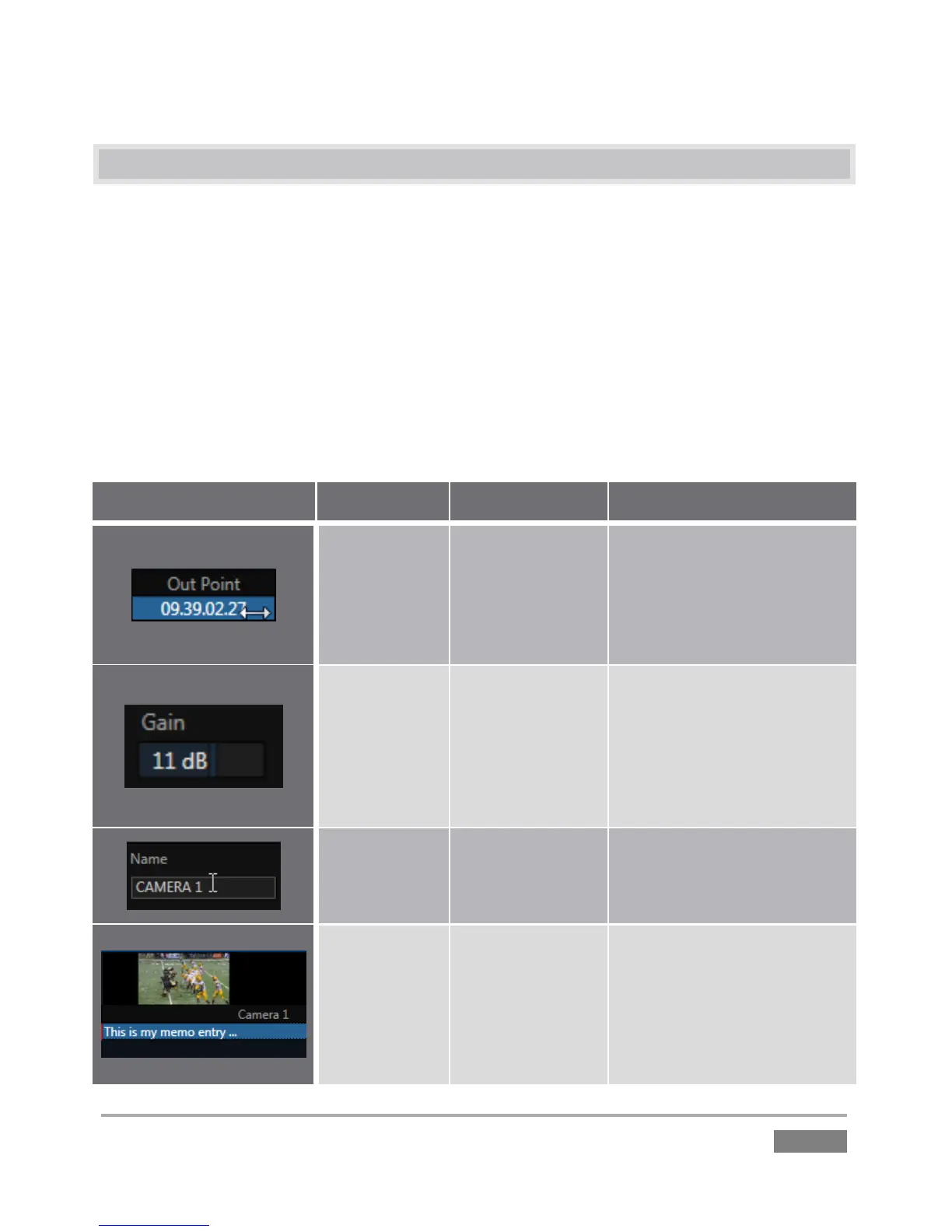
You will find various types of user controls in the Replay Desktop. Some examples are shown in
the table below. Several convenience features are associated with these controls.
As you would expect, all slider controls (whether their motion is vertical or horizontal)
can be set to a new value by holding down the left mouse button and dragging in the
direction of the control orientation.
Hold down the keyboard Shift key and double-click most controls to reset the associated
value to its factory default.
In Point, Out
Point, Duration,
Crossfade, etc.
Drag in line with the control
orientation to raise or lower
the current value. Or select
and type, and then press
Enter. (Esc to cancel
changes.)
Audio Gain, Proc
Amp controls,
etc.
Drag in line with the control’s
orientation to raise or lower
the current value.
Or select and type, and then
press Enter. (Esc to cancel
changes.)
Input and Output
Configuration
panels
Click the field to activate it,
and then type.
Select field and type, and
then press Enter. (Esc to
cancel changes.)








 To Next Page