Page | 139
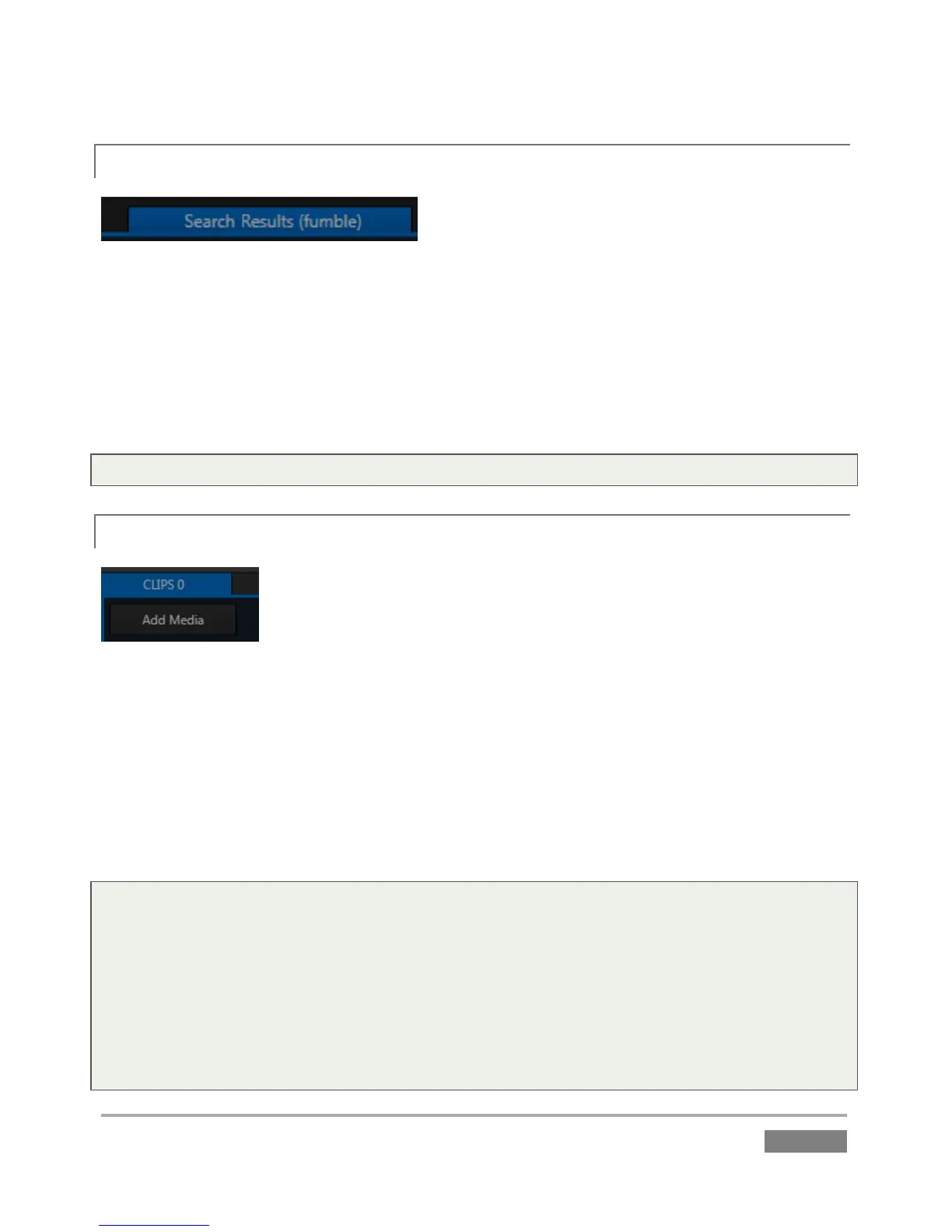
11.1.4 SEARCH RESULTS
Figure 123
This special tab, situated at right in the CLIP LIST, displays all events that match the criteria you
have supplied when performing Search operations. The results displayed in the tab are
persistent, and remain available for other operations to be performed until you perform another
Search. Conveniently, the active search criteria are shown inside parentheses to the right of the
Search Results label.
Tip: See Section 13.4 for more on using Search.
11.1.5 ADD MEDIA
Figure 124
It is possible to include video clips (and still images) in the CLIP LIST. Such files may have been
imported into the session using the Import Media feature in Startup (see Section 5.3.1), or
perhaps are located on another currently mounted volume, such as an external drive. An Add
(Media) button sits at left below the first CLIP LIST tab (Figure 124). Click the button to open
3Play’s custom Media Browser, which can be used to add video clips or still images to the current
CLIP LIST page.
Notes:
1) Startup’s Import Media feature stores files within the folders of the session structure, but does
not insert then into the CLIP LIST. Use the Media Browser to add them as described above.
Media added in this manner can be played directly from the CLIP LIST, or be used in a PLAY LIST.
2) Note: Add Media also supports compatible third-party asset management systems. Hold down
the keyboard Ctrl key when clicking the + sign to access these tools.








 To Next Page