Page | 51
Of course, thoughtful use of Memo cell entries (along with SEARCH, discussed shortly) make it
easy to find specific clips for playback, PLAY LIST preparation, Publishing, or other clip
management purposes.
4.7.1 TAGGING CLIPS
Let’s see how 3PLAY’s TAGS module makes Memo cell entries even faster.
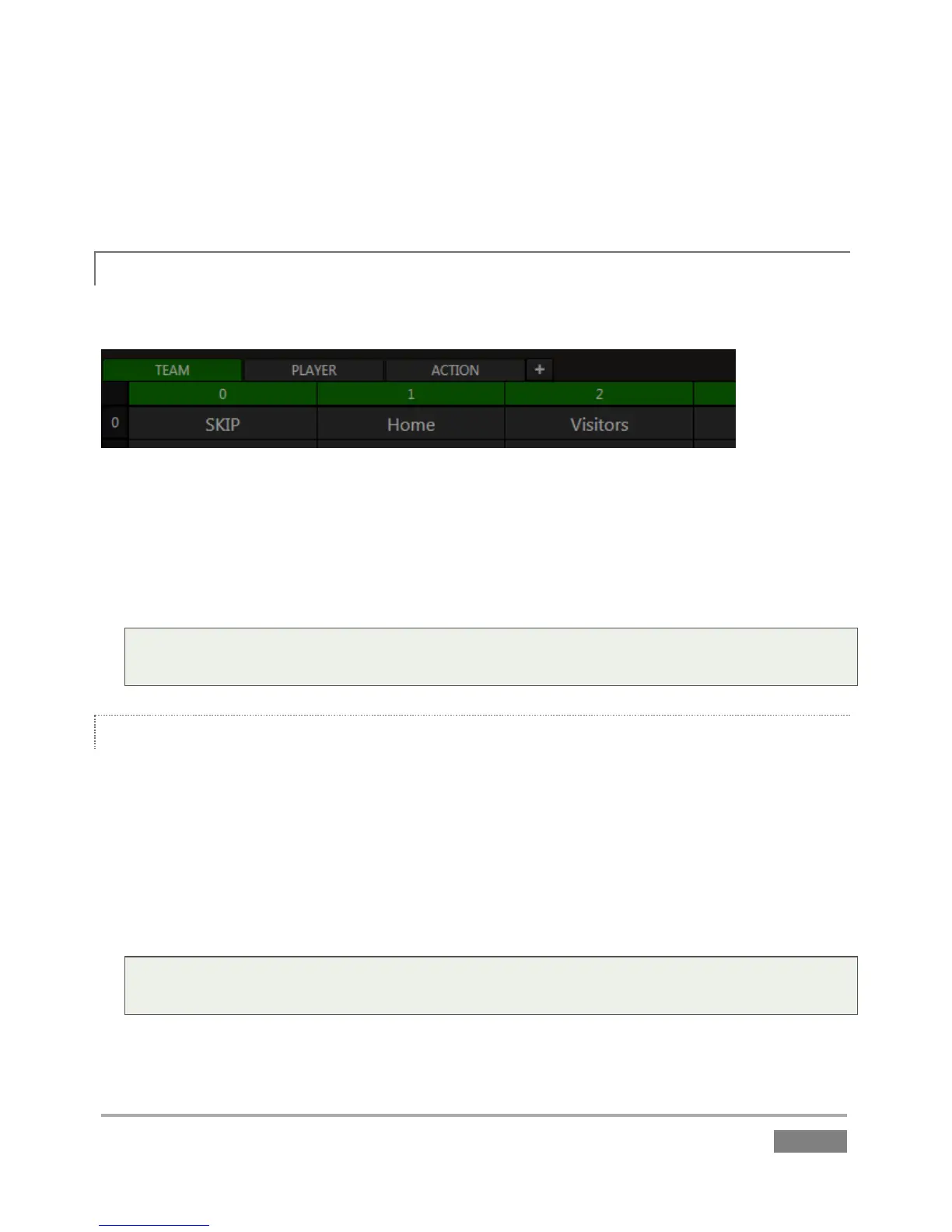
Figure 38
“Tags” are predefined text entries, prepared in tabs of the TAGS module, located across the
bottom of Replay Desktop.
47. If it’s not already displayed, hold down SHIFT while pushing TAGS on the Control Surface.
Tip: SHIFT + TAGS toggles the minimize/restore control of the TAGS pane. See Chapter 13 for
full details on the TAGS pane. Section 13.3 discusses other ways to display or hide it.
CONFIGURING TAGS
By default, the TAGS pane in new sessions has 3 tabs, labeled as shown in Figure 38. Assuming
you have not already configured some tags, the tabbed tables in the TAGS pane will be empty,
but for one item – the first cell in all TAGS tabs contains the entry “SKIP”, and is locked.
Let’s add a just a few sample tags to work with.
48. Click the Edit Tags button, and click the tab labeled TEAM.
Tip: Navigate TAGS pane tabs using the Control Surface by holding down SHIFT when
pressing either of the TAB buttons.
49. Click cell just to the right of the SKIP entry. Type “home” (without quotes) on the
keyboard








 To Next Page