Control elements 29
5.2 Control unit
The next subsections explain all control elements of the Control Unit. Thus you become familiar with the
buttons, sockets and the like.
5.2.1 Top/Front View
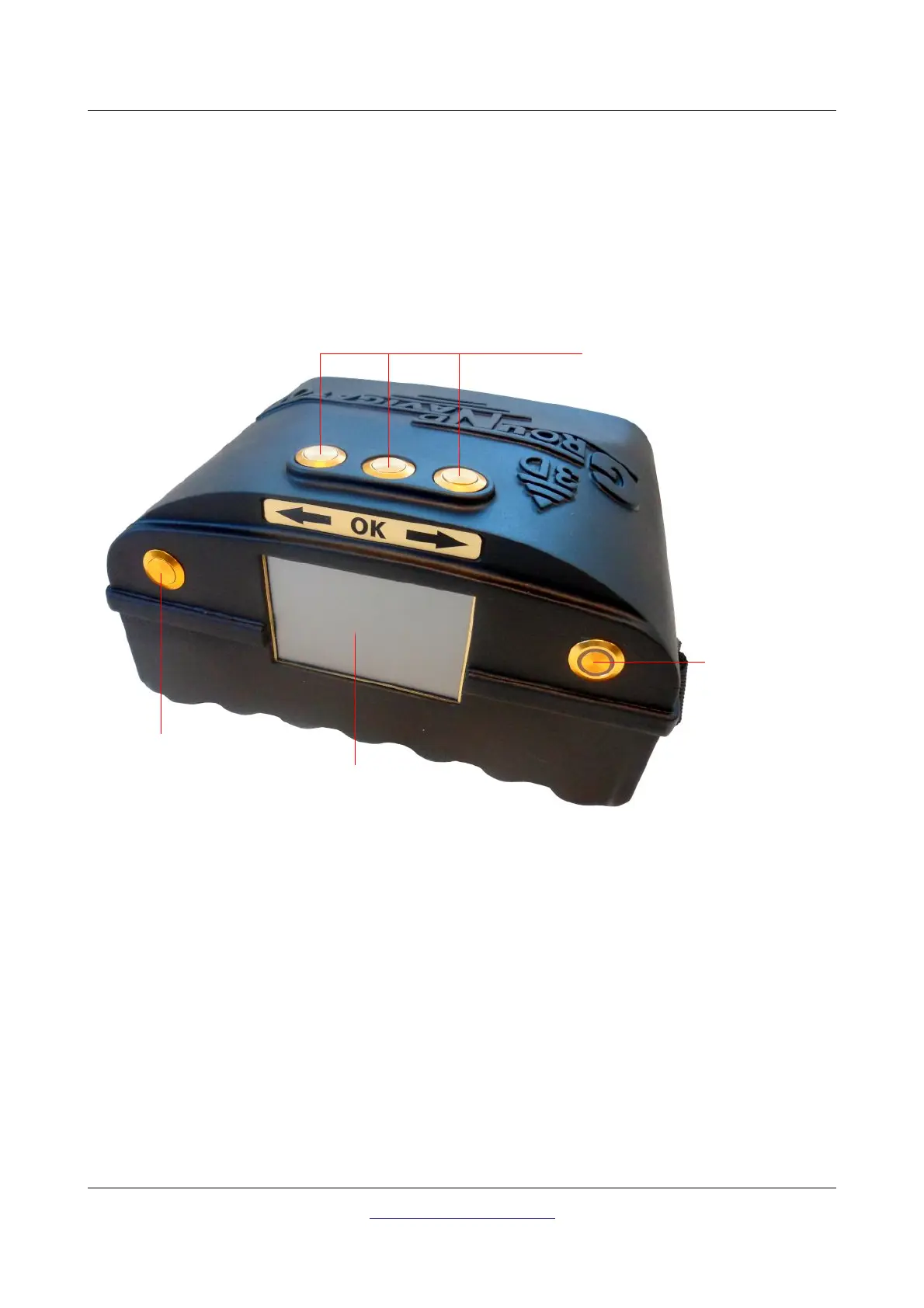
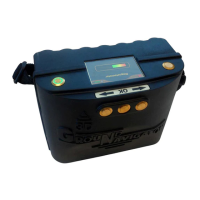
Figure 5.1 shows all control elements of the top and front panel of the Control Unit.
Display / Touchscreen: The display of the device shows all operating modes, messages and measuring
states. Close to the display (on the front panel) there are 3 menu buttons to operate the device. The OK
button is mostly used to activate the selected operating mode. In some circumstances this button is
allocated with another function which will be explained at the appropriate section within this manual. By
using the arrow buttons and you can switch between the operating modes in the main menu and
select the options in submenus. With these arrow buttons you can finish the measurement of an
operating mode and get back into the main menu.
Power on/off button: With the power on/off button you can switch on or off the device. When the
device is powered off and you press the power on/off button the device will be switched on and the LED
of the power on/off button will shine green. To power off the device, you should keep pressing the power
on/off button until the device powers off and the integrated LED lamp turns out.
OKM GmbH
www.okmmetaldetectors.com


 To Next Page