Control elements 31
5.2.3 Touchscreen
After powering on the 3D Ground Navigator metal detector, a splash screen is shown while the system is
booting up. When finished the main menu appears where you have to choose the desired operating mode
with the buttons and or by simply clicking the arrows on the touchscreen itself. If the desired
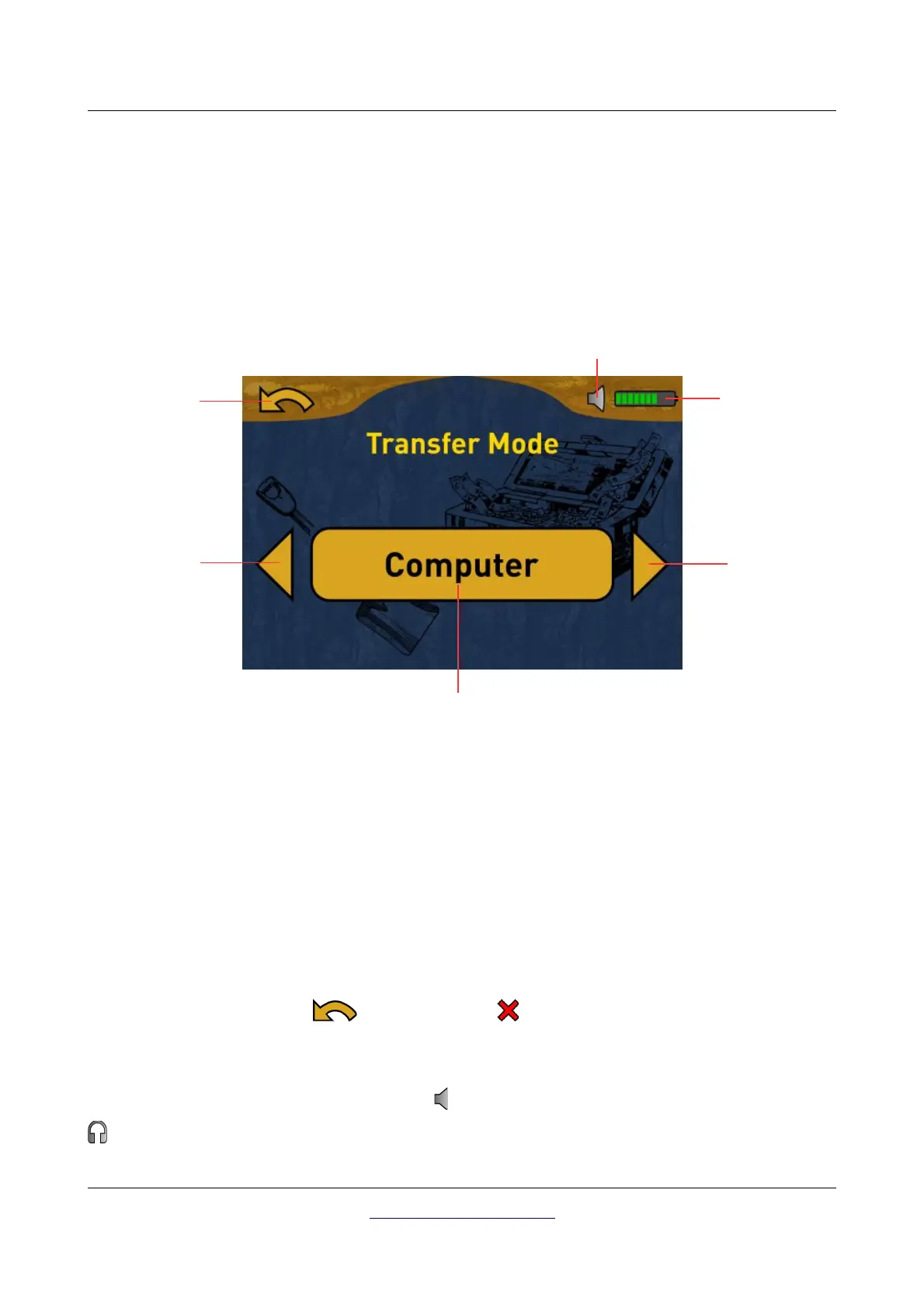
option is visible you have to confirm it by pushing OK or by touching the display button directly. In figure
5.4 you can see the structure and touch areas of the screen.
Previous: When this area is touched with your finger, the previous option is shown. If you reach the first
of all available options it will automatically jump to the last option. The same effect can be achieved by
using the button.
Next: When this area is touched with your finger, the next possible option is shown. If you reach the last
of all available options it will automatically jump back to the first option. The same effect can be
achieved by using the button.
Confirm / OK: When this area is touched with your finger, the current option will be confirmed. The
same effect can be achieved by using the OK button.
Back / Cancel: The back icon or the cancel icon are used to leave an active operating mode
like Magnetometer, Pin Pointer or Ground Scan or to get back to the previous screen, e.g. to leave a
submenu.
Headphones: By default the internal speakers are used for any sound output. The headphones icon
indicates that a Bluetooth headphone has been successfully connected with the 3D Ground Navigator.
OKM GmbH
www.okmmetaldetectors.com


 To Next Page