52 Operating modes
As soon as an acoustical signal sounds, the device has detected a potential metal target right under the
position of the probe. In this way it is possible to find small metals near the surface like nails, screws,
wires, seals and similar targets.
You should use the operating mode "Magnetometer" to remove such disturbing metal pieces from the
area that you like to scan. The less metals are laying near to the surface, the better will be your result in
the operating mode "Ground Scan". You can also find larger metal targets which are located deeper
underground. A general norm is: The larger the target, the deeper it can be detected underground!
Also you can use the operating mode "Magnetometer" as a useful pin pointer during the excavations. If
you already have dug out a large hole and do not remember where exactly the detected object was
situated, you can simply use the Magnetometer mode to relocate fast and efficient the target position.
After using this operating mode for a while you should process a new ground balance by pushing the
start button. To finish the operating mode "Magnetometer" and return back into the main menu you
simply push one of the arrow buttons or .
7.4 Transfer to PC
By using the operating mode "Transfer to PC", you can transfer measured data from the internal
memory of the 3D Ground Navigator to the Visualizer 3D software.
Plug in the Bluetooth dongle into the computer and start your Visualizer 3D software. Then follow these
steps to transfer scan data from your 3D Ground Navigator to the PC software.
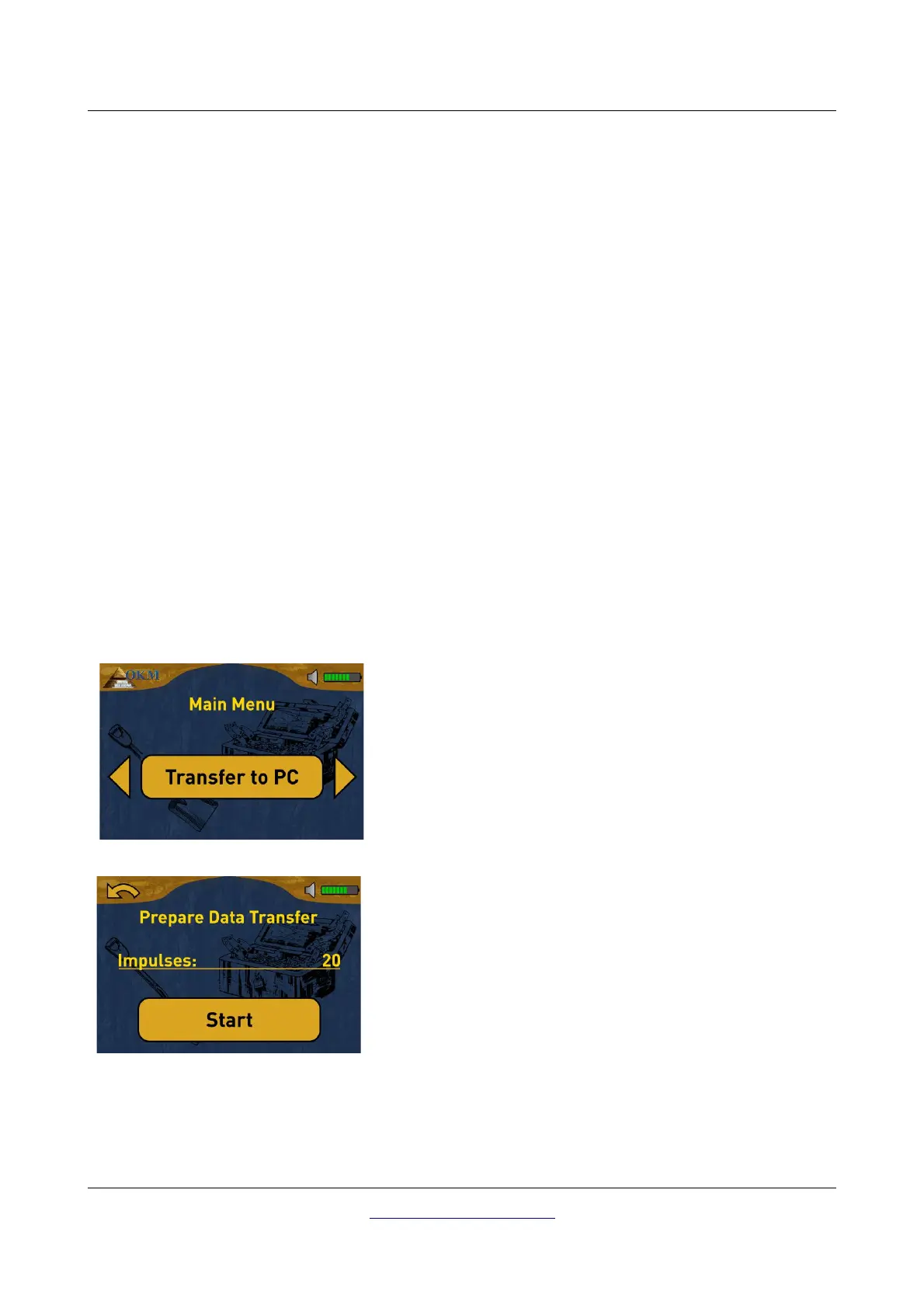
Step 1
Power on the device and select operating mode "Transfer to PC"
from the main menu. Push the OK button to open the prepare
screen.
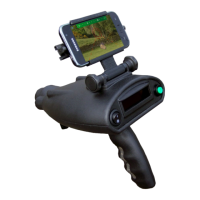
Step 2
This screen informs you about the settings that you have to
adopt into the Visualizer 3D dialog. It tells you how many
impulses per scanning path were recorded.
OKM GmbH
www.okmmetaldetectors.com


 To Next Page