Operating modes 43
connected computer. Therefor a Bluetooth connection
will be established before starting the measurement.
The option "Computer" is not available if the number of
impulses has been set to "Automatic".
Step 6
Depending on your selected Transfer Mode the on-going
procedure is different. The following two subsections explain
both ways in more detail:
• Memory
Continue reading section 7.1.1.1 “Saving into memory”
on page 43!
• Computer
Continue reading section 7.1.1.2 “Transferring to
computer” on page 43!
7.1.1.1 Saving into memory
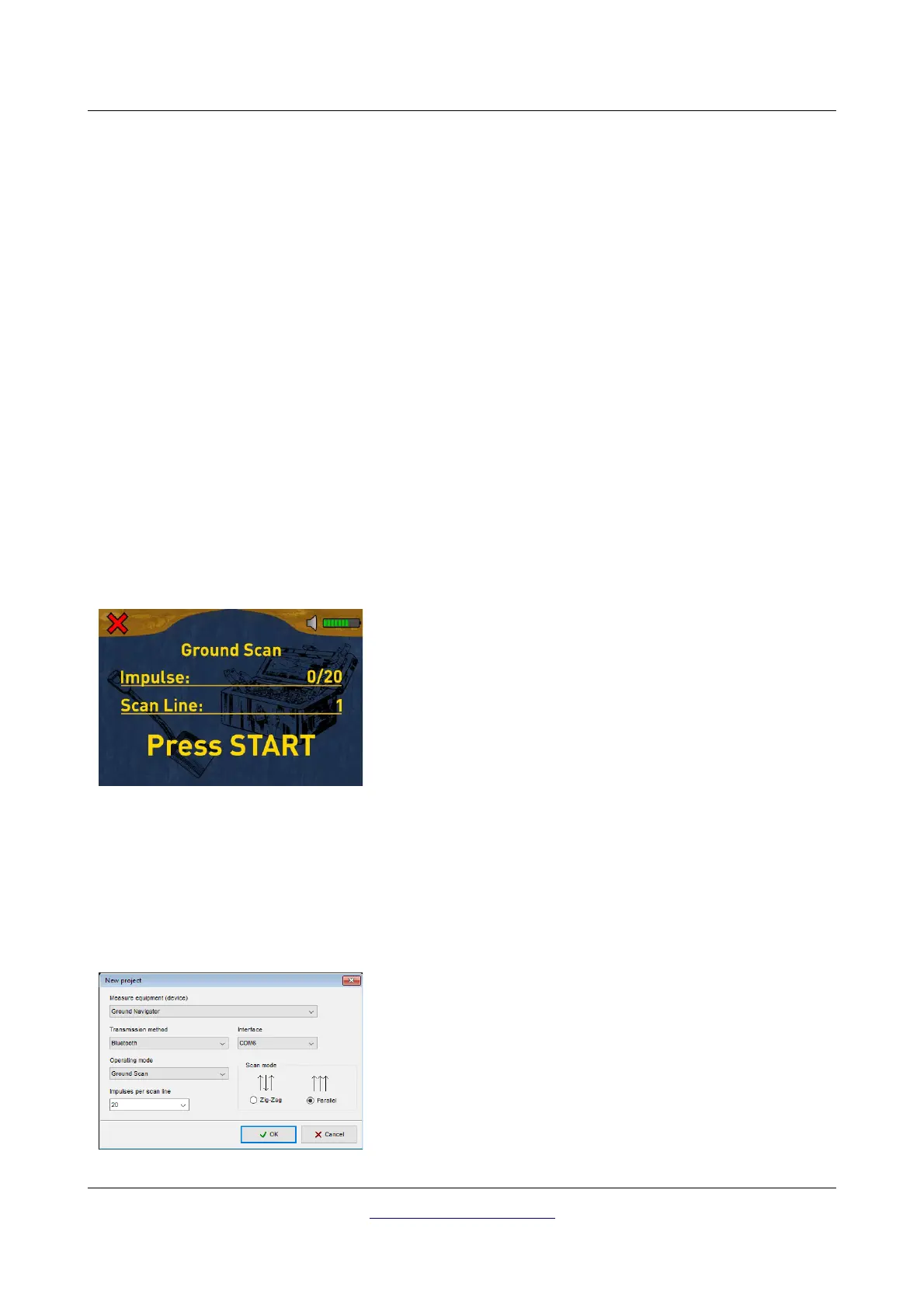
If you have selected "Memory" as transfer mode, you can start measuring right away.
Step 7
Go to the start position of your first scanning path, get ready
and start your first scan line by pushing the start button.
Read section 7.1.2 "Conducting the measurement" on page 44
to learn more about conducting a complete ground scan.
If you are going to finalize this operating mode, simply push
one of the arrow buttons or .
7.1.1.2 Transferring to computer
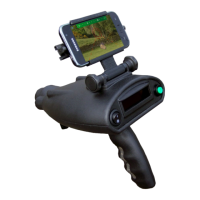
If you selected "Computer" as transfer mode, you need to establish a wireless data connection with
OKM's Visualizer 3D software on your PC. So plug in the Bluetooth dongle into a free USB port and start
your Visualizer 3D software. Make sure the Bluetooth drivers has been installed according to chapter 4
"Data transfer via bluetooth" on page 19!
Step 7
Enter all settings according to your on-going measurement.
Also adjust the Com-Port number according to your local
Bluetooth installation and click the "OK" button of the
Visualizer 3D dialog.
OKM GmbH
www.okmmetaldetectors.com


 To Next Page