4-10
Printing from PC > Printing from PC
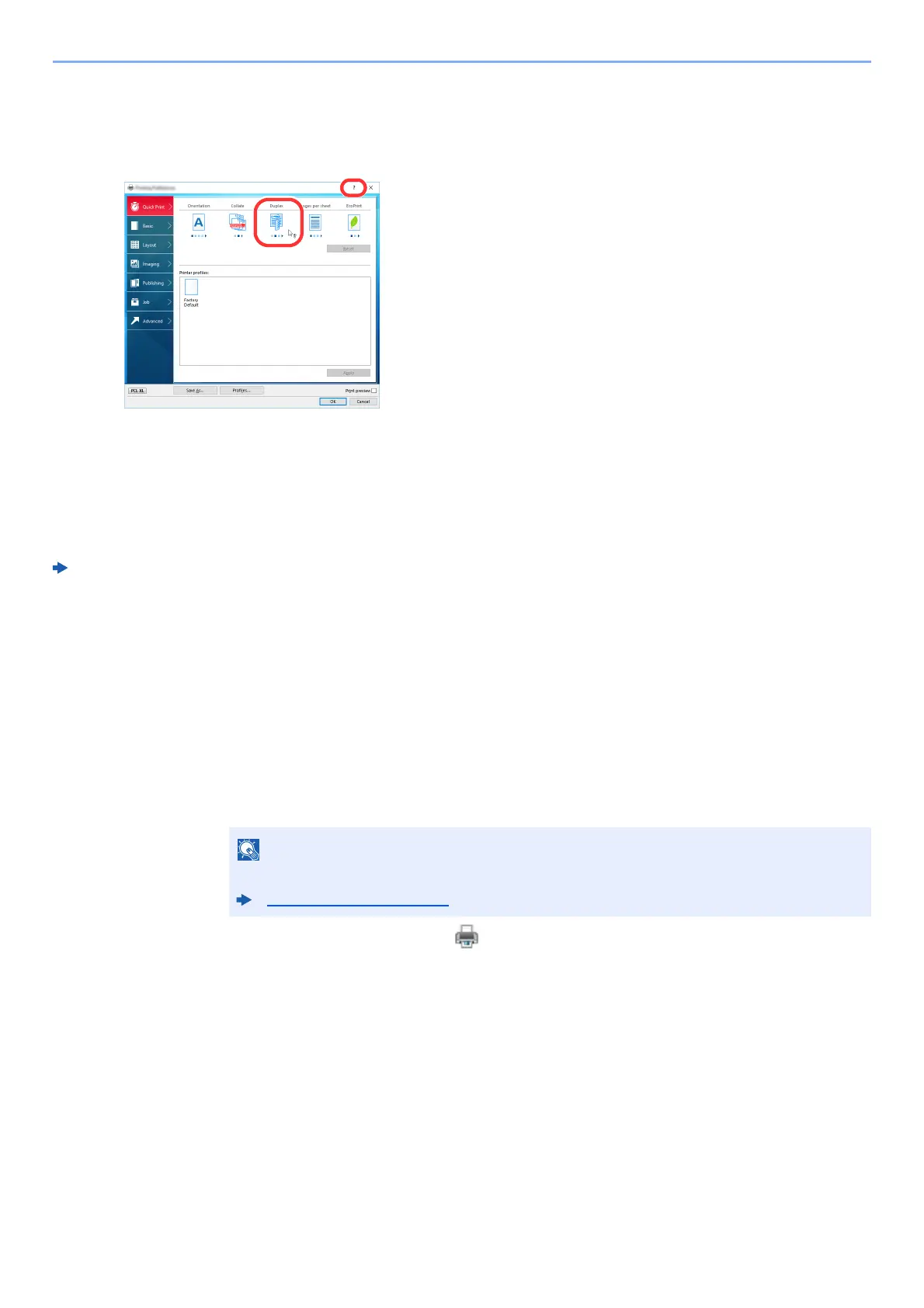
Printing System Driver Help
The
Printing System Driver includes Help. To learn about print settings, open the Printing System Driver print
settings screen and display Help as explained below.
Changing the Default Printing System Driver Settings
(Windows 10)
The default Printing System Driver
settings
can be changed. By selecting frequently used settings, you can omit
steps when printing. For the settings, refer to the following:
Printing System Driver User Guide
1 Click [Start]
button on the Windows and then select [Windows System], [Control Panel],
and [View devices and printers].
2 Right-click the Printing System Driver icon of the machine, and click the
[Print Setup] menu of the
Printing Sys
tem Driver.
3 Select the
default settings and click the [OK] button.
Canceling Printing from a Computer
To cancel a print job executed using the Printing System Driver before the printer begins printing, do the following:
1 Double-click the printer icon ( ) displayed on
the taskbar at the bottom right of the
Windows desktop to display a dialog box for the printer.
2 Click
the file for which you wish to canc
el printing and select [Cancel] from the "Document"
menu.
When canceling printing from this machine, refer to the following:
Canceling Jobs (page 5-2)
1 Click the [?] button in the upper right corner of the
screen and then click the item you want to know
about.
2 Click the item you want to know about and press
the [F1] key on your keyboard.
1
2





 To Next Page