2-40
Installing and Setting up the Machine > Embedded Web Server RX
Acce
ssing Embedded Web Server RX
1
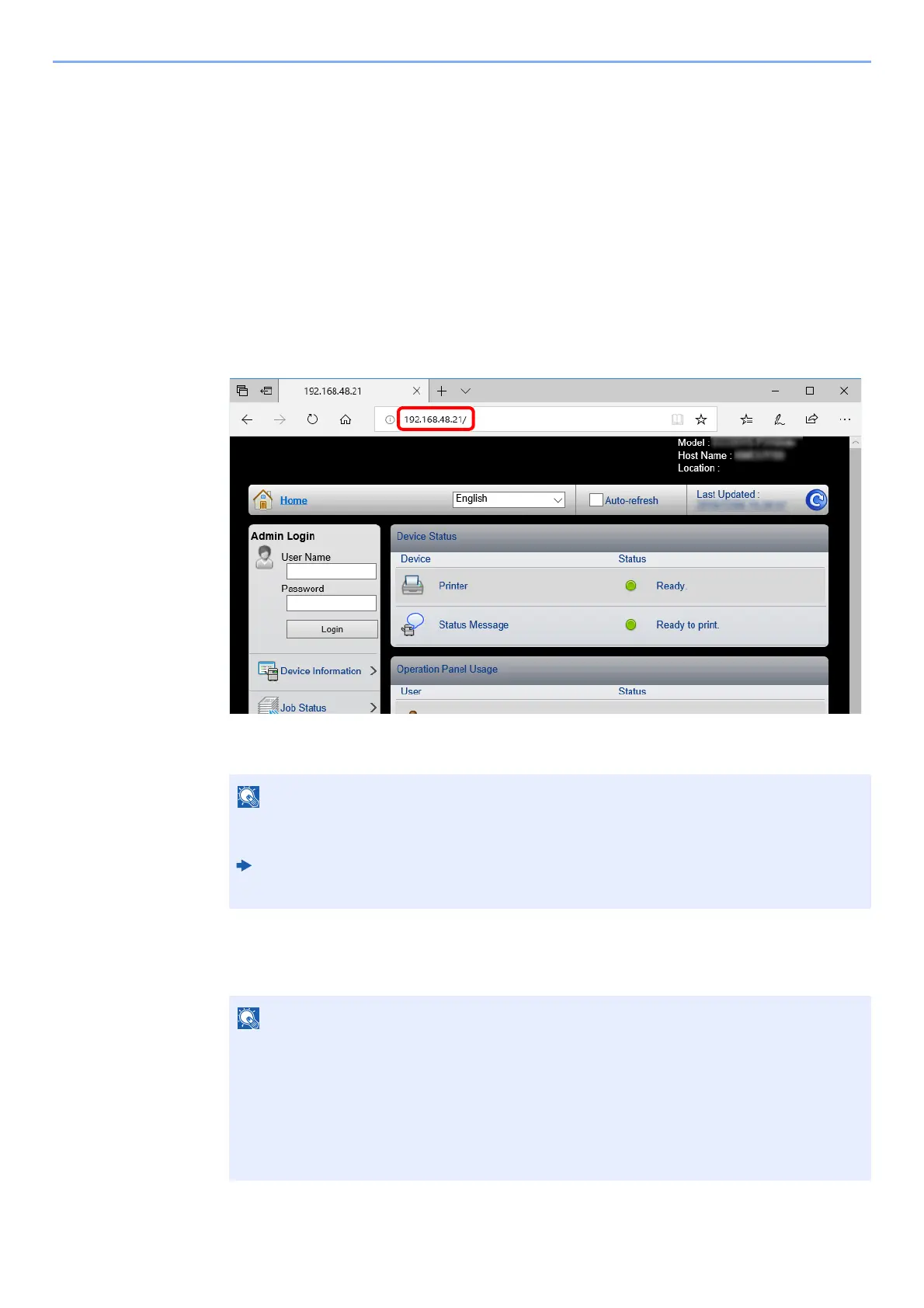
Display the screen.
1 Launch your Web browser.
2 In the address or location bar, enter the machine's IP address or th
e host name.
Print the status page to check the machine's IP address and the host name.
[Menu] key > [▲] [▼] key > [Report] > [OK] key > [▲] [▼] k
ey > [Report Print] > [OK] key >
[▲] [▼] key > [Status
Page] > [OK] key > [Yes]
Examples: https://192.168.48.21/ (for IP address)
https://MFP001 (if the host name is "MFP001")
The web page displays basic information about the machine and Embedded Web Server RX
as well as their current status.
2
Configure the function.
Select a category from the navigation bar on the left of the screen.
If the screen "There is a problem with this website's security certificate." is displayed,
configure the certificate.
Embedded Web Server RX User Guide
You can also continue the operation without
configuring the certificate.
To fully access the features of the Embedded Web Server RX pages, enter the User Name
and Password and c
lick [Login]. Entering the predefined administrator password allows the
user to access all pages, including Document Box. The factory default setting for the
default user with administrator privileges is shown below. (Upper case and lower case
letters are distinguished (case sensitive).)
Login User Name: Admin
Login Password: Admin





 To Next Page