2-49
Installing and Setting up the Machine > Embedded Web Server RX
Creating a New Custom Box
1
Display the screen.
1 Launch your Web browser.
2 In the address or location bar, enter the machine's IP address
or the host name.
Print the status page to check the machine's IP address and the host name.
[Menu] key > [▲] [▼] key > [Report] > [OK] key > [▲] [▼]
key > [Report Print] > [OK] key >
[▲] [▼] key > [Stat
us Page] > [OK] key > [Yes]
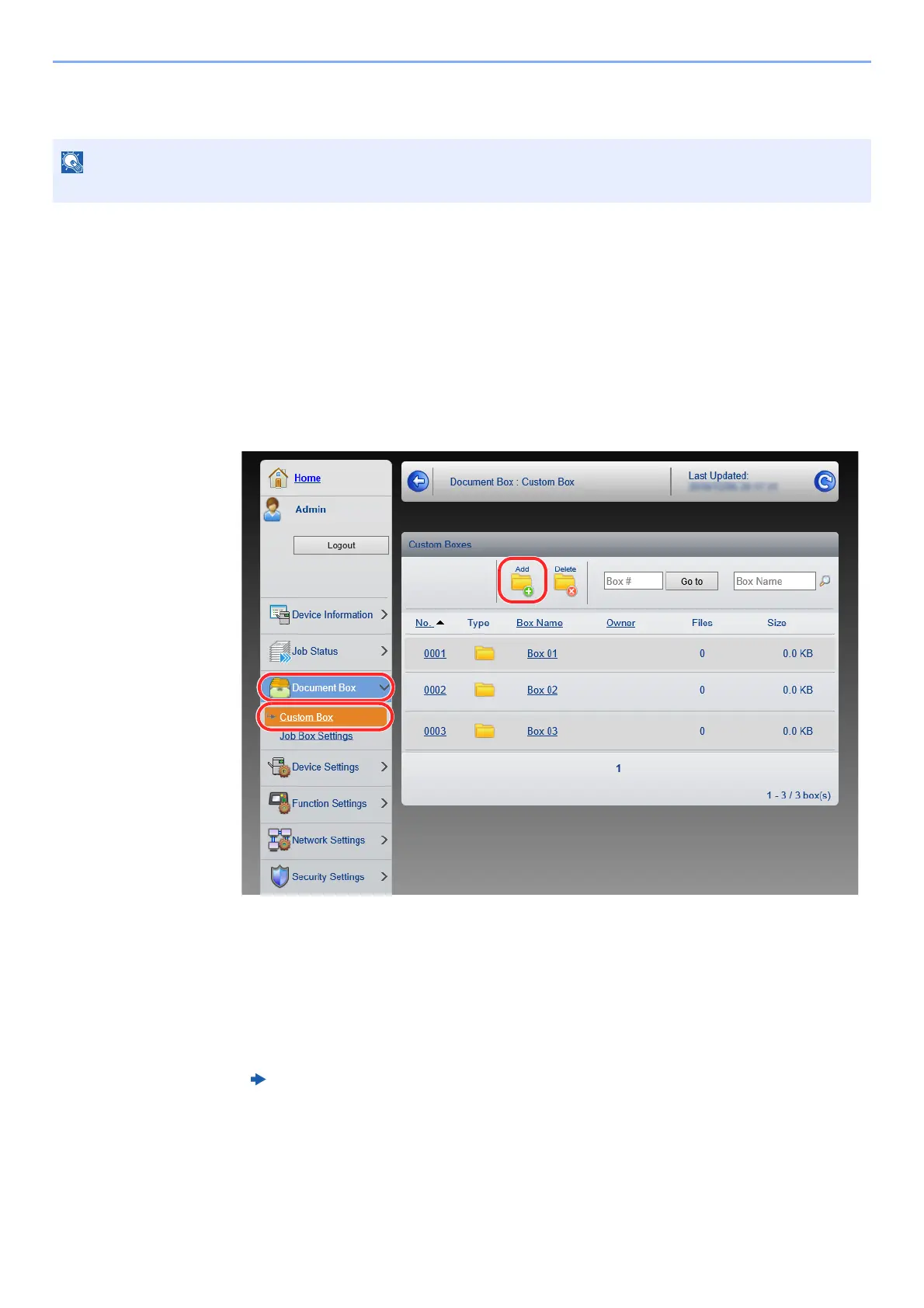
3 From the [Document Box] menu, click [Custom Box].
4 Click [Add].
2
Configure the Custom Box.
1 Enter the box details.
Enter the information for the custom box you want to register. For details on the fields to populate,
refer to the following:
2 Click [Submit].
To use Custom Box, an optional SSD must be installed in the machine.
E
mbedded Web Server RX User Guide





 To Next Page