7-3
Status/Job Cancel > Checking Job History
Checking Job History
Check the history of completed jobs.
Displaying Job History Screen
1
Display the screen.
1 While the machine is printing or awaiting printing, select [Status].
2 [▲] [▼] key > [Job Status] > [OK] key
2
Select the job you want to check.
Select the job you want to check, and the [OK] key or [Detail].
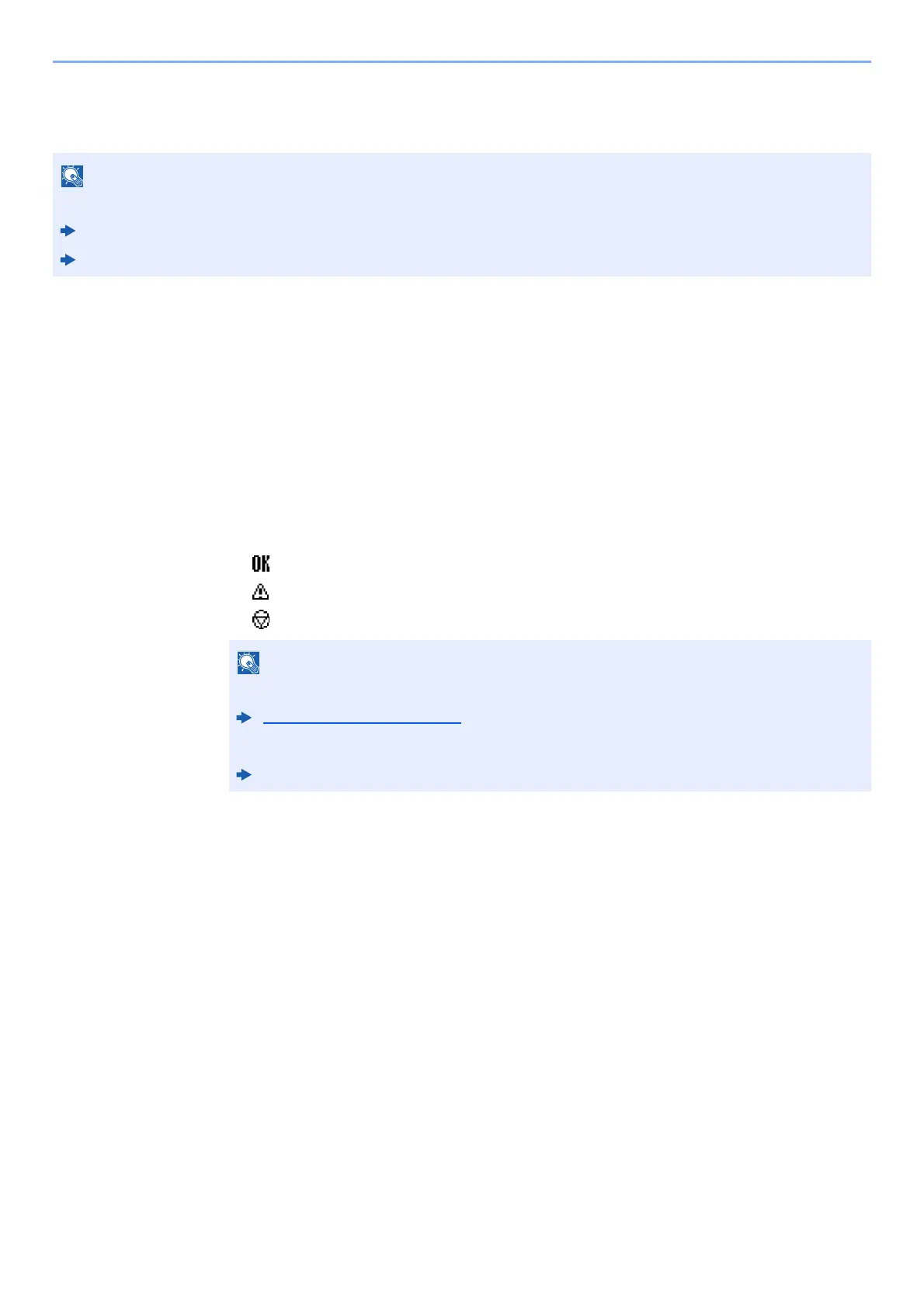
A job result icon is displayed on the extreme right of each jo
b.
• : The job has been completed.
• : An error has occurred.
• : The job has been canceled.
3
Check the job history.
Select the [►] key to view the next screen. Select the [◄] key to return to the previous screen.
NOTE
Job history is also available by Embedded Web Server RX or Network Print Monitor from the computer.
Embedded Web Server RX User Guide
Network Print Monitor User Guide
You can show the job log of all users, or only your own job log.
Disp. Status/Log (page 8-32)
This setting can also be changed from Embedded Web Server RX.
Embedded Web Server RX User Guide





 To Next Page