Monitor Settings
35
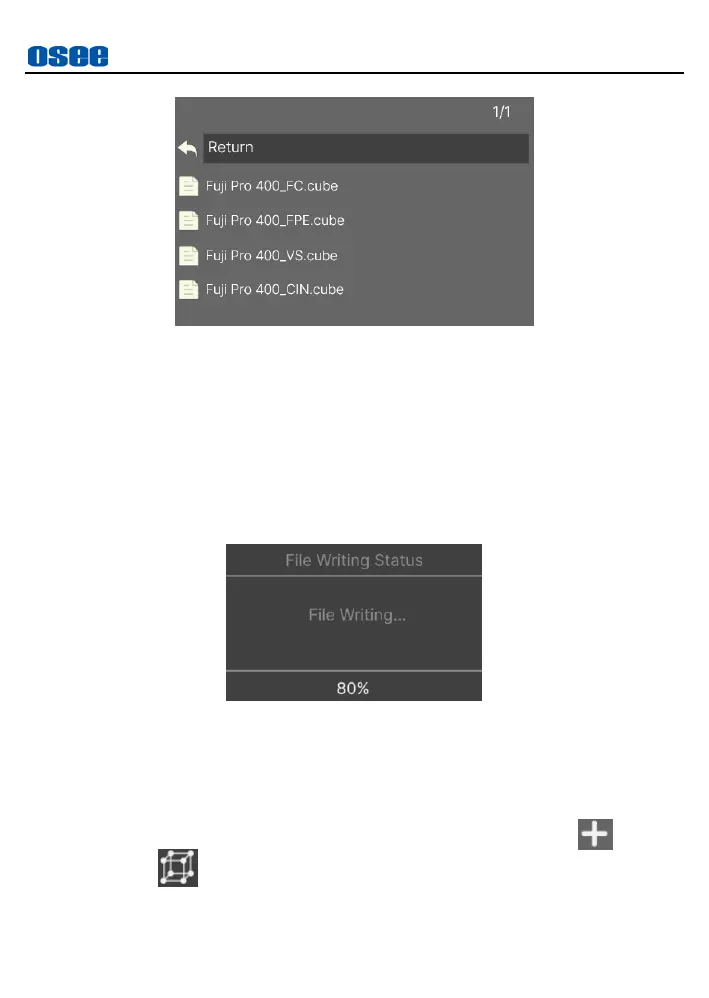
Figure 5.2-18 USER LUT Directory
For example: Load a LUT file to
LUT1
, tap
LUT1
in the LUT list, it will
pop up a series of directories for navigating to the designated LUT file,
as shown in Figure 5.2-17, then choose a target USER LUT to be
uploaded from SD card, it will prompt the writing status, as shown in
Figure 5.2-19, then it will prompt file writing complete after file loading.
At last, you can see the profile name is on the right side of LUT1 in
User LUT list.
Figure 5.2-19 Prompt for File Writing
Second, use Look tool to activate LUT to current MySet.
Operation: after accessing a MySet, tap screen to load the
Tool
bar
on the bottom of the screen. First, click the PLUS icon to add
Look
tool into the tool bar, then tap it to activate this tool, the
tool icon will be highlighted in green, as shown in Figure 5.2-20:


 To Next Page