P350 flexitrax Operation Manual 29
You have 4 scheme options:
Date: will use ddmmm_xxx. For example 30NOV_001.
Client: will use name_xxx. For example J. Smith_001.
Site: will use address_xxx. For example Elk Rd_001.
Survey: will use start_finish_xxx. For example MH001_MH002_001.
NOTE: Only the first 17 characters of the client name or site address or the first 8 characters of the start and finish
references will be included in the file name to ensure the full file name remains visible at all times.
VIDEO TITLES
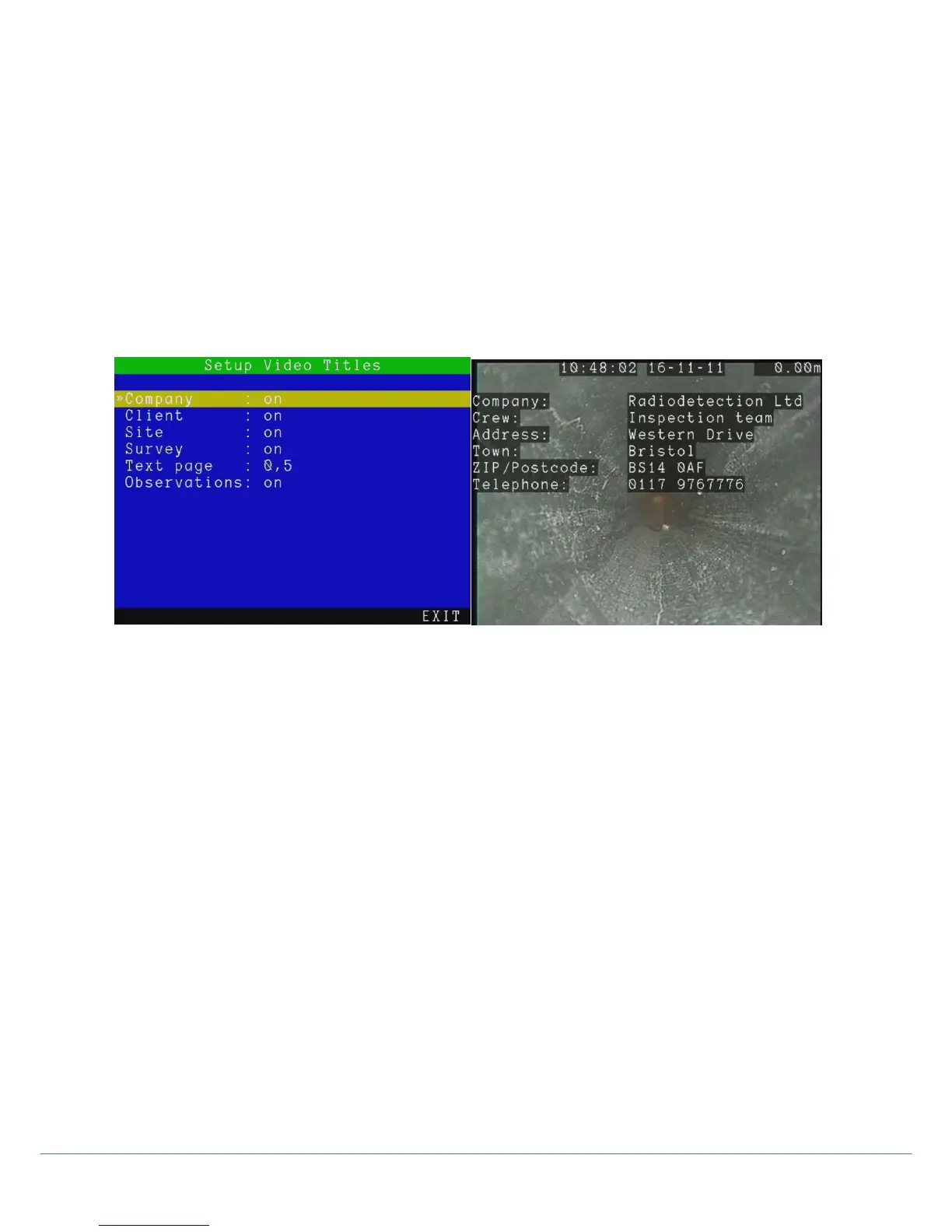
Enter this menu to add company and survey text and information to your recorded video (see figure 3.10).
This can include pre-existing company details, the client and survey address
Figure 3.10: Setup Video Titles menu and an example of the text it adds to the beginning of your video
Choose from:
Company: Display your company Information at the beginning of your video (from section Company Details
Settings)
Client: Display your clients information at the beginning of your video (from the client details form, section
Company Details Settings)
Site: Display site information at the beginning of your video.
Survey: Display survey information at the beginning of your video.
Text page: Add text pages to the video (see figure 3.11).
o Scroll using ▲ or ▼ to select a text page (from page 0 to 9)
o Press EDIT to change the text on any page.
o The keyboard ▲ and ▼ arrows move the cursor around the screen. Allowing you to place the text
anywhere you want. Use the keyboard or the arrows to add text to your page. Once the edit is
complete press OK to return to the menu.
o Press TITLE to add the text to the introduction of your video. Press HIDE to remove it. The status is
in the top right, below the meterage.
o Text pages are displayed numerically (1, 2, 3, 4).
Observations: Display observations in the video recordings in real time.
NOTE: Titles are limited to 13 rows. As the information is customizable and may exceed this limit, only the first 13
entries are displayed.



 To Next Page