2015-07
52
OPC / OPD / OPE
Operation
Reading Overlong 1-D Codes
1. Set the symbology to be read in the 1D/2D Parameter menu item in the Win-
dow 1 configuration window. Note that the function for reading overlong codes
can be used with 1-D codes only. See chapter 7.3.5
2. Enable the Encoder trigger trigger mode in the Setup menu item in the
Trigger Modes configuration window.
3. Enter the values for the Encoder resolution, Trigger offset, Target
distance, Sheet length, and Target movement. See chapter 7.3.4
The sensor automatically calculates the number of images required to
capture the whole object, including the overlong barcode. If you need to
capture only the barcode rather than the whole object, you can enter the
length of the barcode in the Sheet length field.
8.3 Comparing a 1-D/2-D Code
You can compare up to four different 1-D/2-D codes with one image capture using
the sensor. To do this, enable tabs Window 1 ... Window 4. If more than one tab
is enabled, all compared codes must be OK to output a good read.
Comparing 1-D/2-D Codes
1. Select Match 1D/2D in the Window Setup menu item in the Window 1 con-
figuration window. See chapter 7.3.5
2. Set the symbology to be read in the 1D/2D Parameter menu item in the
Window 1 configuration window.
3. Make sure that the window is switched to active in the Window Setup menu
item in the Window 1 configuration window.
4. Place the first sheet with the code to be compared under the sensor.
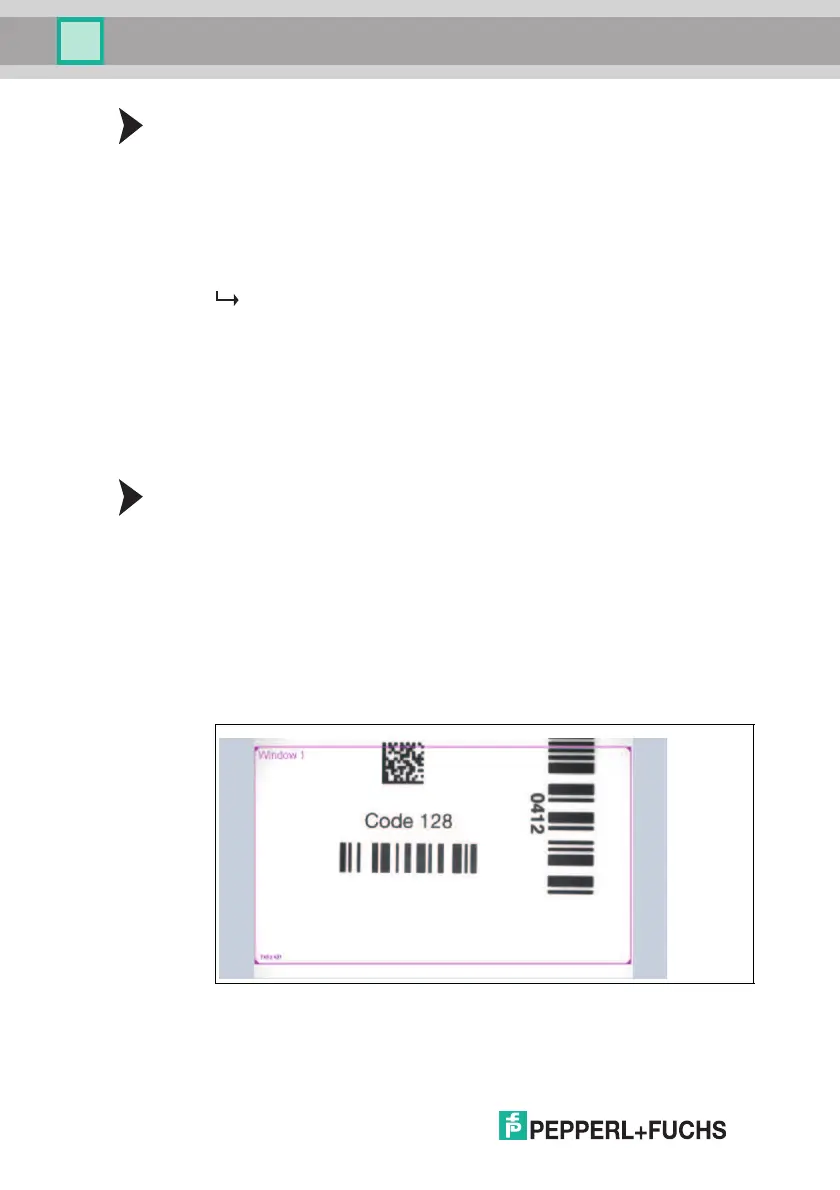
5. Click Trigger. The captured image will be shown in the image display.
6. Click the frame labeled Window 1.
7. Adjust the size of the frame if necessary.
8. Click Trigger. The captured image will be shown in the image display.


 To Next Page