2015-07
54
OPC / OPD / OPE
Operation
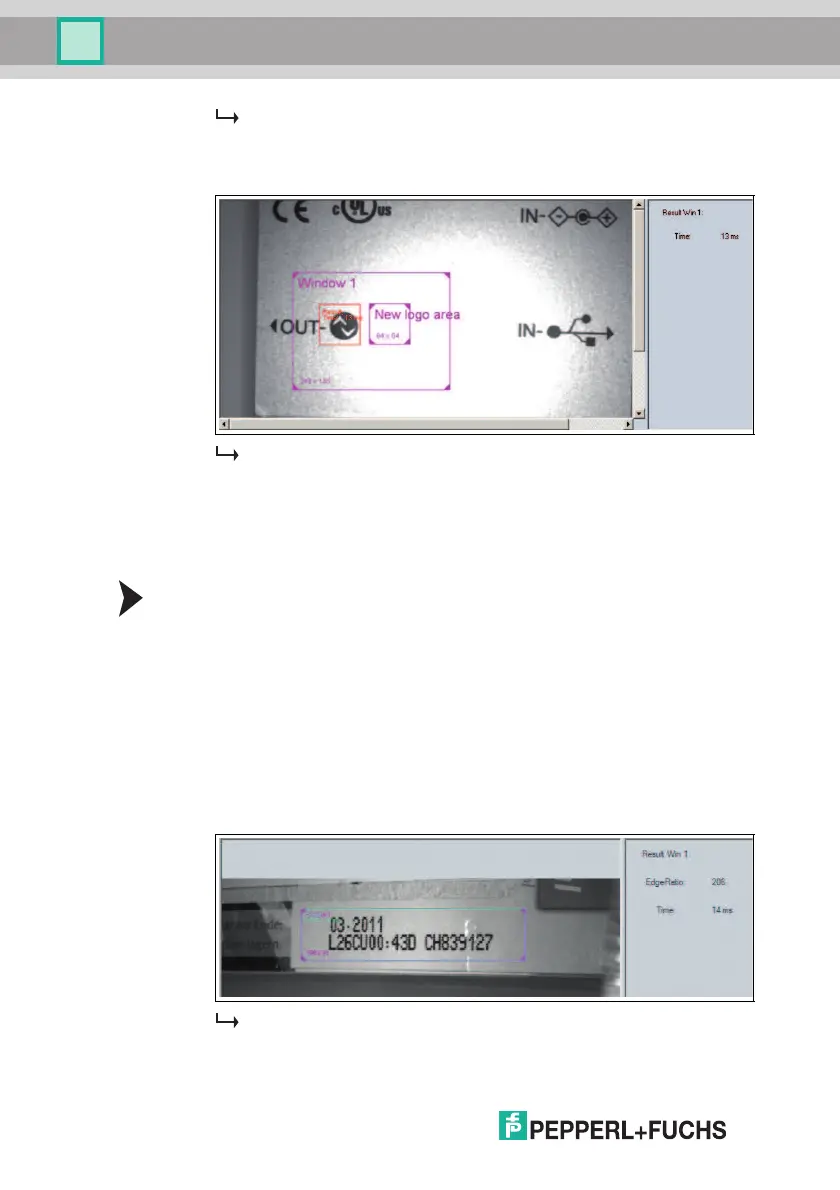
A new frame appears, labeled New logo area.
8. Move the New logo area frame over the reference logo.
9. Click Trigger.
The reference logo is taught in.
8.5 Checking the Presence of Materials with a Changeable Texture
You can check up to four different textures with one image capture using the
sensor. To do this, enable tabs Window 1 ... Window 4. If more than one tab is
enabled, all read textures must be OK to output a good read.
Presence Check
1. Select Presence Check in the Window Setup menu item in the Window 1
configuration window. See chapter 7.3.5
2. Make sure that the window is switched to active in the Window Setup menu
item in the Window 1 configuration window.
3. Place the first sheet with the field to be checked under the sensor.
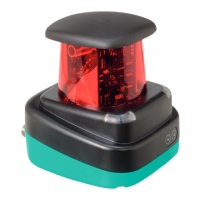
4. Click Trigger. The captured image will be shown in the image display.
5. Click the frame labeled Window 1.
6. Adjust the size of the frame if necessary.
7. Click Trigger.
The captured image will be shown in the image display together with
additional information.


 To Next Page