1. Tap Envelope Printing on the Home screen.
2. Tap Postage Balance.
3. Tap Refill Postage.
4. Enter the postage refill amount. Tap back to change the amount shown.
5. Tap Refill Mail Postage.
6. Tap View Receipt to view or print a receipt.
7. Tap Done. Your updated postage balance appears on the Envelope Printing app.
Changing the default refill amount for printing postage
Change the default refill amount to store an amount you want to refill your device with.
You can set the default refill amount during installation or change it at later time.
There are two ways to change the default refill amount:
From the Home Screen:
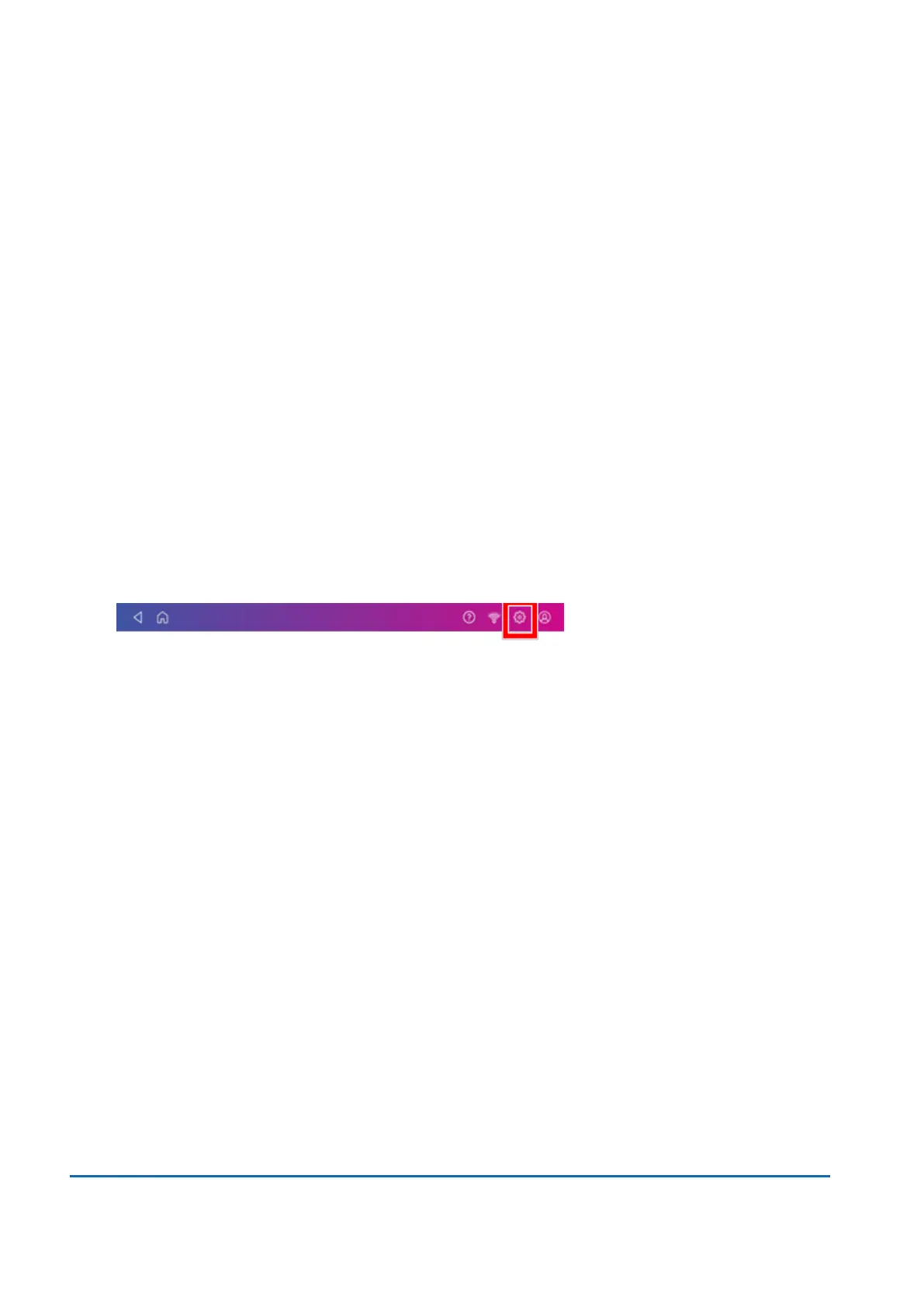
1. Tap Settings.
2. Scroll down to the Envelope Printer Settings section.
3. Tap Postage Refills.
4. Tap the box under Default refill amount.
5. Tap the back key to remove the existing amount. You may need to tap the key multiple times to
clear the amount.
6. Enter the new amount.
7. Tap Apply.
8. Tap the back arrow to return to the Home screen.
From Envelope Printing:
1. Tap Envelope Printing from the Home screen.
2. Tap Postage Balance.
3. Tap Refill Settings.
4. Tap the box under Default refill amount.
5. Tap the back key to remove the existing amount. You may need to tap the key multiple times to
clear the amount.
6. Enter the new amount.
7. Tap Apply.
8. Tap the back arrow to return to the Envelope Printing app.
5 • Postage Funding
Pitney Bowes User Guide November 2021 49












 To Next Page