Viewing a refill receipt
You can view receipts for all the times when you have refilled postage for your Envelope Printing
account.
1. Tap Print Refill Receipton the Home screen.
2. Tap Refill History.
3. From the Refill History screen, tap the date of the refill you want to view.
Viewing the total spent on printing postage
View the total amount you have spent on postage and the total number of pieces printed.
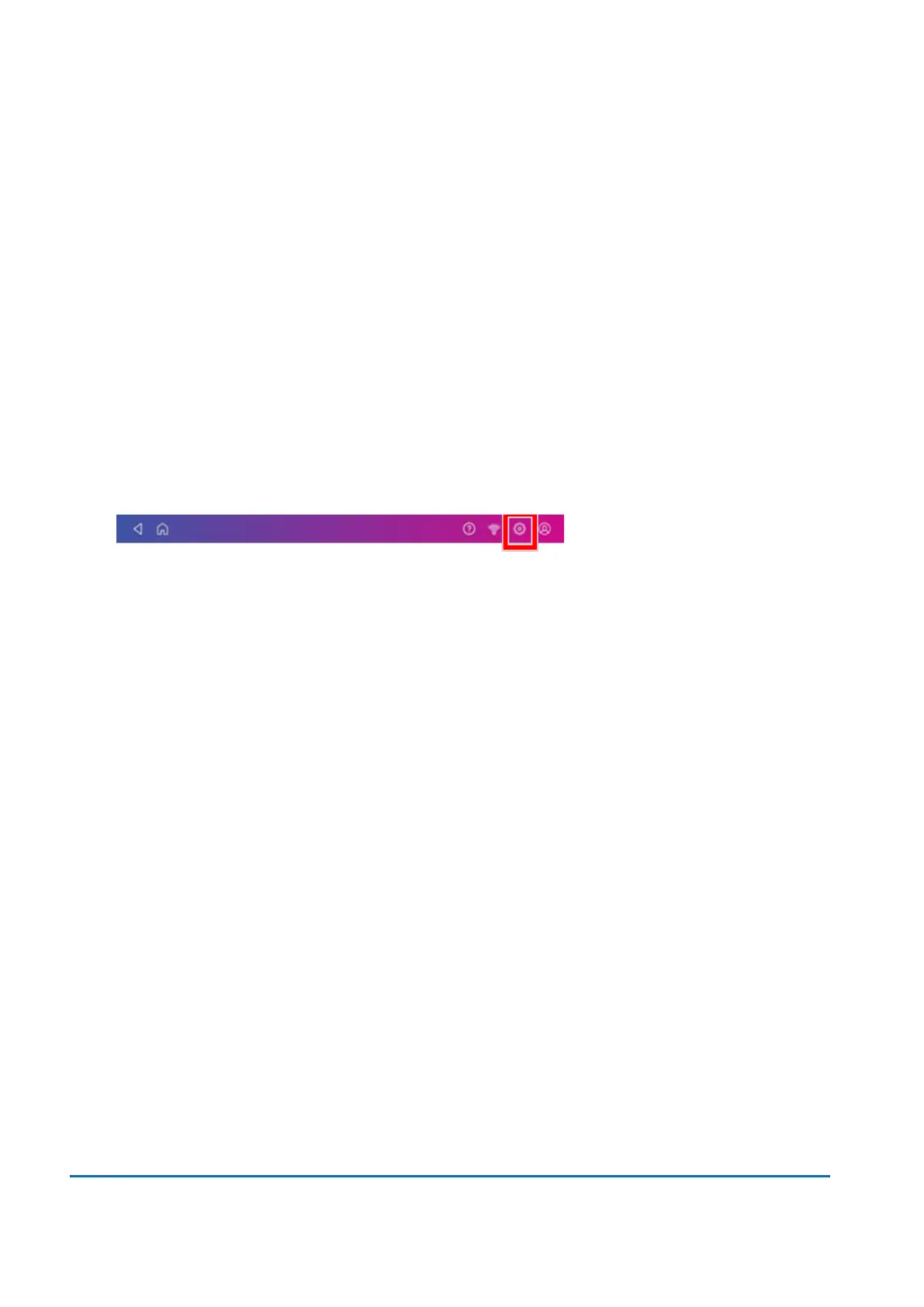
1. Tap Settings.
2. Scroll down to the Envelope Printer Settings section.
3. Tap Postage Refills.
4. Tap Advanced to view the total amount of postage spent and the number of pieces printed.
Printing a funds report
Print a funds report if you need a report showing the total number of mailpieces sent.
The funds report provides the following information about your device:
l
Used: The total amount used over the lifetime of the device.
l
Available: The amount currently available to print.
l
Total Pieces: The total number of mailpieces run over the lifetime of the device.
l
Control Sum: The control sum is the total of the amount used and available.
l
Batch Count: The current Batch Count.
l
Batch Value: The current Batch Total.
l
PBP Serial No: The serial number of the device.
l
The date and time the report was printed.
To print a funds report:
1. Tap Envelope Printing on the Home screen.
2. Tap the piece count in the upper right.
11 • History and Reports
Pitney Bowes User Guide November 2021 78












 To Next Page