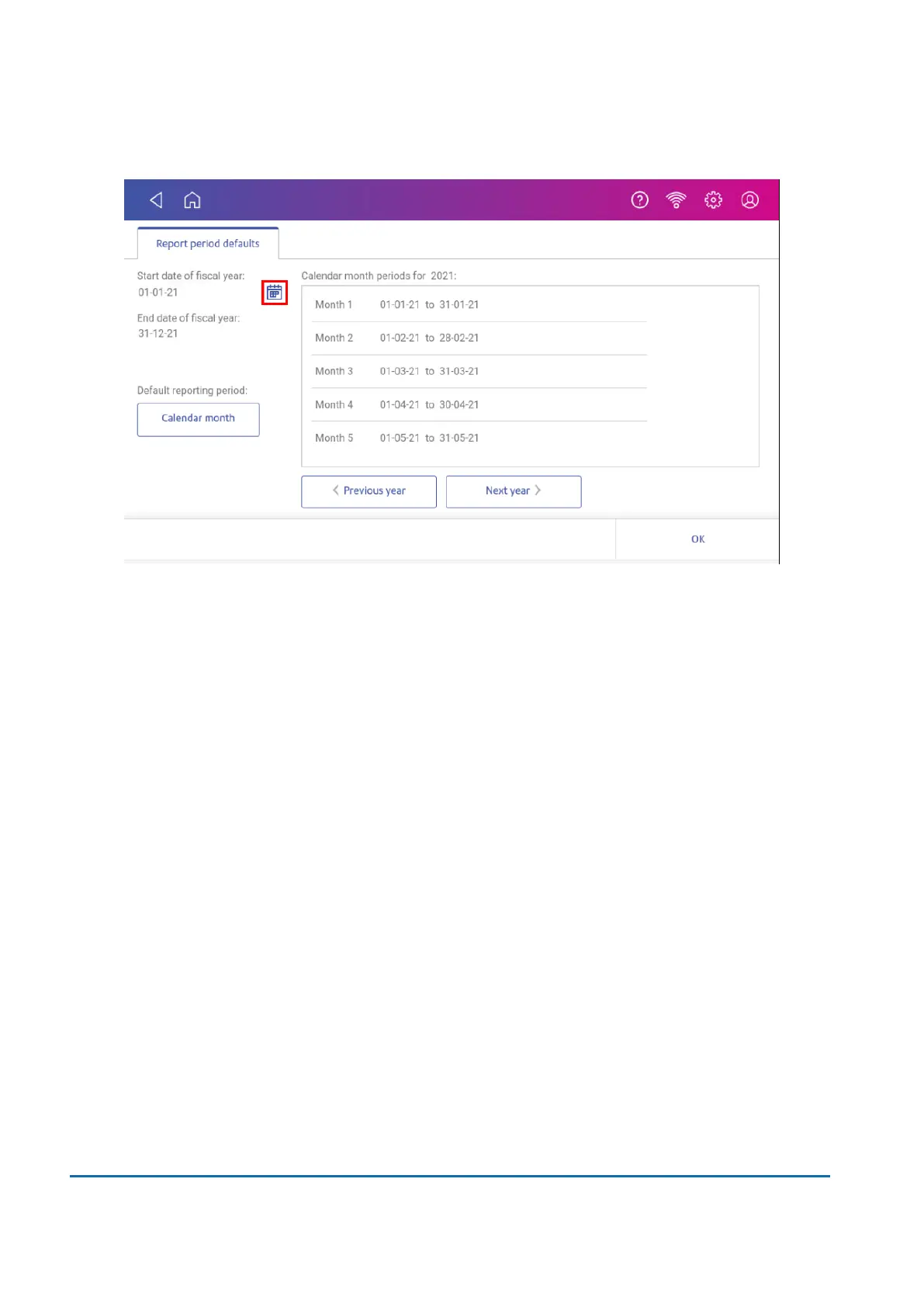
4. Select the calendar image next to the Start date of fiscal year field.
a. Select a date on the calendar.
b. Select SET.
The End date of the fiscal year is set based on the start date you enter. You cannot enter this
date manually.
5. Select the Default reporting period field.
a. Select a report period type.
b. Select OK.
6. (Optional)Tap Previous year and Next year to view the reporting periods for the previous and
next year. Tap up and down to scroll through the list of reporting periods for the current year.
7. Tap OK to return to the Reports screen.
Setting the account report preferences
Set the account report preferences to select the account level you wish to report on (Account, Sub
account or Sub sub account).
You can also choose how you want to identify accounts: by Name or by Code.
1. Tap Manage Accounts on the Home screen.
2. Tap Reports.
3. Tap Preferences.
4. Tap to select how you want to identify accounts: by Name or by Code.
11 • History and Reports
Pitney Bowes User Guide November 2021 80












 To Next Page