Scenes
3
33
Polyend Synth Manual
32
Polyend Synth Manual
3.3 Creating a New Scene
A new scene can be created by initialising a scene from within the scene
menu. This creates a new scene with a default set of synths and parameter
settings. It is good practice to save a scene once created to avoid losing
any sound design developments through the process.
▌ CREATING A SCENE
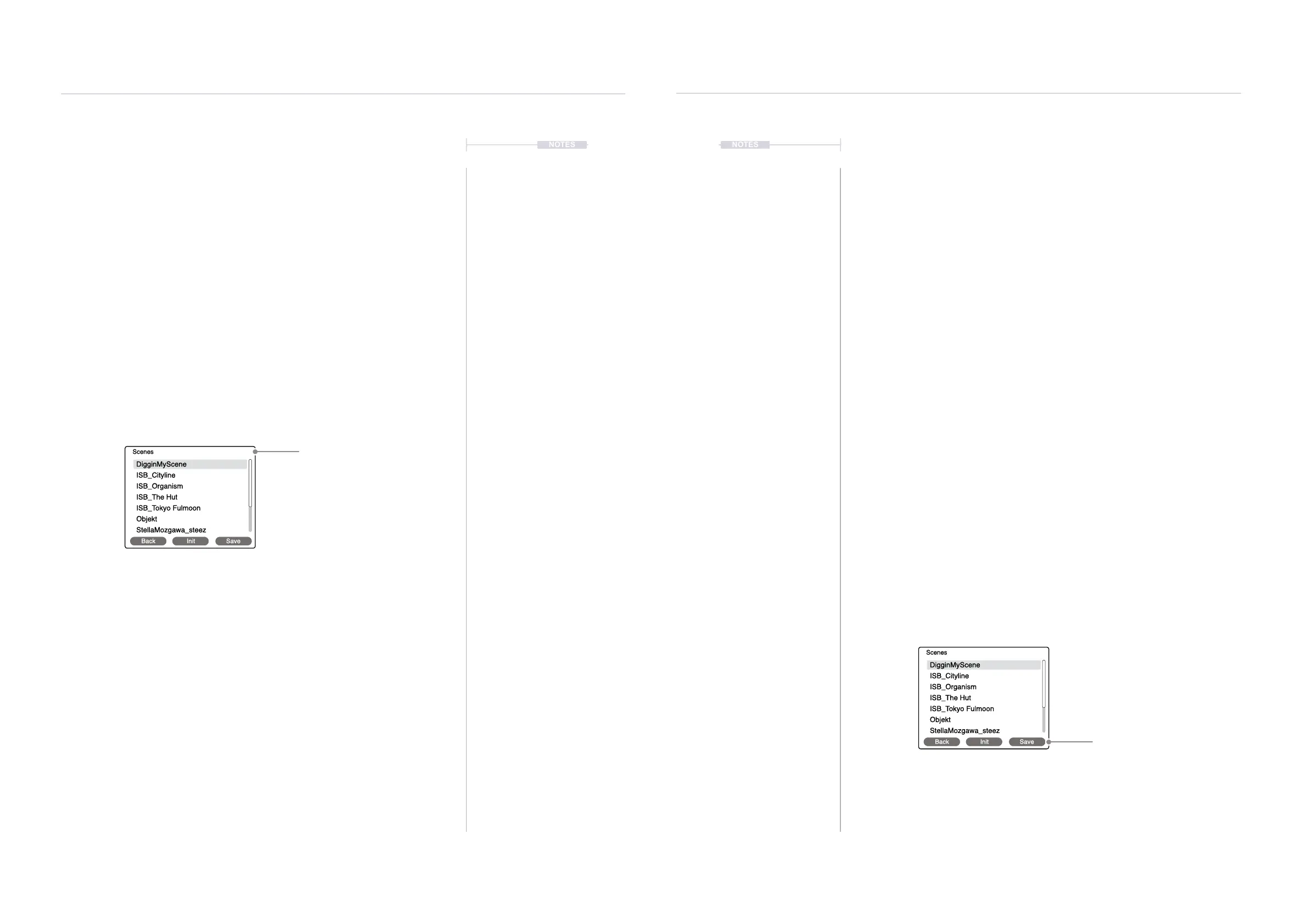
1. Open the Scene Menu. Press [Scene] button. If needed, the ‘Back’
screen button option will step back to the prior screen page. The
currently active scene is displayed top left in the scene page.
2. Press [Init] Screen button. This creates and opens a new scene ready
for editing. The parameter settings will be reset to defaults and an
instance of the ACD synth will be assigned to each slot.
3. It is recommended to save a scene once created.
Scenes
3
NOTES
NOTES
DigginMyScene
ISB_Cityline
ISB_Organism
ISB_The Hut
ISB_Tokyo Fulmoon
Objekt
StellaMozgawa_steez
Scenes
Back Init Save
Choose [Init] to create a new scene.
The name is assigned when saving the scene.
3.4 Saving a Scene
A scene can be saved at any time to the original slot and name or saved as
a new scene with a new name assigned. These actions are performed in
the scene menu.
▌ SAVING A SCENE
1. Open the Scene Menu. Press [Scene] button. If needed, the ‘Back’
screen button option will step back to the prior screen page. The
currently active scene is displayed top right in the scene page.
2. To save to an existing slot. Press [Save] Screen button.
• This opens the naming editor to offer the option to rename the
scene. The currently highlighted scene in the list will be renamed or
overwritten. Ensure the original scene and name is selected rst.
• Edit the name if required, accept the current name or press [Auto
Name] to automatically choose a new name.
• Press [Conrm] when complete to save.
3. To save to a new slot with a new name. Hold [Shift] + Press [Save As]
Screen button.
• This opens the naming editor to offer the option to create a name for
the scene. Name will initially be presented blank.
• Edit the name if required, accept the current name or press [Auto
Name] to automatically choose a new name.
• Press [Conrm] when complete to save with the new name.
No scene name is present when
rst initialised and created.
DigginMyScene
ISB_Cityline
ISB_Organism
ISB_The Hut
ISB_Tokyo Fulmoon
Objekt
StellaMozgawa_steez
Scenes
Back Init Save
Press ‘Save’ or use [Shift] to
‘Save As’ the current scene.


 To Next Page