17
Polyend Synth Manual
16
Polyend Synth Manual
NOTES
Overview
1
Overview
1
NOTES
1.7 Basic Playback
The 5 x 12 Pad grid is used to play notes for each of the 3 synths. The
synths will be laid out in a formation set in the grid settings which are
located in the main menu. Each synth is represented in the user interface
by a designated colour scheme.
▌ PLAYING SYNTH NOTES
1. Ensure a Scene is open with each of the 3 synths loaded with a preset.
2. Press [Pad] to play the note. The range of pads covered represents
each synth. The layout is based on the grid option selected.
3. Pads are velocity sensitive so the harder the pad is played, the louder
the sound is played. Velocity is by default mapped to volume. Also pads
are polyphonic aftertouch. Pressure continuously applied after pressing
a pad can control up to 5 macro dened parameters.
4. To latch a note on, Hold [Shift] + Press [Pad]. The note will be latched
and will play continuously if the synth engine allows. Double Tap [Shift]
to release all latched notes or Hold [Shift] + Press [Pad] again to
release individual notes.
5. Multiple notes can be played and / or latched simultaneously. The voice
setting in the Main Menu under ‘Synths’ must be set to allow multiple
notes to trigger the sound. For example, to trigger a triad chord for one
synth you would need to allocate 3 voices to that synth.
6. Note that depending on chord mode setting for the synths, the notes
played may or may not affect another synths notes.
▌ ADJUSTING THE MASTER VOLUME.
1. Touch (Volume) to select and display the parameter top right.
2. Turn (Volume), ideally while playing a Synth to hear the level applied.
Saw Mix Square Mix Sub Mix
Noise Mix PW Sub Mode
Pitch LFO PW Env PW LFO
VolumeAcid Glide
1.6 QWERTY Keyboard
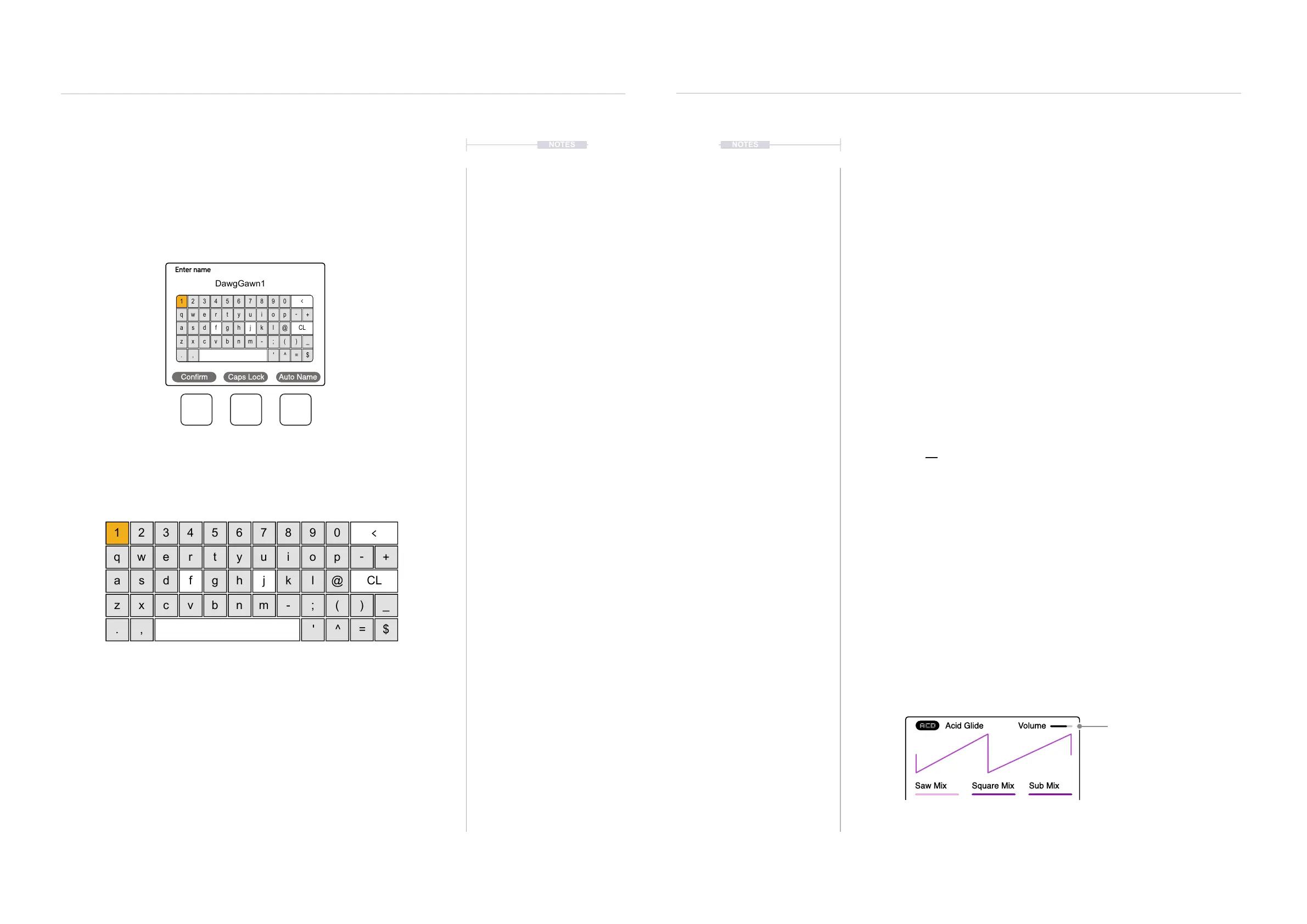
Some functions require text editing, such as saving and naming scenes.
The same functionality applies whenever the alphanumeric pop-up editor is
used. The screen displays the QWERTY keyboard and the text string to
edit, while the 5 x 12 pad grid acts as the keyboard’s input. The screen
buttons are also available to select actions.
The following Synth controls also operate in the naming editor when the
naming screen is presented:-
• Press (Screen) to add the highlighted character at the current cursor
position in the name string.
• Move the character cursor left or right within in the text name string,
Turn (Screen) knob.
• The dynamic screen buttons action specic commands, as
displayed above the button. Conrm, Caps Lock and Auto Name are
the three available commands.
1
q
z
a
.
4
r
v
f
7
u
m
j
$
0
p
(
-
)
+
_
@
2
w
x
s
,
5
t
b
g
8
^
i
-
k
<
CL
3
e
c
d
6
y
n
h
9
o
;
=
l
'
The screen will display the characters represented by the grid pads. The ‘f’
and ‘j’ pads are highlighted to give a reference between them and the
screen characters. Text can be typed in with the currently selected
character lit orange on the display and the pad.
Enter name
DawgGawn1
Conrm Caps Lock Auto Name
1
q
z
a
.
4
r
v
f
7
u
m
j
$
0
p
(
-
)
+
_
@
2
w
x
s
,
5
t
b
g
8
^
i
-
k
<
CL
3
e
c
d
6
y
n
h
9
o
;
=
l
'
Parameter being changed


 To Next Page