51
Polyend Synth Manual
50
Polyend Synth Manual
NOTES
5.3 Synth Parameter Options
The parameter set available for sound design within the synth preset will
depend on the synth model applied. As the synth engine models are all
different, the parameters will vary signicantly. The synth parameter buttons
will allow quick access to the parameter sections.
NOTES
Synths
5
Synths
5
Low Frequency Oscillator
1 & 2 Options
Envelope section,
typically Amp & Filter.
Tap button to select the function and continue to tap to cycle through all the available
pages for the selected function. Pages and parameters will vary depending on the
current engine selected.
Filter orientated
parameters
Oscillator and primary
sound source.
5.4 Synth Selection & Conguration
Selecting a synth for a chosen slot is performed in the ‘Preset’ option
accessed with [Shift] + [Preset]. In this browser, a synth can be selected to
use or edit. Conguring a synth is based on either choosing a synth engine
preset for editing or initializing a synth engine to start afresh and edit the
synth from a default state. The latter option is used to initialize and create
new presets.
▌ SELECTING A SYNTH PRESET
1. Ensure the scene in which to work is open and active. If a new scene is
initialised this will automatically apply 3 ACD synth engines as defaults
to the synth slots.
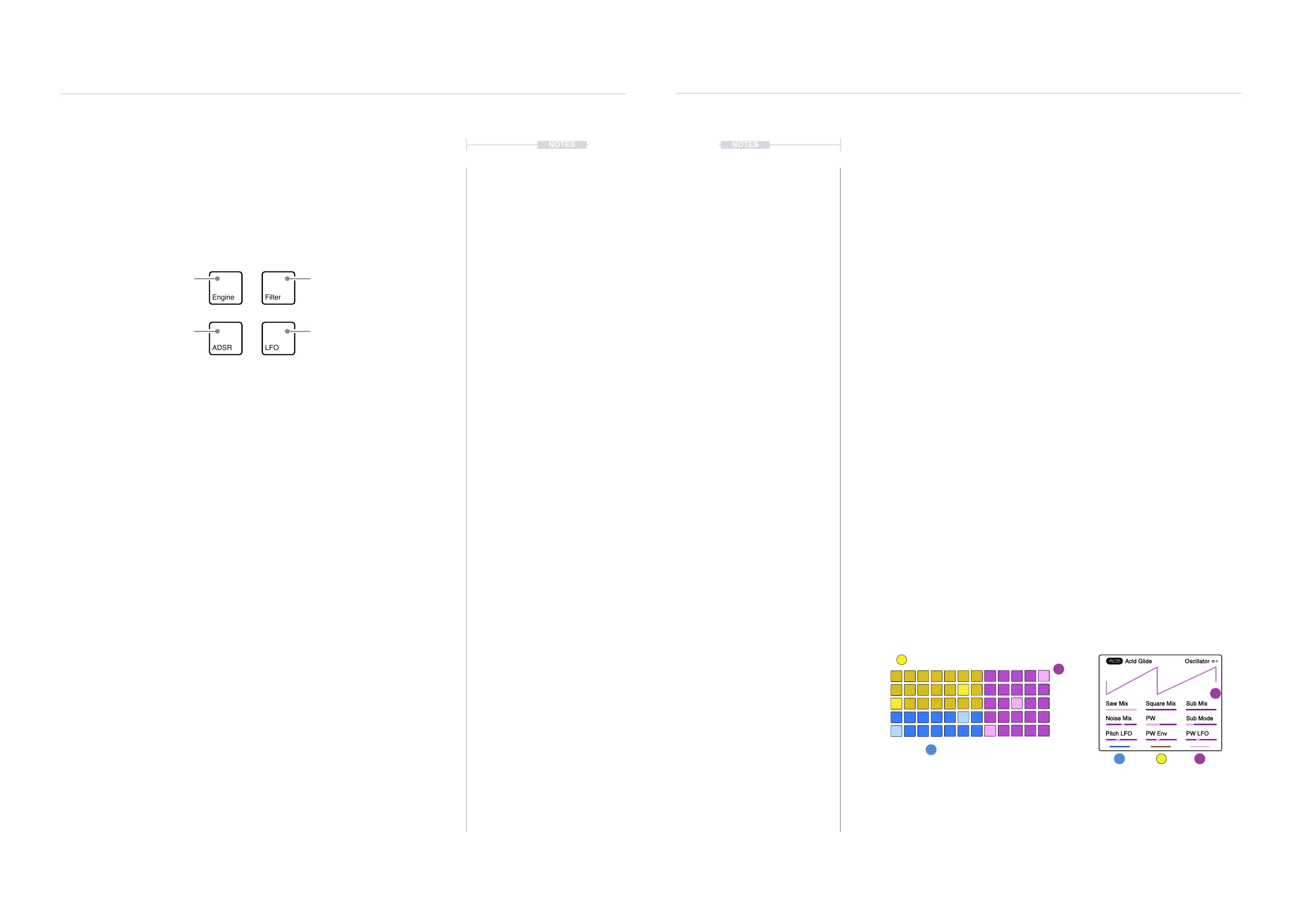
2. Select any of the 5 right side synth parameter options i.e. Press
[Engine]. The device will represent the synths as:-
• The lower part of the display will show 3 coloured bars, each
representing a synth slot. Blue - Synth 1, Yellow - Synth 2 and
Purple - Synth 3. The screen buttons represent these synths.
• The parameter values will also reect this same colour scheme for
the selected synth.
• The pads will be arranged in zones which reect the synths. The
synths are shown by colour and the arrangement can be changed in
the main menu grid settings.
3. In a synth parameter page, the 3 Display screen buttons can be used to
select a Synth. For this example, Press the left side ‘Blue’ button to
select [Synth 1] for editing.
1 2 3
3
3
2
1
Saw Mix Square Mix Sub Mix
Noise Mix PW Sub Mode
Pitch LFO PW Env PW LFO
OscillatorAcid Glide
Grid pad and the synth parameter colours represent the specic synth slot 1, 2, 3.


 To Next Page