119
Polyend Synth Manual
118
Polyend Synth Manual
NOTESNOTES
8.3 MIDI Conguration
MIDI Settings are accessed in the main menu by pressing the (Screen)
Knob. These will dictate if Synth leads on functions like clock and transport
or if it acts as a secondary follower, responding to control and
synchronisation from another primary device control.
Synth would typically be controlled by an external controller to operate the
three synths remotely.
▌ ACCESSING THE MIDI CONFIG OPTIONS
1. Press (Screen) knob to open the conguration menu.
2. Turn (Screen) to navigate the menu and highlight ‘MIDI’. Press (Screen)
to select the menu option.
3. Turn (Screen) knob to highlight the MIDI option and Press (Screen) to
select the options menu. Turn to navigate and then Press (Screen) to
set the parameter value.
4. The CC Mapping option opens the synth pages with the CC number
shown in parenthesis (), alongside the parameter. Press (Screen) knob
to backup in the CC mapping pages.
MIDI PC - Program Change Mapping is setup in the Scene Setting options
Menu Option Description
MIDI Clock In
Sets the Synth clock input for using the ‘Internal’ clock
(default). Options for external clock received through
the ‘MIDI in USB’ or ‘MIDI In jack’ input. Tempo reects
external device BPM and may display ‘EXT’ when set
external. Manual BPM changes are not possible when
an external tempo is detected.
MIDI Transport In
Sets the transport in port. Off (default), or select
control from an external device, received through the
USB or MIDI In jack.
MIDI Clock Out
Sends the Synth clock output to other devices. Off,
USB, MIDI Out Jack or USB+MIDI jack options.
MIDI Wait for Start (Ext Transport In)
Selects if the Transport incoming messages control the
sequencer and Synth functions. Set to Off or On.
MIDI Control Change Mapping
Opens the synth engine page with the displayed CC
assignments. This is a visual indicator of the mapping.
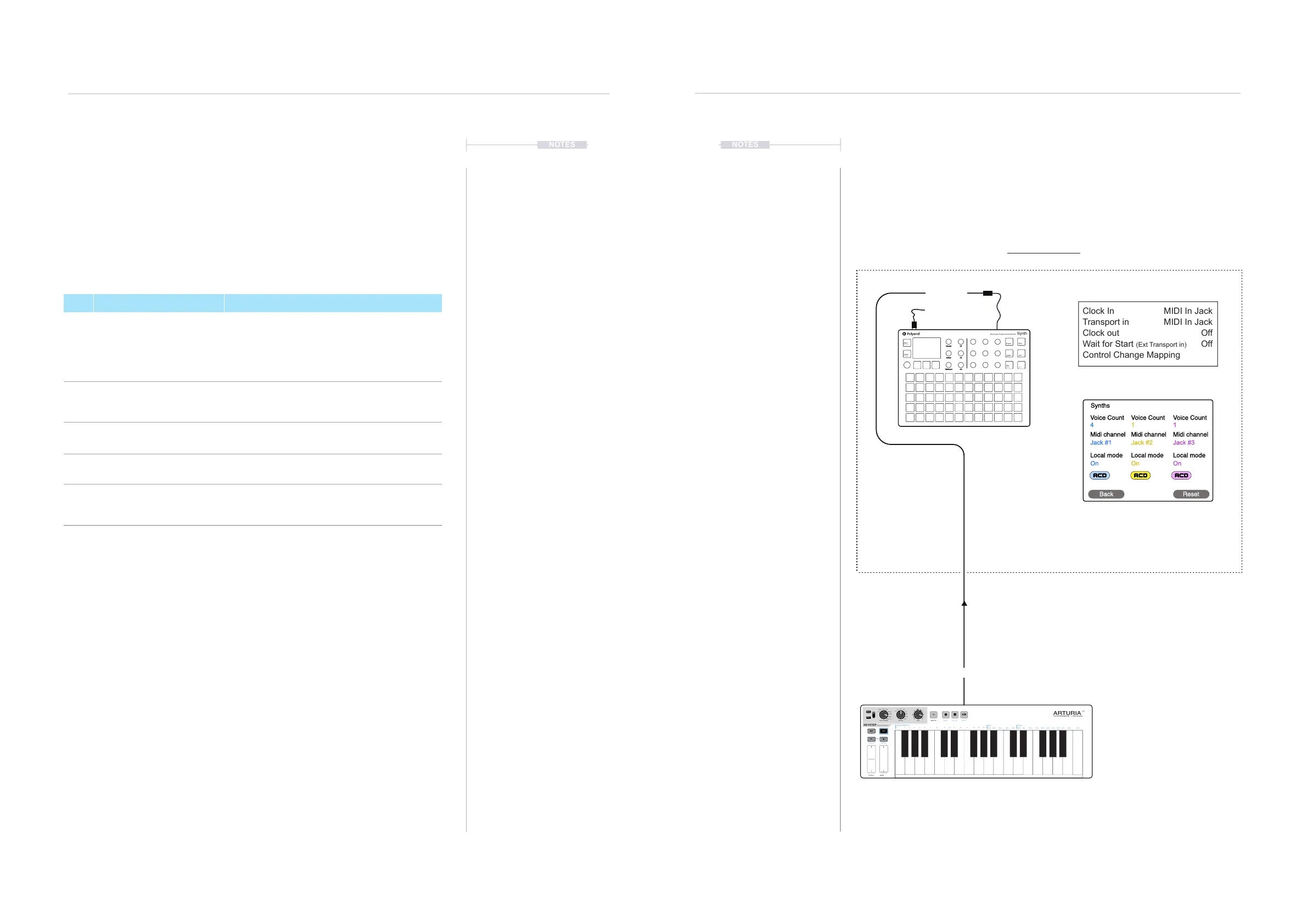
8.4 External Keyboard Conguration
An external device, keyboard, or drum pads can be connected to control
the Synth by MIDI, either using the USB or via the MIDI TRS / 5 Pin MIDI
adapter. Notes can be controlled from an external keyboard to play the
notes of each of the three synths.
MIDI In Jack
MIDI In Jack
Off
Off
Clock In
Transport in
Clock out
Wait for Start (Ext Transport in)
Control Change Mapping
Main Menu > MIDI
Main Menu > Synths
This setup would require the external controller to be set to
Channel 1, 2 or 3 to match the selected synth channel
shown in the example. Synth channels can be changed in
the Synth sub-menu.
Local Mode: When ‘On’ the Synth pads are playable,
controlling notes. When ‘Off’ the Synth pads are disconnected
allowing only the external controller to play notes in Synth.
Voice Count
4
Jack #1
On
Voice Count
1
Jack #2
On
Voice Count
1
Jack #3
On
Midi channel Midi channel Midi channel
Local mode Local mode Local mode
Synths
Back Reset
USB MIDI
Keyboard or Pad controller for MIDI note information on the channel
to match that of the Synth to control i.e. Channel 1.
Example Conguration 1: Synth as the secondary follower controlled with Arturia Keystep.
Mixer
Effects
Engine Filter
Scene
Preset
ADSR LFO
Seq
Mod
Shift
Volume
Tempo
Pitchbend
C1
C2
C3
Multi-engine Polyphonic Synthesizer
Synth
ARTURIA
YOUR EXPERIENCE - Y OUR SOUND
PITCH MOD
RESET
Transpose
Append Clear Last Restart
Keyboard MIDI CH
1 2 3 4 5 6 7 8 9 10 11 12 13 14 15 16
10% 25% 50% 75% 90% Off 53% 55% 57% 59% 61% 64% 67% 70% 73% 75%
Gate Swing
Rest / TieSeq / Arp Mode Time Div Rate
1/4
1/Up
1/8
2/Dwn
1/16
3/Inc
1/32
4/Exc
1/4T
5/Rand
1/8T
6/Order
1/16T
7/Up x2
1/32T
8/Dwn x2
Chord
KEYSTEP
CONTROLLER & SEQUENCER
Seq
Arp
Kbd Play
(C)
HOLD SHIFT
-
+
Tap
MIDI OUT
MIDI IN
MIDI & Connectivity
8
MIDI & Connectivity
8


 To Next Page