Edition: A03 September 6, 2018
25
Object Management: Click【Manage】user can select objects to edit shortcuts.
Expanded List Width and switched the list display way are same as message list.
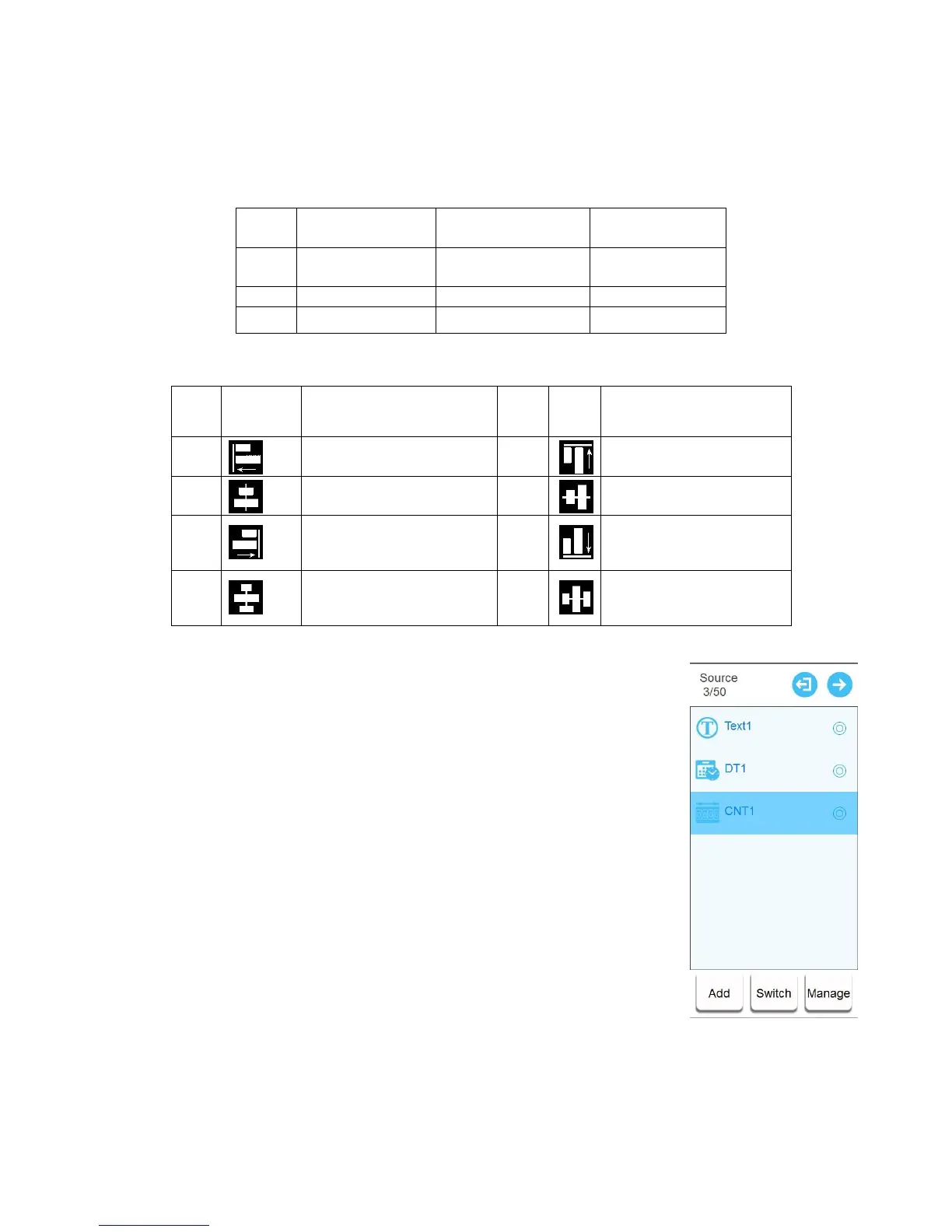
Source list
【New Message】/【Edit Message】 messages list changes to object
list. Click switch to change to source list (or the list will change to source
list automatically after adding a new source) to display all sources of this
message. The source list function can refer to the object list.
3.1.3.6 Return
Click return to receive a popup for you to save and name the message. Select save to save the
message and return to message management. If you do not save, then you will return to message
management. If you choose cancel, then you will remain in the editing interface. Default name of
message is MSG + number, for example: MSG001、MSG002. You must enter at least 1 character,
however no more than 30 characters can be entered. You cannot input symbols (" \ / : *? "< > |").


 To Next Page