34
Using Spark AI
Spark AI is a revolutionary new way to discover tones. Describe a tone and Spark AI generates a tone
based on your prompt.
To begin, ensure that the Spark app is connected to your Spark amp’s Tone Control connection and that
you are logged in to your Positive Grid account.
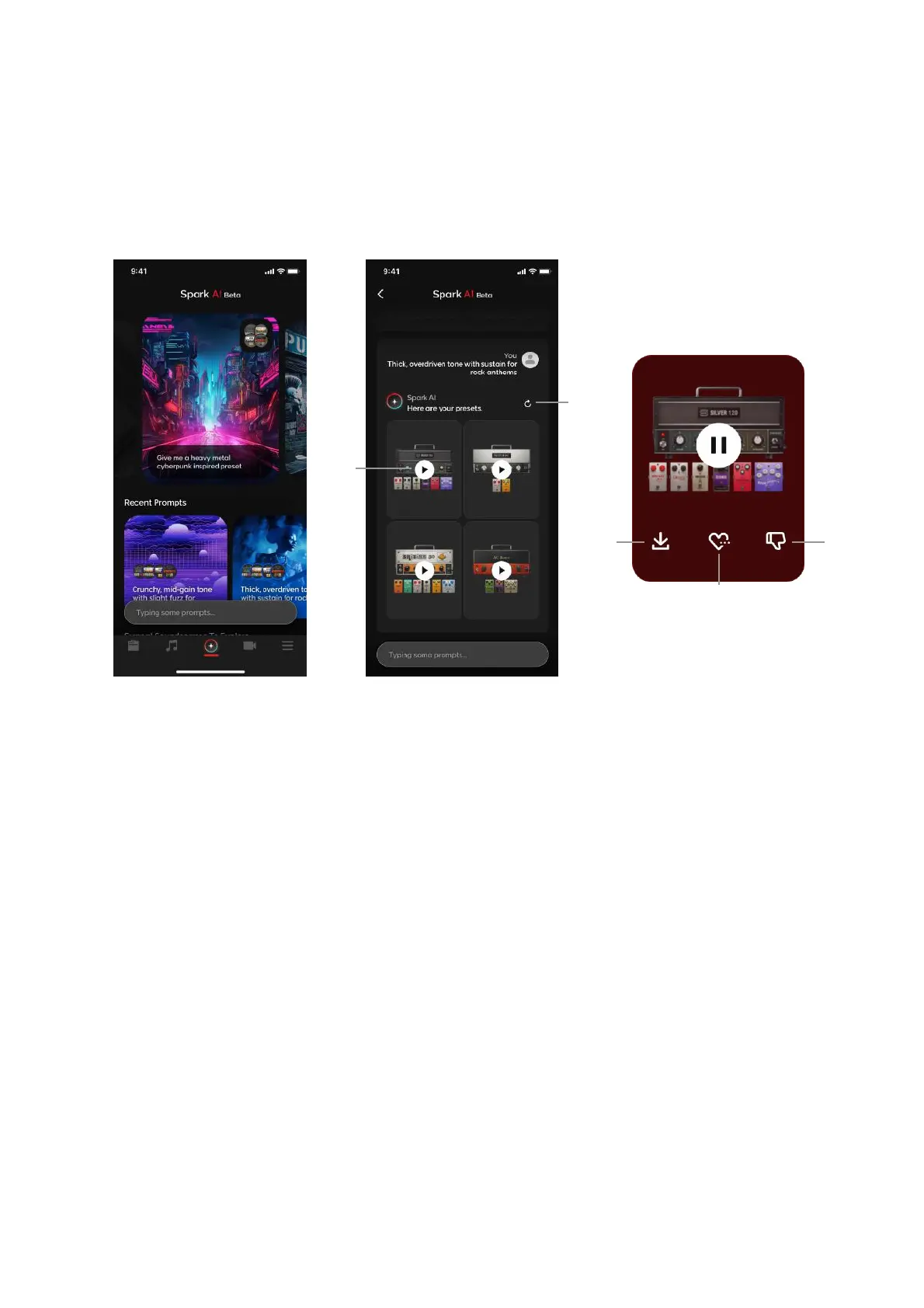
1. Tap on the Spark AI icon at the center of the bottom bar
2. Tap on our predefined prompts or type in your own prompt in the text box at the bottom
3. Spark AI will bring you to the results page:
(A) Tap on the Play button to preview the tones generated by Spark AI
i. Preview works the same way as the ToneCloud, you must have a guitar connected
and play the guitar yourself to preview what the tone sounds like
(B) Tap on the Download button to download the preset to your local presets
(C) Tap on the Dislike button to teach Spark AI that the preset does not match the prompt
given
(D) Tap on the Refresh button on the top right to refresh the list.
i. You may refresh the list up to 5 times.
ii. Once refreshed, the previous results will be discarded.
(E) Tap on the More Like This button in the center of the selected preset to prompt Spark AI to
find similar presets.


 To Next Page