46
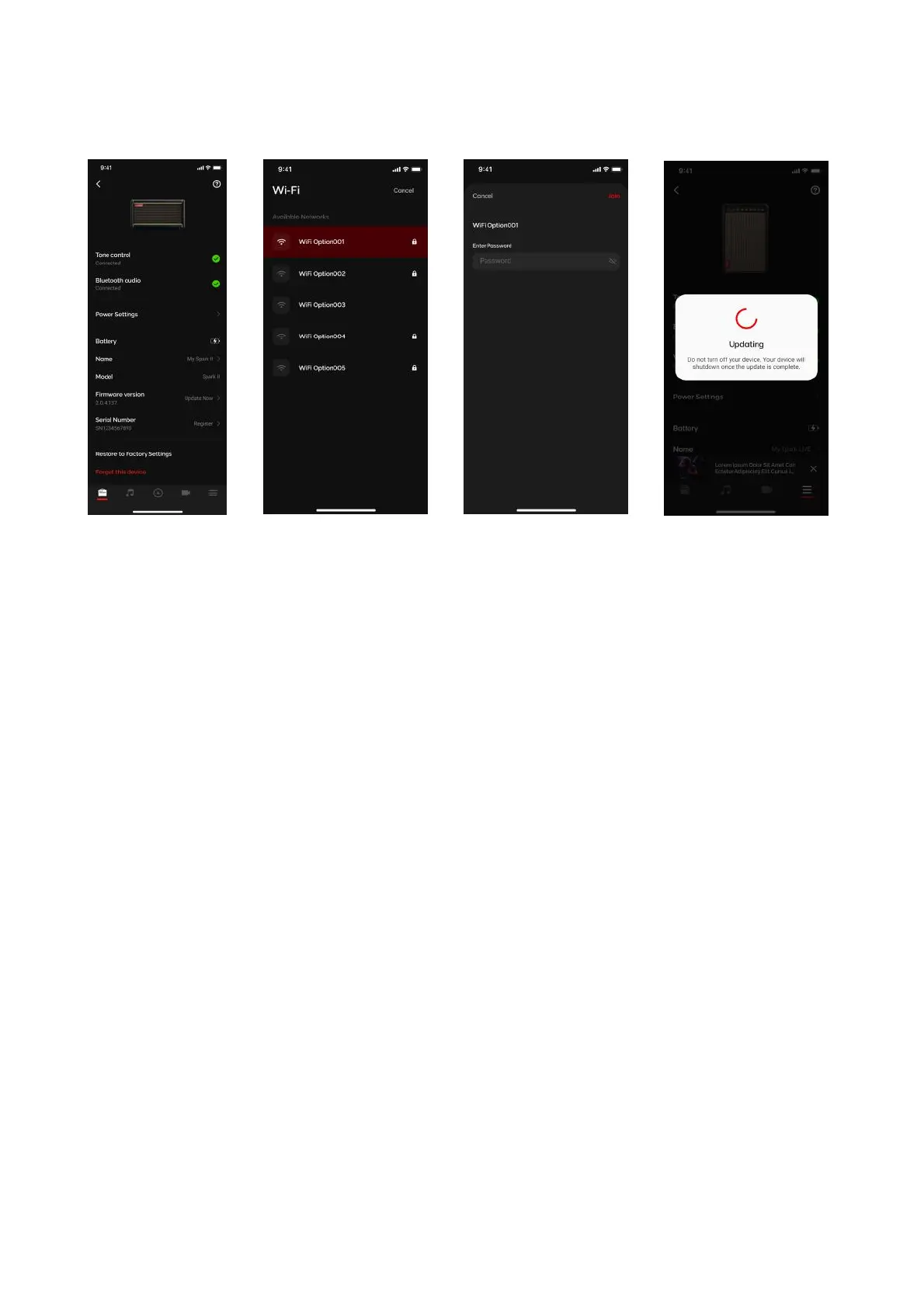
Spark 2 has the ability to update its firmware via Wi-Fi. Please make sure you are near a Wi-Fi access
point with an internet connection and follow the instructions to update your firmware:
Connecting to Wi-Fi
1. Tap on the “Check for Update” button, a dialog box should appear asking to connect to Wi-Fi
2. Tap Connect. Your Spark 2 will search for available Wi-Fi access points. Select your access point and
enter its password to connect.
Updating Firmware
1. Go into the device card of the Spark 2 and tap on Check for Update or Update to update to the latest
version.
2. Your device will automatically shutdown once the update is complete. Turn on your device and connect,
then double check the Device Card to see whether the firmware update was successful.
Updating Your Firmware on the Spark 2


 To Next Page