43
Using Video Recording
Record a video of your guitar playing from within your Spark app to record ideas or covers to share to
social media.
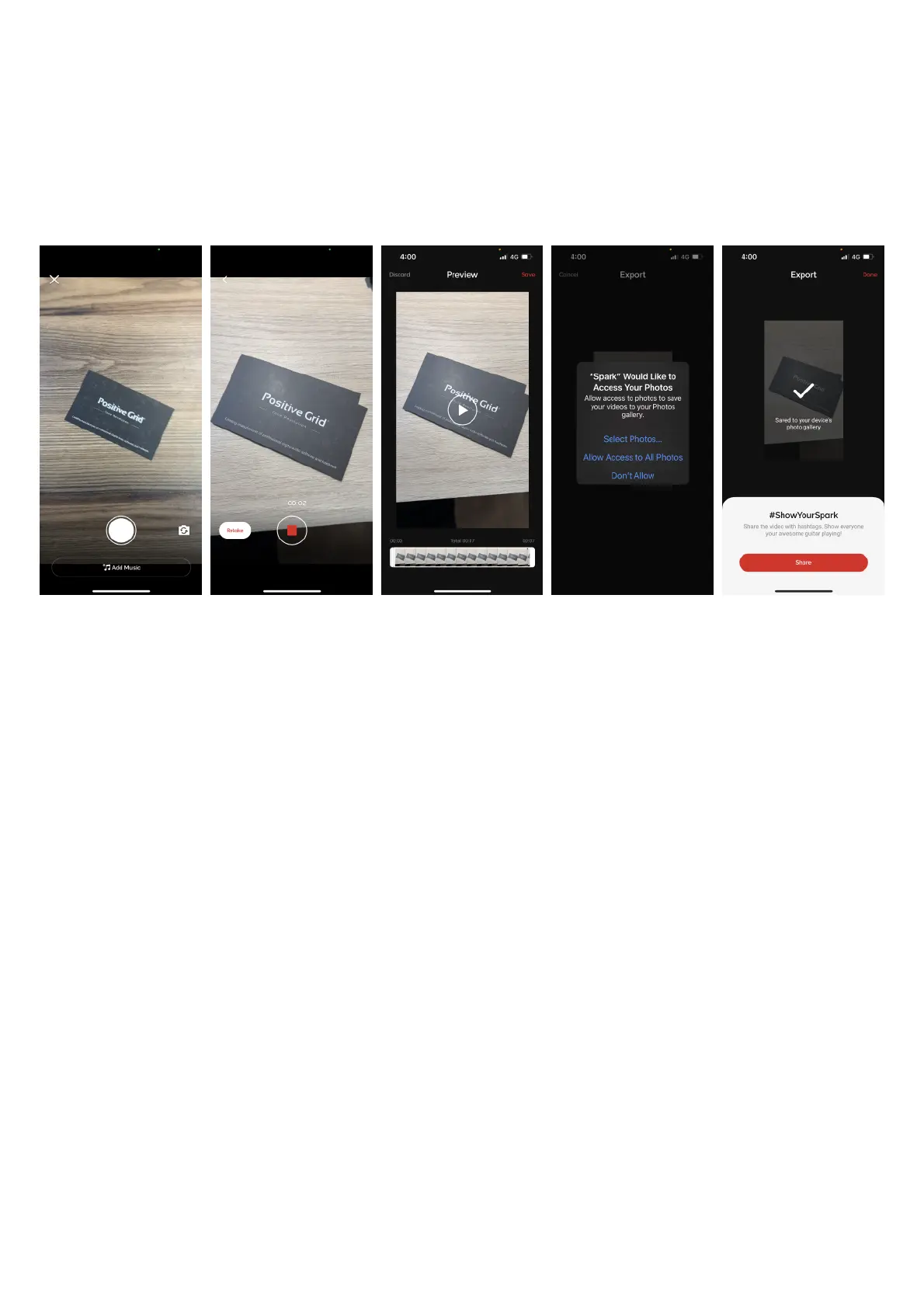
(A) Tap the Video icon to open the Video Recording function.!
(B) Tap Add music to add a Smart Jam backing track or a locally saved music file to play along to while you
record.!
(C) Tap the camera flip icon to switch between the front and back cameras of your device.!
(D) Tap the Record button to start recording, tap again to stop recording.!
(E) Tap Retake to begin another take without stopping your initial video.!
(F) Once you’ve finished recording your video, you may trim the beginning and end of the video to your
desired length in the Preview Screen.!
(G)Tap Save to export the video to your camera roll. Make sure the app has access to your Photo library to
save the video.!
(H) Tap share to share to social media or messaging platforms, or Done to continue.


 To Next Page