41
Using Auto Chords and Tones
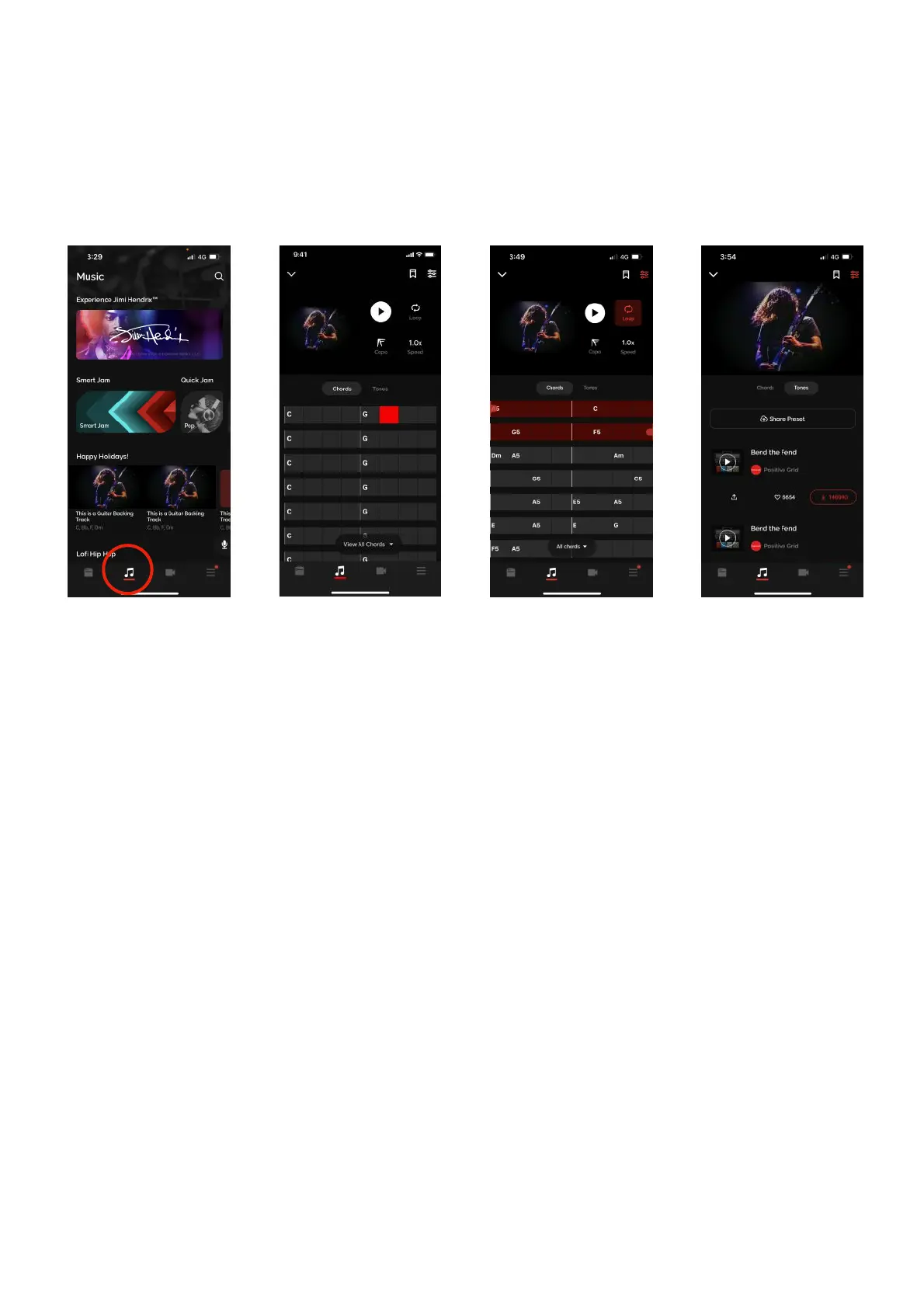
Choose any song, and Spark will automatically display its chords in real time as you play. Intuitive controls
easily let you slow down the song’s tempo or loop a difficult section.
(A) Go to the Music page and tap on our curated playlists to learn songs from those playlists.!
(B) Search for any song with the search bar at the top of the Music page to learn a song of your choice.!
(C) Tap on the Settings icon on the top right to access Music tools
1. Tap on Loop and drag the handles to loop the selected section.
2. Tap on Capo to change the chords to a capo’d version, allowing you to play with standard
open chords.
3. Tap on the Speed button to change the speed of the track to 0.5/0.8/1.0x speed to practice
at a slower tempo.!
(D) Tap on Tones to bring up tones that are recommended for the song according to other users. Upload
your own ToneCloud presets to contribute to this growing pool of tones!


 To Next Page