38
Playing With Jarvis
Follow the steps for playing with Dave/Sharon/Charles:!
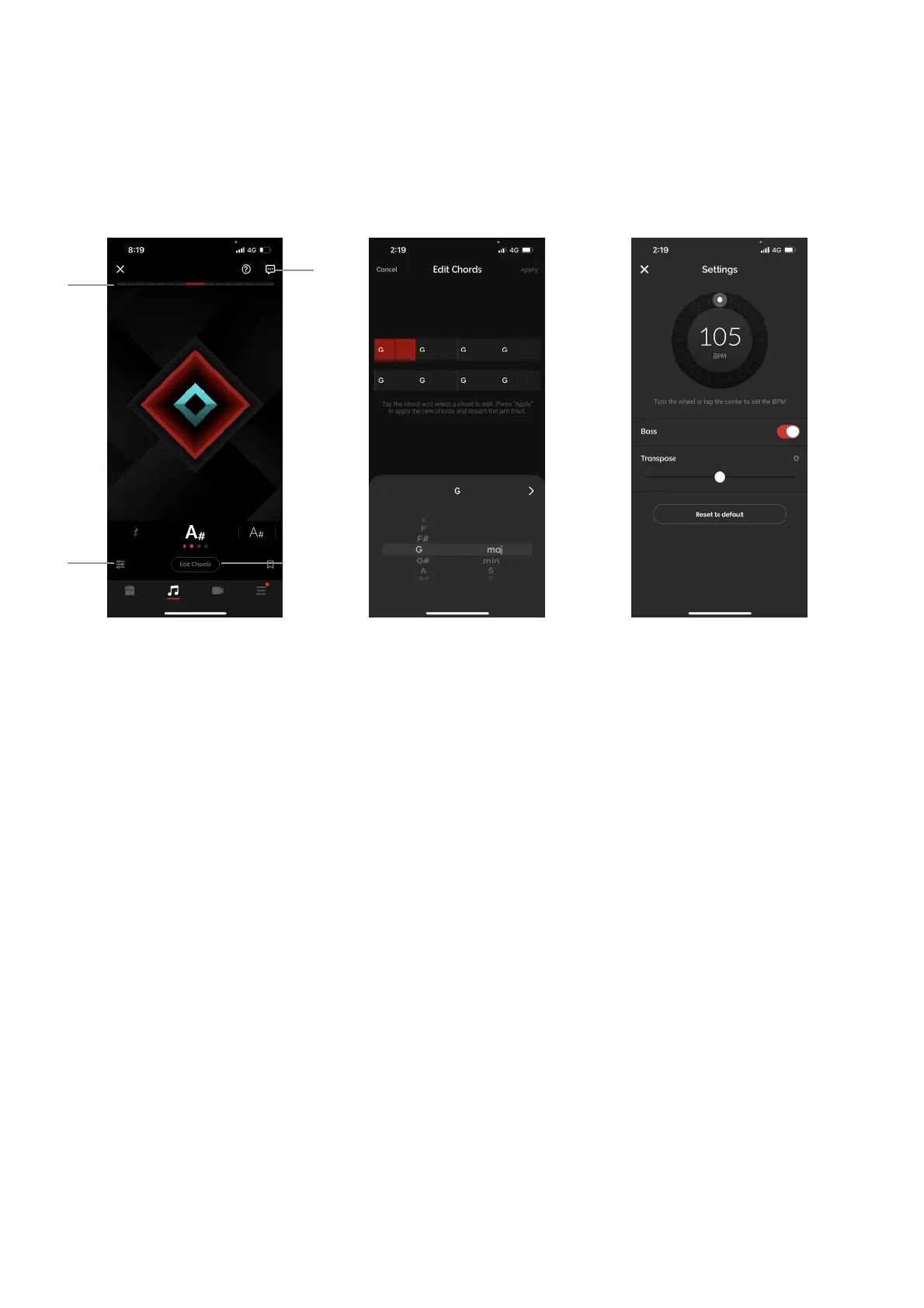
A. For the best real time jamming experience, observe the top red bar and do the following calibration
during your first play through with Jarvis:!
1. At your loudest playing level, ensure that the top red bar is almost at maximum. If it’s at maximum, it
indicates that your device’s microphone is clipping; turn the volume of your instrument and music
accordingly to ensure it’s not clipping.!
2. At your quietest playing level, ensure that the top red bar is at roughly 3 red blocks. This minimum
and maximum range will have better dynamic detection.!
3. Make sure your guitar is louder than the backing track. Try to aim for a volume balance with your
guitar and backing track at roughly 2:1 or 2:1.5. This will make it easier for Jarvis to detect your guitar
playing.!
B. To edit chords, tap the Edit Chords button, then select the chord you’d like to edit. Once you’ve
changed your desired chords, tap Apply to apply the changes to the track.!
C. Tap the Settings icon on the bottom left to change the jam track’s settings; you may adjust the tempo,
turn off the bass, and transpose the track by increments of half steps and up to a whole octave up or
down. Tap Reset to default to reset the track to the analyzed or saved version of the track.!
D. Leave feedback by tapping on the Feedback icon on the top right of the page, and to review
instructions for using Jarvis, tap the Help icon next to it.
Jarvis is unique in that they will listen to your playing in real time and change along with your dynamics and
complexity of your playing while you play.


 To Next Page