37
Playing With Dave/Sharon/Charles
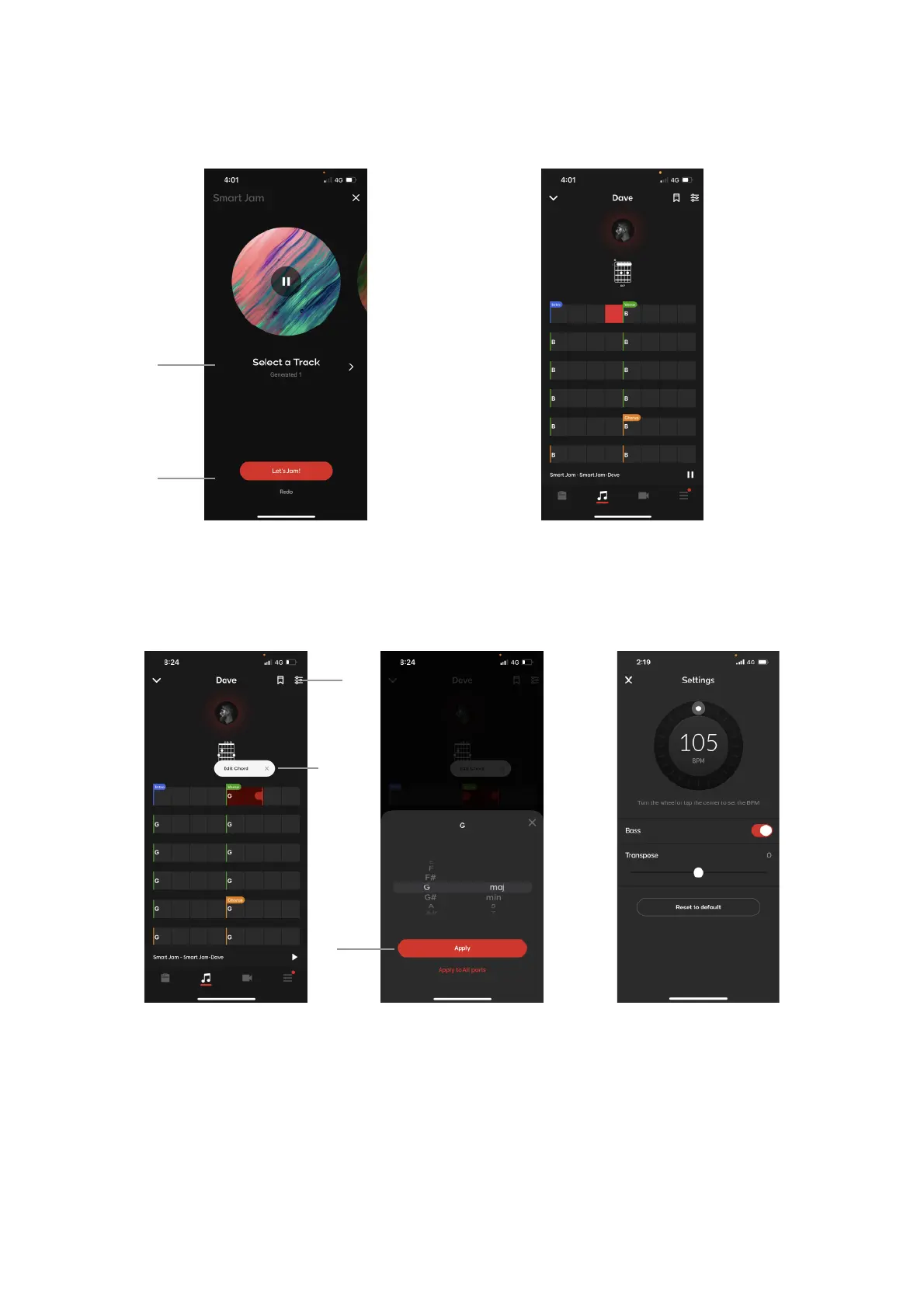
A. Once the analysis is complete, select from the 6 tracks that have been created by the drummer that you
like best. Swipe left or right or tap the arrow icon to scroll between each option and preview the tracks.!
B. After selecting a track, you will be taken to the Smart Jam detail page where you can start jamming! Tap
redo if you’d like to record another chord progression.
!
C. You may edit the chords by pausing the track, then long pressing any of the chords then tapping Edit
Chord. Select more than one bar by dragging the red indicator to the right of the selected area.!
D. After changing the chord to your desired chord, tap apply to apply the chord change just to the selected
range, or tap Apply to All Parts to apply the chord change to all sections of the Smart Jam track.!
E. Tap on the Settings icon on the top right to go to the Smart Jam settings menu, where you can adjust
BPM, turn off the Bass track, and transpose the track by increments of half steps to a maximum of an
octave up or down. Tap Reset to default to reset to the initial analyzed or saved settings.


 To Next Page