45
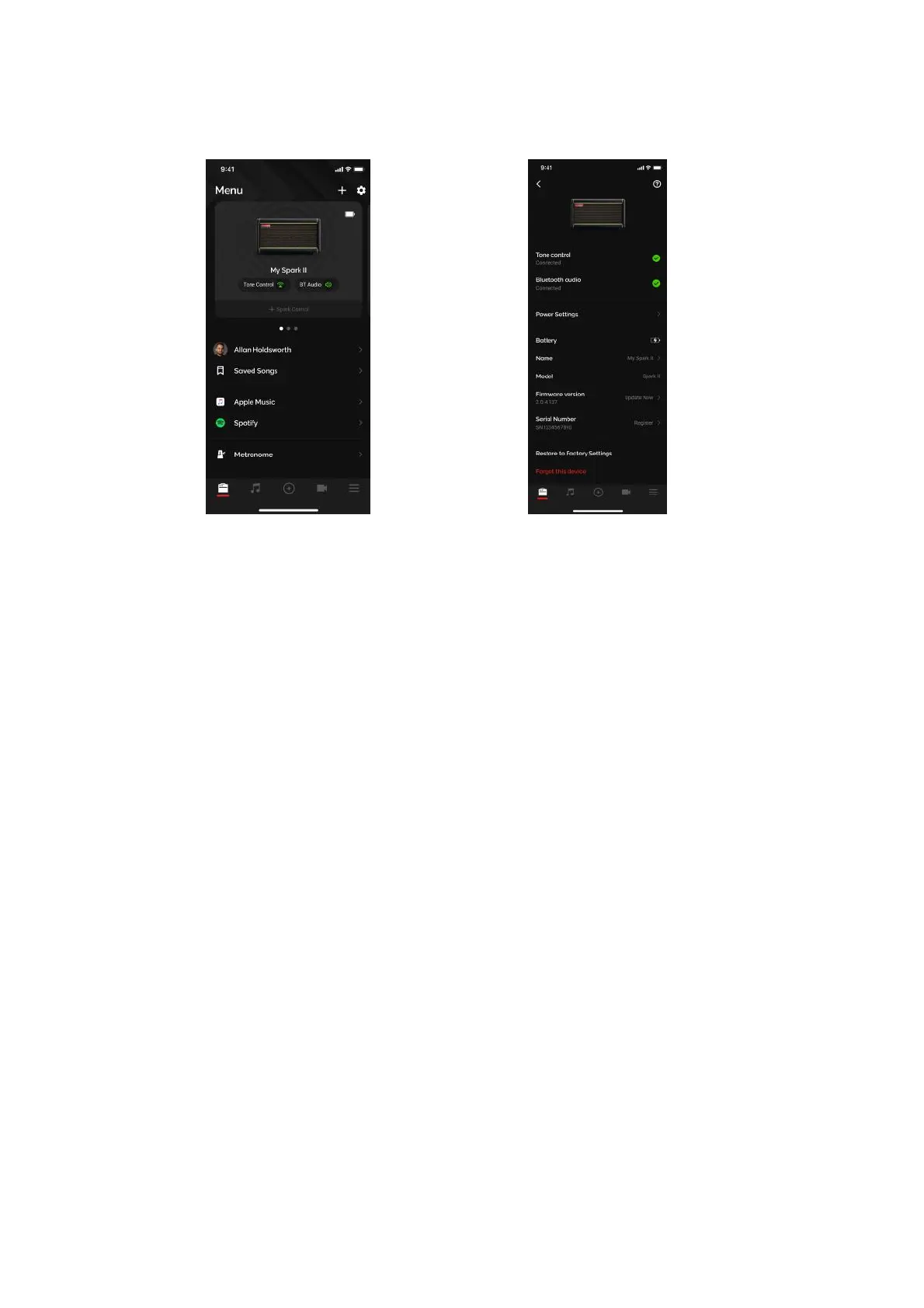
The Device Card can be accessed in the Menu page once you’ve connected your Spark Amp. Once it’s
connected, tap on the device at the top of the menu to access your Device Card, where several settings
can be adjusted and statuses can be observed.
1. Tone Control and Bluetooth Audio - Shows the status of your Bluetooth connections between your
device to the Spark Amp
2. Power Settings - Power Settings will allow you to adjust Spark 2’s Auto Standby and Auto Shutdown
features to save battery life.
Spark 2 will automatically enter a low power state after a set amount of time has passed where no audio is
detected to preserve battery life. The time it takes to enter standby mode can be adjusted in this menu.
While the Spark 2 is in this state, instrument output and music playback will be temporarily disabled. To
enable audio output again, play your plugged in instrument or start audio playback to reactivate it.
3. Battery - Displays the battery status of your device.
4. Name - Change the display name of your Spark amp when connecting to your Spark.
5. Model - Displays the model of your Spark amp.
6. Firmware - Displays the firmware version installed on your Spark amp.
7. Serial Number - Displays the Serial Number of your Spark amp.
8. Restore to Factory Settings - Restores all settings to the factory defaults.
9. Forget This Device - Remove this device from your list of connected devices.
Device Card and Adjustments


 To Next Page