3–11Troubleshooting
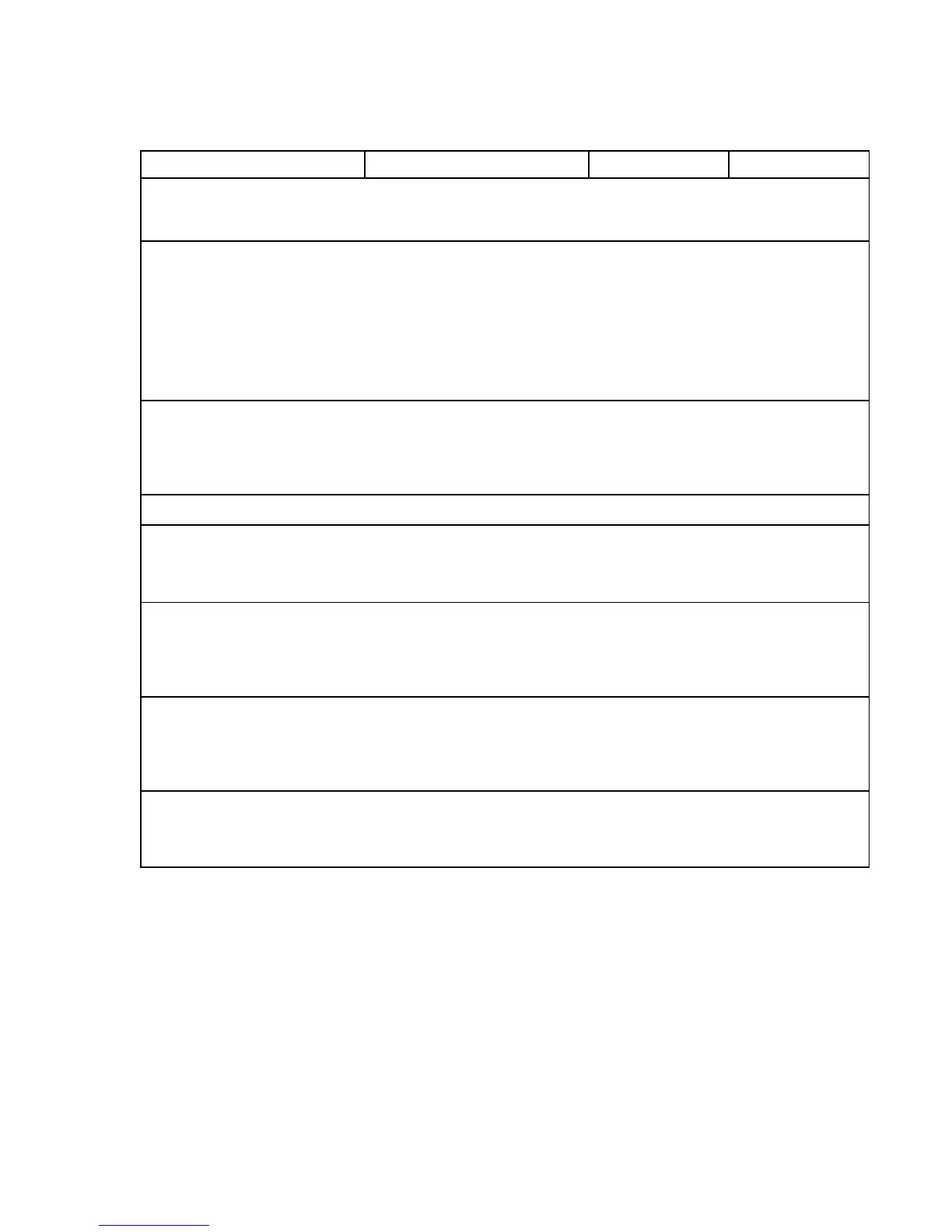
Paper Jam
Instruction Indication Yes No
1. Inspect paper path for
bunched, torn, folded paper
or labels.
Paper path is clear. Step 2. Remove paper
and go to step 2.
2. Inspect the narrow
passageway between the
face of the platen and the
ribbon mask for bits of torn
paper or ribbon lint. Check
the holes in the ribbon mask
surrounding each hammer
tip.
Debris found. Gently remove
paper or lint
particles with a
wooden stick or
pair of tweezers.
CAUTION: Do not
pry or apply force
to the hammer
tips. Go to step 3.
Step 3.
3. Check that the ribbon mask
has not been deformed in
such a way as to block the
paper path.
Ribbon mask damaged or bent. Replace the
hammer bank
cover assembly
(page 5–22). Go
to step 5.
Step 5.
4.
Load paper
. —
Step 5.
—
5. Run a diagnostic self–test
(page 3–27).
“Paper Jam” message. Clean the paper
motion detector
with cotton swab.
Go to step 6.
Return printer to
normal operation.
6. Run a diagnostic self–test
(page 3–27).
“Paper Jam” message. Replace paper
detector switch
assembly (page
5–82). Go to step
7.
Return printer to
normal operation.
7. Run a diagnostic self–test
(page 3–27).
“Paper Jam” message. Replace the
intermediate cable
assembly (W5)
(page 5–10). Go
to step 8.
Return printer to
normal operation.
8. Run a diagnostic self–test
(page 3–27).
“Paper Jam” message. Replace the
common controller
PCBA (page
5–46).
Return printer to
normal operation.









 To Next Page