SFC6400A/SFC1450A Synthesized Frequency Upconverter User Interfaces
TM106 – Rev. 1.1 4-37
4.6.1.2 SNMP Option
1. From the Main Menu, select ‘6’ for SNMP Control. Verify that Selection 36, SNMP Option
is enabled. The SFC Upconverter SNMP Option is enabled at the factory if purchased by
the user. Please contact the Radyne ComStream Customer Service Department if the
SNMP feature is not available.
4.6.2 Network Configuration
4.6.2.1 Terminal Screens
1. The SNMP main setup screen is Menu 6. on the Terminal Main Menu screen.
2. The SNMP Configuration can be monitored and controlled via a full screen presentation of
current settings and status. The <Esc> Key redraws the entire screen and aborts input
any time. The Spacebar refreshes the status area and is used to scroll through selection
when in user input mode.
3. To modify an item, the user simply presses its terminal selection followed by <ENTER>.
The modem responds by presenting the options available and requesting input. If the input
is multiple choices, the user is prompted to use the Spacebar to scroll to the desired
selection and then press <ENTER>. An input can be aborted at any time by pressing
<Esc>. Invalid input keys cause an error message to be displayed on the terminal. Some
input or display status only appears when the user has the right access levels.
4.6.2.2 Logging on and Passwords
There are several available logon users each setup with a default password. The user must be
logged on in order to view or change some settings. There are 3 levels of access rights in the SFC
Upconverter. These are:
Initial Access: The default when no user is logged on.
Viewer Access: Allows its user to modify its own logon and authentication
passwords.
Operator Access: All other SNMP and security selections can only be
accessed.
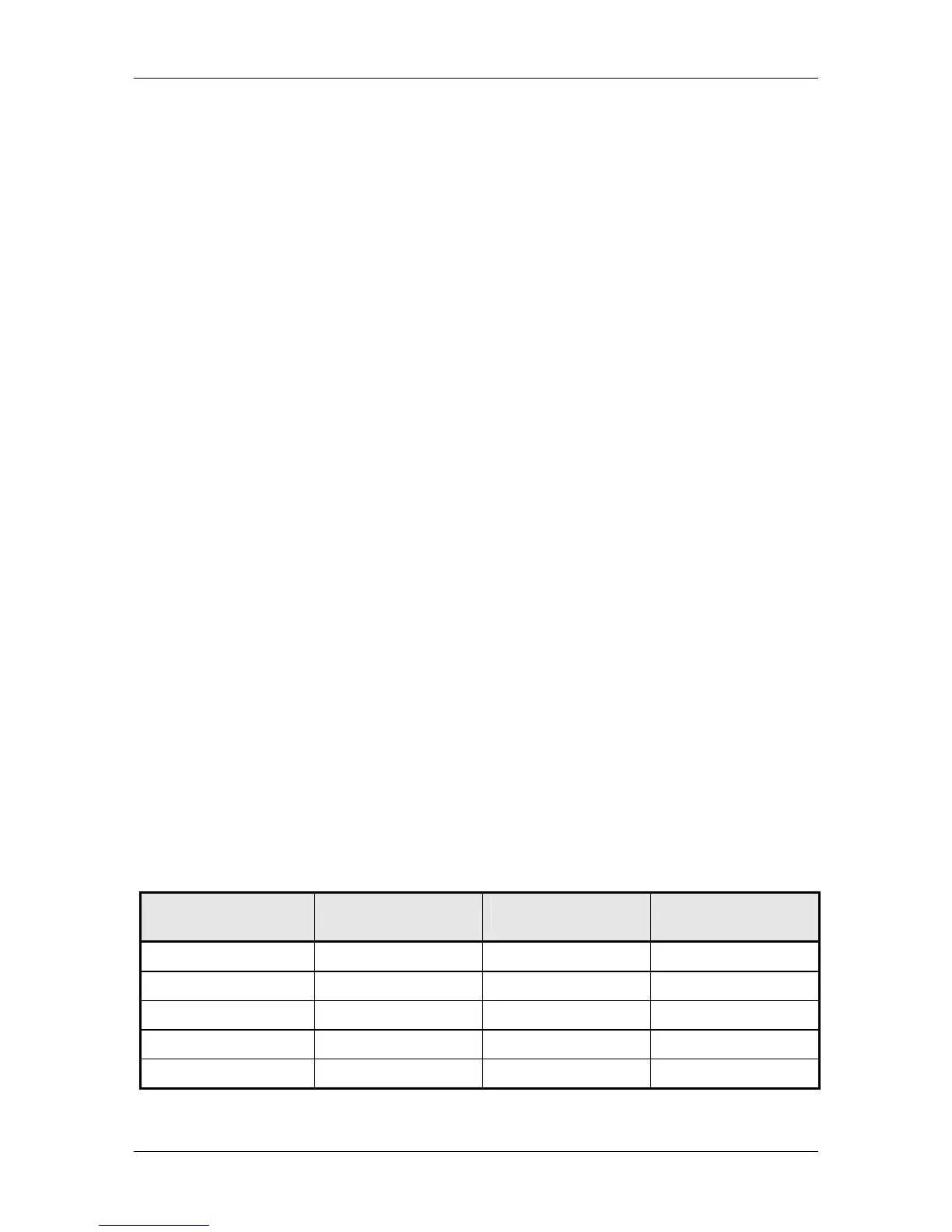
Listed in the table below are the available user names and corresponding default passwords:
Security User Logon Password Authentication
Password
Privacy Password
Initial
Viewer Viewer Viewer
Oper–md5 Oper Oper Oper
Viewer–sha Viewer Viewer
Oper-sha Oper Oper Oper
Note: All entries are case sensitive



 To Next Page