RaiseTouch User Manual Date:03/03/2020
- 20 / 80 -
www.raise3d.com
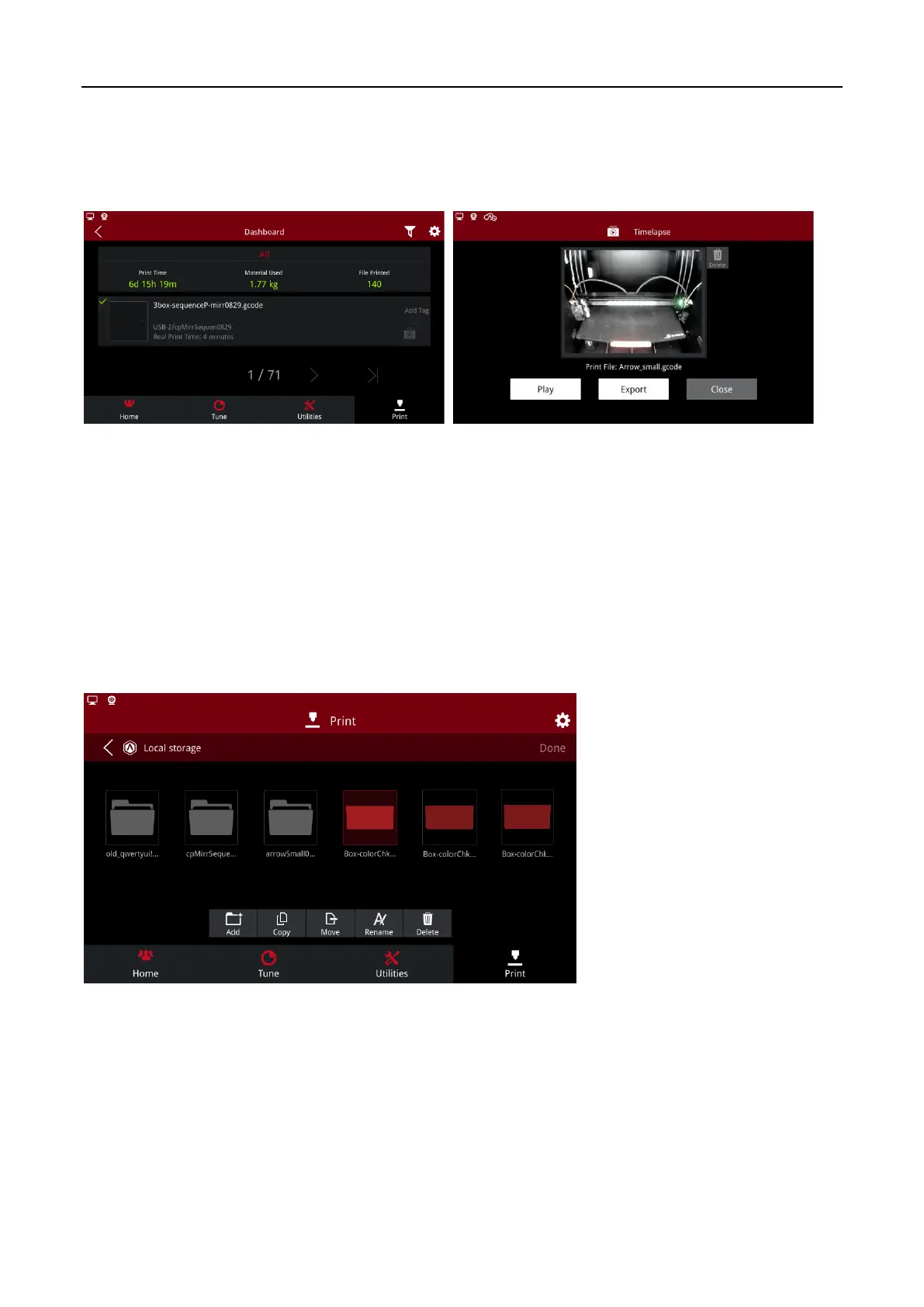
Timelapse: click the wrench icon in the “Setting>Camera” to enter the camera advanced settings
page. Turn on Timelapse, you can click video icon on the lower right corner of the Dashboard to view
the Timelapse video. Turn on the “Enable Exporting Local Files to External Storage” in Settings >
Security and Privacy, you can use USB devices to export Timelapse files. Export format is MP4 format.
Export Timelapse files
1.4.4 Files management
Click “Local Storage” to enter the print file interface, and click the “Edit” button in the upper right
corner to manage files.
Add: Click Add to create a new folder.
Copy: Select a file to be copied and click Copy to copy the file to another folder.
Move: Select a file you want to move and click Move to move the file to another folder.
Rename: Rename the selected file.
Delete: Delete the selected file.
Files Management


 To Next Page