RaiseTouch User Manual Date:03/03/2020
- 27 / 80 -
www.raise3d.com
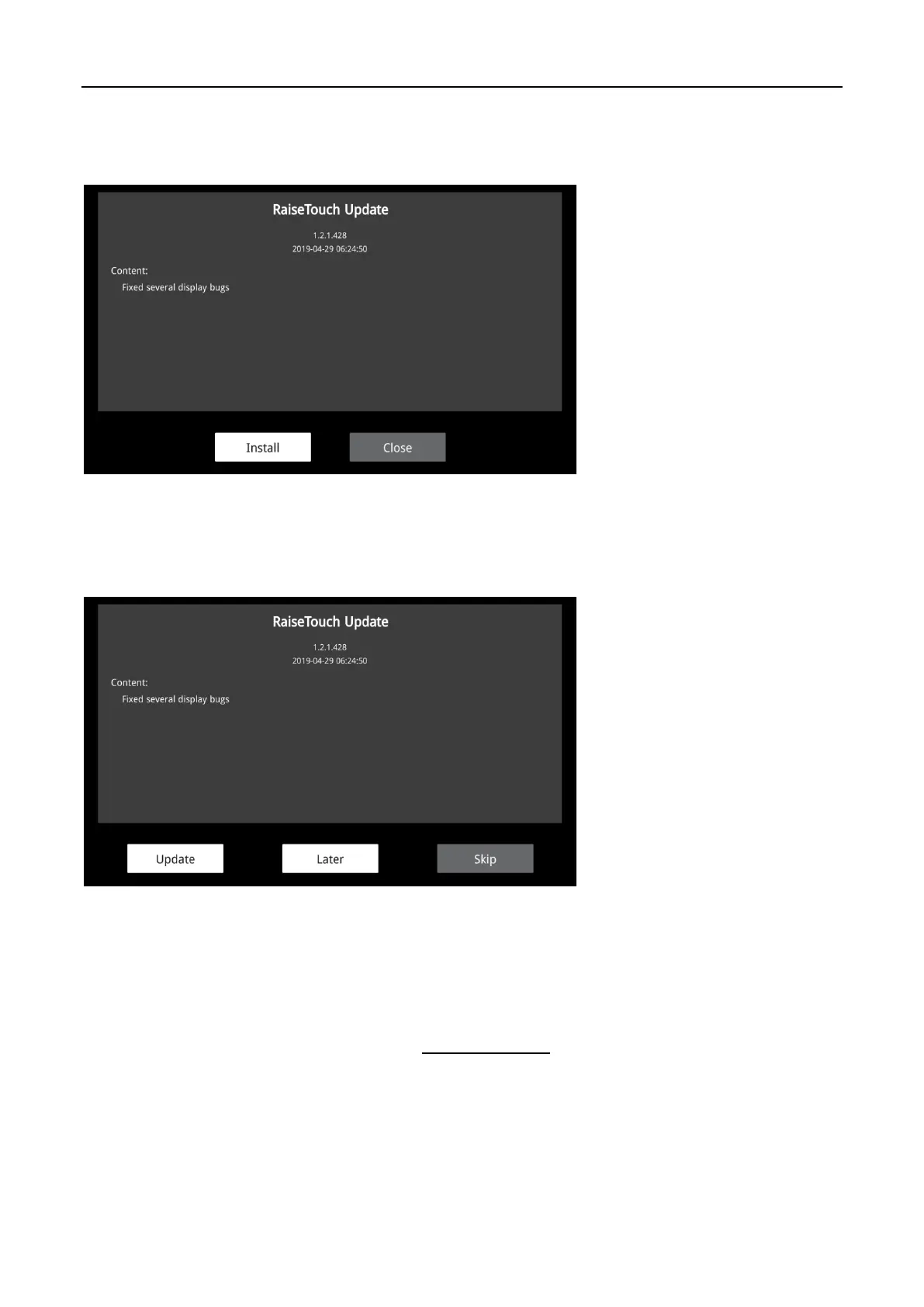
If automatic download is turned on, the update details button will display install and close. Click
“Install”, the installation interface will pop up. Click “Confirm” to confirm the installation. If you click
“Cancel”, please install the package in your free time in the update page.
Update Details (Open Automatic Download)
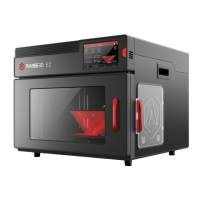
If the auto download is not turned on, the update details buttons will display “Update”, “Later" and
“Skip”. Click on “Update”, the update package will start downloading. After the download is complete,
a dialogue box will pop-up. Select “Yes” for installation and select “No” to exit installation.
Update Details (Turn Off Automatic Download)
Click on “Later”, the touch screen will pop up a floating window after 5 minutes with the updating
information.
Click “Skip”, update message will no longer be prompted.
If the download failed all the time, please visit www.raise3d.com to download the latest update
package manually.
1.5.1.2 About
Click More Settings to enter the printer interface for more details.
Click on EULA to view the user license agreement.


 To Next Page