8.
1Settingsoverview
Y oucanaccessthefollowingadvancedperformancedisplaysettingsand
productinformationviathe[Settings]menu:[Datapageview>Overlay
menu>Settings]
1.[Auto-lock].
2.[Daytimecolors].
3.[Displaygroup].
4.[Displayorientation].
5.[StandbyImage].
6.[Alarms].
7.[Factoryreset].
8.[Aboutthisdevice].
8.2Auto-locksettings
Y oucanconfigureyourperformancedisplaytoactivate[Screenlock]
automaticallyafter10secondsoftouchscreeninactivity.
Inordertoautomaticallylockyourdevice:
1.Navigateto[Datapageview>Overlaymenu>Settings>Auto-lock].
2.Select[Automaticallylockthescreenafter10seconds].
Note:
Formore[Screenlock]information,refertothefollowingsection:
p .17—Activatingscreenlock
8.3Daytimecolorsettings
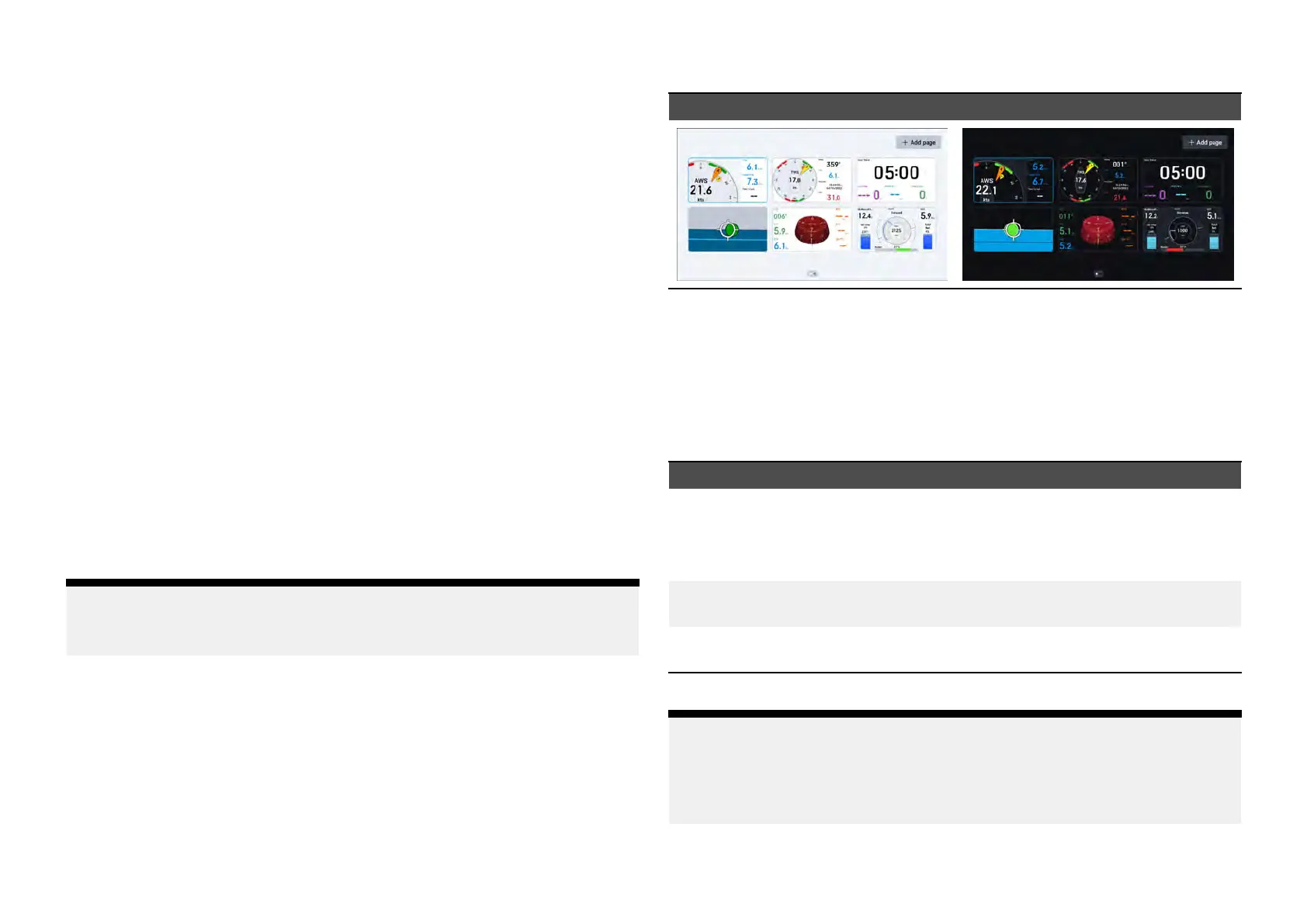
Bydefault,yourperformancedisplayissettoshowa[Light]colorscheme
whenthe[Colormode(Day)]settingisinuse .Alternatively,thiscolorscheme
canbechangedtoa[Dark]modedependingonyourpreference.
Inordertoconfigureyourdaytimecolorscheme:
1.Navigateto[Datapageview>Overlaymenu>Settings>Daytime
colours].
2.Selectbetween[Light](default)and[Dark].
Lightmode(default)
Darkmode
8.4Displaygroupsettings
Youcansynchronizethe[Brightness],[Screenlock]and[Power-savemode]
settingsbetweenyourperformancedisplayandothercompatibledeviceson
yournetworkthatareassignedtothesamedisplaygroup.
ThesettingslistedbelowcanbesynchronizedbetweenaAlphaSeries
performancedisplayandeachofthefollowingcompatibledevices:
SettingCompatibledevices
[Brightness]•AlphaSeriesperformance
display(s)
•Compatiblemultifunction
display(s)/chartplotter(s)
[Screenlock]•AlphaSeriesperformance
display(s)
[P
ower-savemode]•AlphaSeriesperformance
display(s)
Note:
Formoreinformationonwhichmultifunctiondisplays/chartplottersare
compatiblewithyourperformancedisplay,refertotheinformationfound
withinthe“AlphaSeriesPerformanceDisplayInstallationInstructions”
(87457).
56



 To Next Page