7. Tap the f(x)button adjacent to the dropdown menu.
8. In the panel that just opened, expand the Input dropdown menu.
9. Select the digital input that corresponds to box sensor #1 (digital_in[0], in thisexample). Go through the BoxSensors
(Multiple BoxTypes- Multi-PickFeature) section to determine the digital input to select at thispoint.
10. Without inserting any space character, enter the word and or tap the and button on the panel.
11. Expand the Input dropdown menu.
12. Select the digital input that correspondsto box sensor #2 (digital_in[1], in this example). Go through the BoxSensors
(Multiple BoxTypes- Multi-PickFeature) section to determine the digital input to select at thispoint.
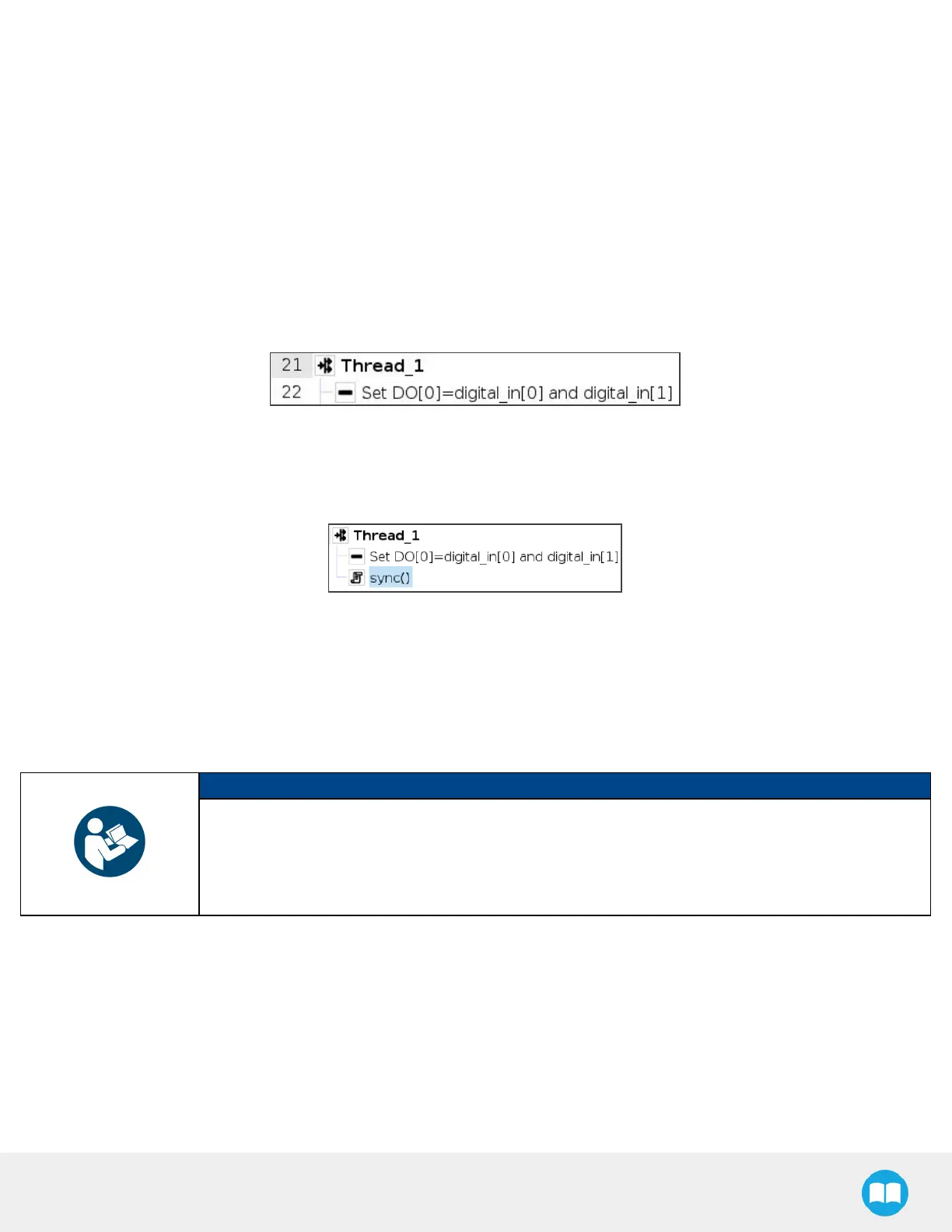
The result in the program tree should resemble this:
13. Go to Program > Advanced and insert a Script node.
14. In the Script node, tap the f(x)box.
15. In the dialog box, enter sync()and tap Submit.
Fig. 5-30: Complete Thread Node in Program Tree
GripperActivation
The following steps explain how to activate the right gripper for each box type.
NOTICE
Grippers are linked to digital outputs.
In the example below, there are two grippers: one linked to digital_out[1] and the other to digital_out
[2].
The link between box type and gripper-to-activate can vary depending on the configuration.
1. In the program tree, nest an If node within the Grip node (Program > Advanced).
2. Select the If node, tap the f(x)box in the Command window (leave the Check expression continuouslybox unticked).



 To Next Page