English
6
28
6DESCRIPTION OF CONTROLS
6
6.1Power button
6
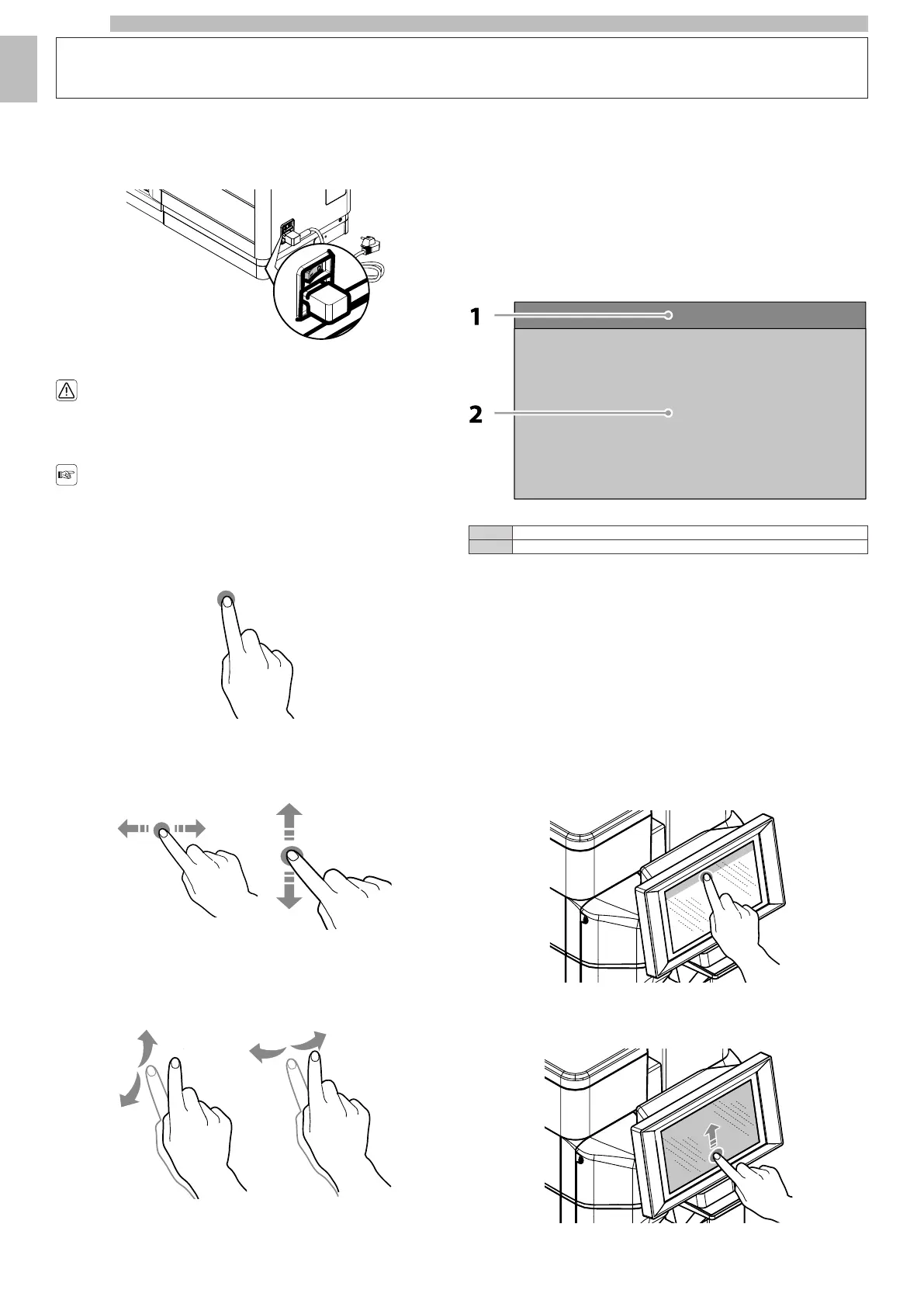
Itislocatedintherearofthemachine.Ifsettothe"I"positionthemachineturns
on(electricalfunctionsenabled).Ifsettothe"O"positionthemachineturnsoff
(electrical functions disabled).
666
6.2Touch Screen Control Panel
6
Onlyusefingerstointeractwiththe
touchscreen; do not use sharp objects.
6
Usinghigh-qualitycontentwillaffectthe
general performance.
66
Tap
6
Tap icons, functions and objects to activate or open context menus.
666666
Move
and
drag
6
To move and drag icons and objects, tap and drag them to a new location.
666666
Scroll
6
Slide yourfingertotheright, left,upordownonthe touchscreentoscrollthrough
the values, screens and functions.
66666
6.3Operating in normal user mode
6
Thelayoutandarrangementoftheicons/screensinthismanualisindicativeonly
andmayvaryfromthosedisplayedontheappliance,dependingonthesettings
(layouts,themes,and/oricons).Whenoperatingnormally,theappliancedisplays
thescreenwiththeavailableselections.Intheeventthatananomalyisdetectedby
thecontrolelectronics,amessagewillbedisplayed,indicatingthefault/error.Some
selectionsmaybedisabledwhencertaintypesoffaultsoccur(e.g.product
containersempty,etc.).Withsomeofthepersonalisedsettings(i.e.movingthe
beveragestoadifferentplace)someselectionsmaynotbedisplayed:simplyscroll
through the screen.
6666666
1Status panel
2Beverage selection area
666
6.3.1Status panel
6
The appliance status can be displayed (e.g. faults, etc.) via the status panel.
66
The status panel:
6
•
Displays fault/error notifications
6
•
Displays the nutritional information of the selections
6
•
Allows the language of the displayed messages to be changed
6
•
Displays the notice to fill the trays and containers
6
•
Displays the available wash functions
6
•
Provides access to the programming menu
66
Display
the
status
panel
in
detail
6
Tap the icons shown in the upper part of the touchscreen.
66666
Close
the
details
of
the
status
panel
6
Drag the bottom of the status panel upwards.
66666




 To Next Page