30
GB
Playback by selecting a title
When playing back a recorded
disc, you can display the title
menu and select the title to be
played back.
Preparation:
•Turn ON the TV and switch the TV to it’s AV channel (this may be
labelled EXT / AUX etc.)
• Load a recorded DVD.
• Press DVD/VCR to select DVD mode. (The DVD indicator will light.)
1
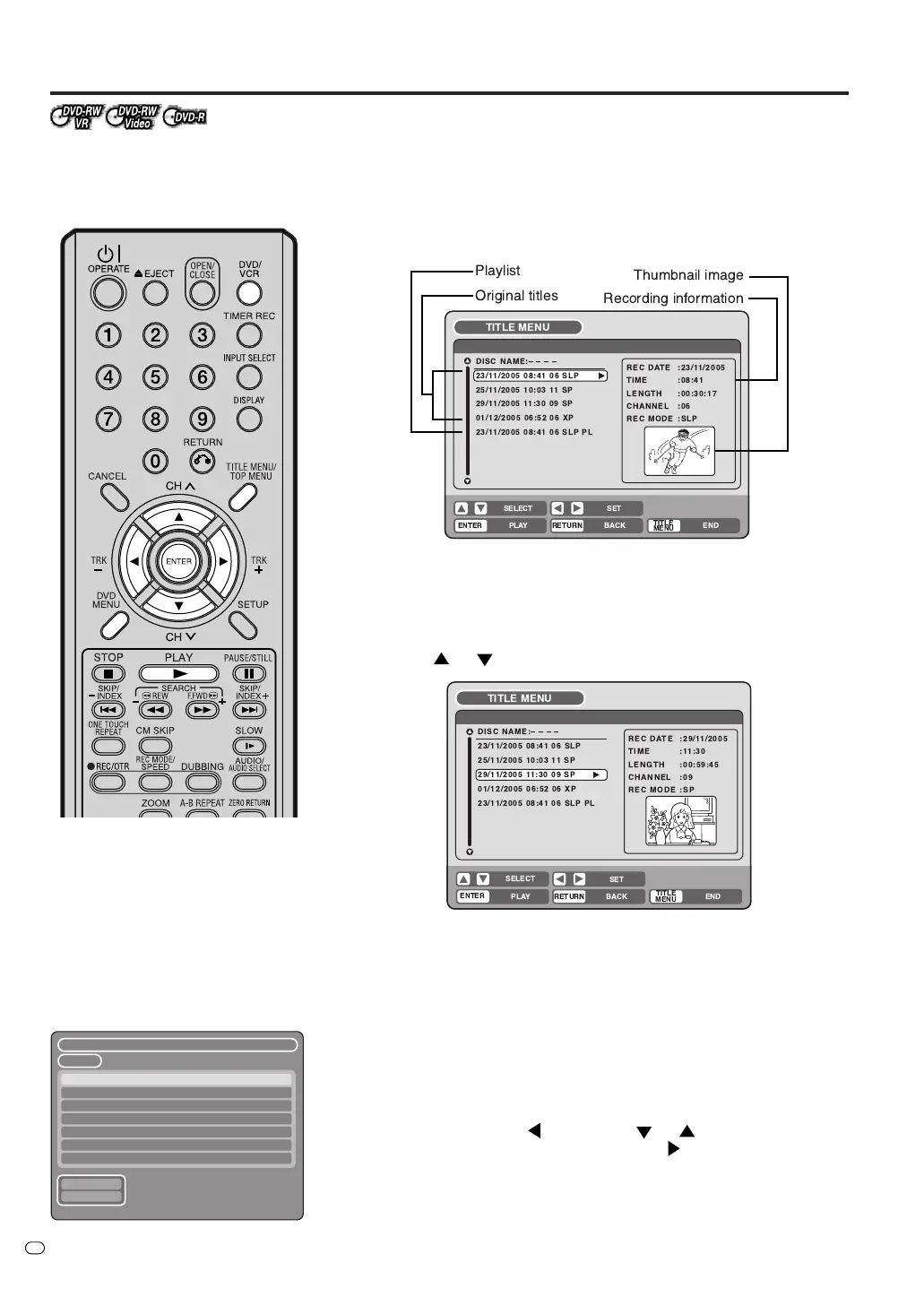
Press TITLE MENU/TOP MENU.
The title menu will appear.
Before pressing TITLE MENU/TOP MENU, press DVD MENU until
“VR ORG” or “VR PL” will appear on the upper right of the TV
screen, then press TITLE MENU/TOP MENU.
The first original title or playlist will be highlighted.
2
Press
or to select the title you want to playback.
3
Press ENTER or PLAY.
The selected title is played back.
NOTES:
• If you don’t display the title menu and press PLAY, the first title is
played back.
• The title menu is used for editing various discs and titles as well as
playing back titles. For details of editing operation, see page 62.
• If you create a playlist, an original title and playlist appear in the title
menu. For creating a playlist, see page 63.
• If the disc includes more than 10 titles, you can move to the next or
previous page. Press
, then press or to display next/previ-
ous page. To return to normal use, press
.
•You cannot switch to VCR mode when the title menu is showing.
Press TITLE MENU/TOP MENU to clear the title menu, then press
DVD/VCR to switch to VCR mode.
NOTE:
When a disc that has been recorded
in Video mode is finalised, the title
menu is automatically changed so
that it can be played back on other
compatible DVD players. Thumbnail
image and Recording information will
not appear in the title menu after
finalising of the disc is complete.
– – – –
1/1
PREV
NEXT
23/11/2005 08:41 06 SLP
25/11/2005 10:03 11 SP
29/11/2005 11:30 09 SP
01/12/2005 06:52 06 XP
23/11/2005 08:41 06 SLP PL
! "
!
#
!
! ! "
!


 To Next Page