71
GB
Editing an original title
4
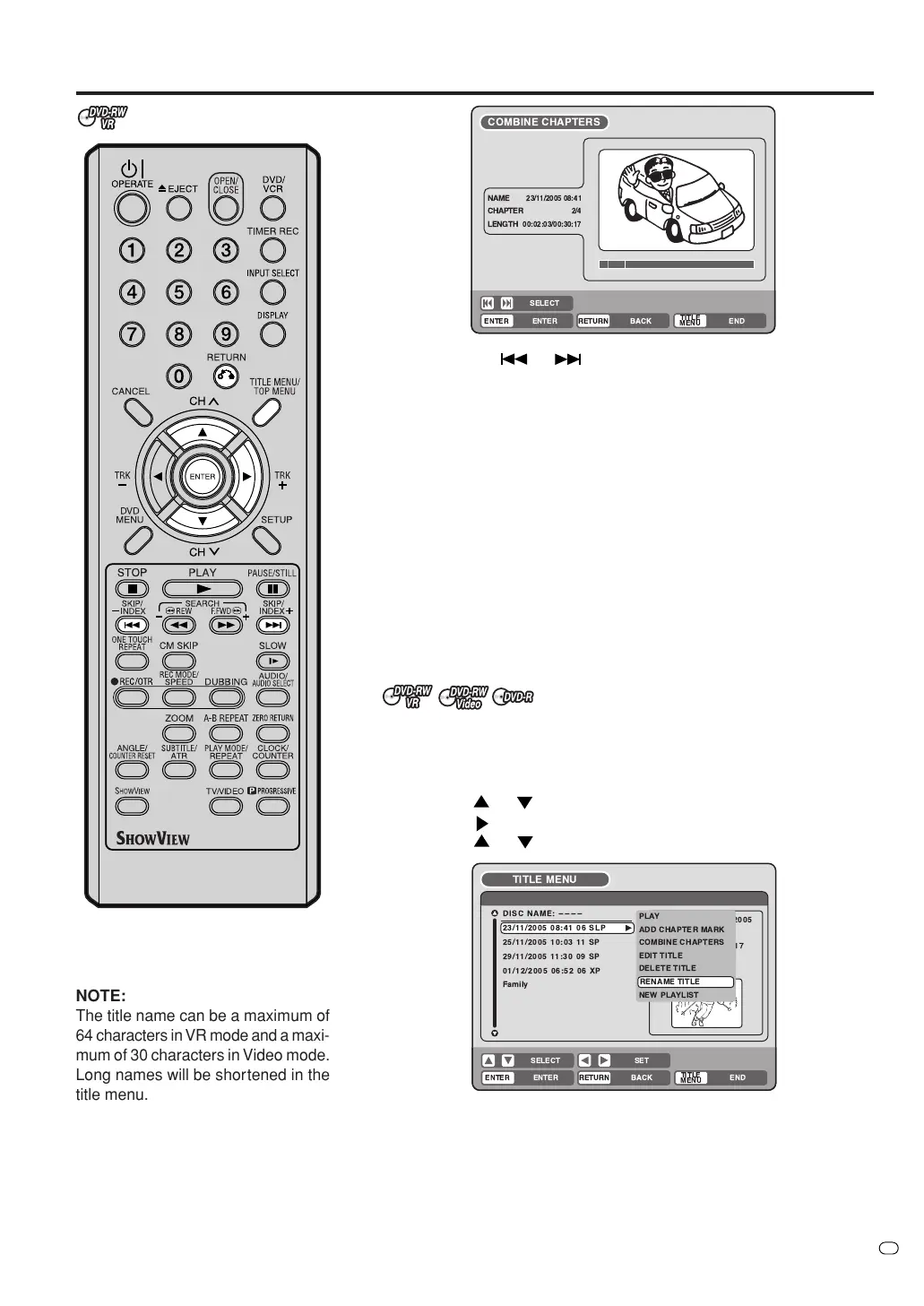
Press SKIP
or to select the chapter marks to be erased.
5
Press ENTER.
The chapter marks are erased and 2 chapters are combined into 1
chapter.
6
To continue erasing the chapter marks, repeat steps 4 and 5.
7
Combining of chapters is now complete.
• To display the title menu, press RETURN.
• To return to the normal screen, press TITLE MENU/TOP MENU.
Changing an original title name
1
Press TITLE MENU/TOP MENU to display the title menu.
2
Select the original title that you want to rename.
• Press
or to select the original title.
• Press
to display the editing menu of original title.
• Press
or to select “RENAME TITLE”.
3
Press ENTER.
The keyboard screen will appear.
The entering method of the title name is the same as for the playlist.
See the steps 4 and 5 of “Changing a title name” in “Editing a
playlist” (page 64) and enter the title name (See also page 75 for
more about the keyboard screen).
TV/VIDEO
!"#
%& '
&
(
)
&
( &
* )
NOTE:
The title name can be a maximum of
64 characters in VR mode and a maxi-
mum of 30 characters in Video mode.
Long names will be shortened in the
title menu.


 To Next Page