34
GB
Repeat playback
)
*
)
1
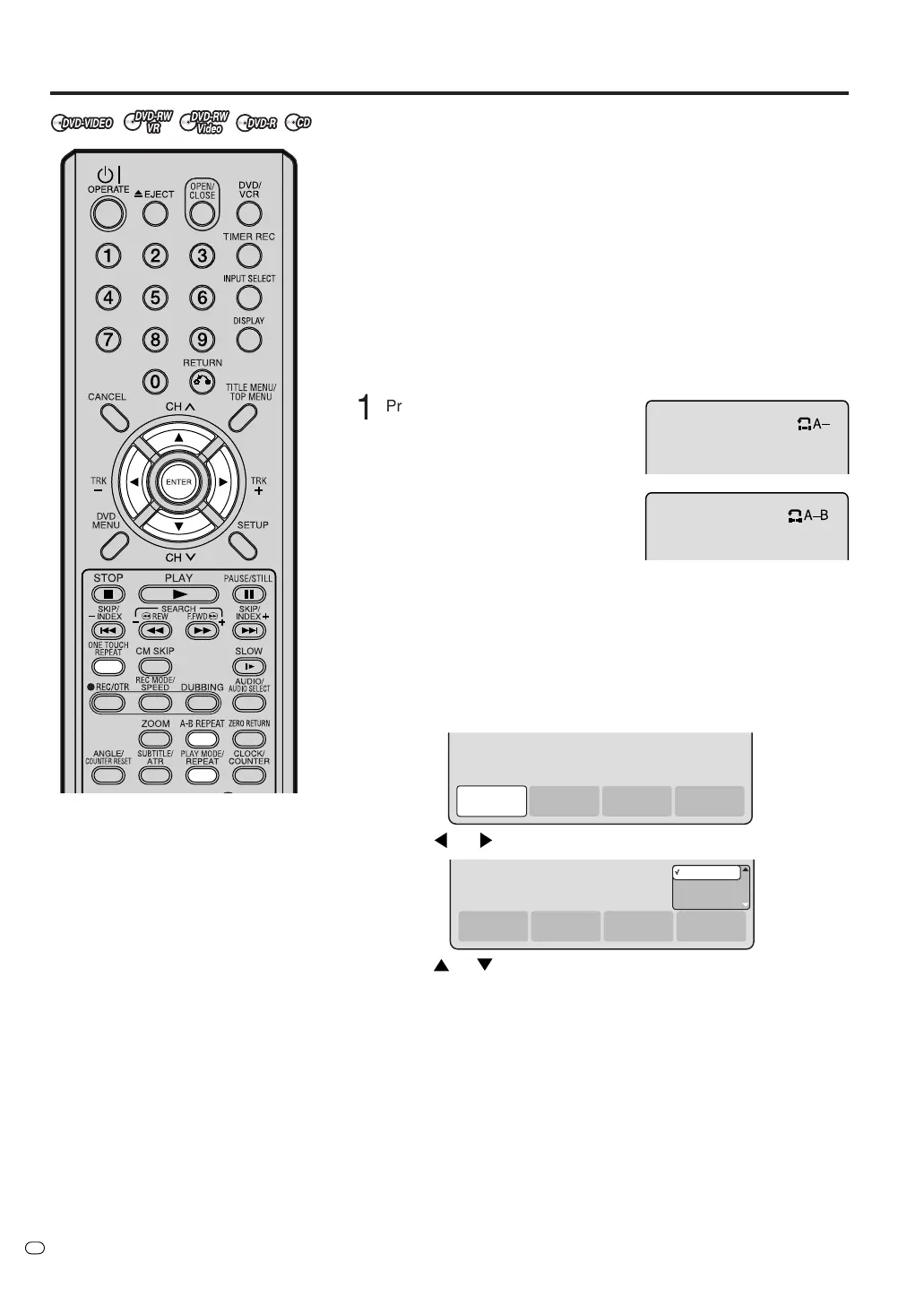
Press A-B REPEAT during play-
back.
The start point is selected.
2
Press A-B REPEAT again.
The end point is selected. Play-
back starts at the point that you se-
lected. Playback stops at the end
point, returns to point A automati-
cally, then starts again.
To resume normal playback, press A-B REPEAT again.
“OFF” appears on the screen.
Title, Chapter repeat playback
1
Press PLAY MODE/REPEAT.
The play mode screen will appear.
2
Press
or to select “REPEAT” and press ENTER.
3
Press
or to select “OFF”, “CHAPTER” or “TITLE”.
OFF: Playback is not repeated.
CHAPTER: The chapter in playback is repeatedly played back.
TITLE: The title in playback is repeatedly played back.
4
Press ENTER.
•To cancel the repeat playback, select “OFF” in step 3.
One touch repeat
This feature can be used to repeat the last 10 seconds of viewed
material on a DVD disc - then normal playback will continue.
Press ONE TOUCH REPEAT during playback.
The playback returns to a point 10 seconds earlier, then resumes play-
ing.
NOTE:
If ONE TOUCH REPEAT is pressed less than 10 seconds after the
beginning of the current title, it will just go back to the start of that title.
A-B repeat playback
A-B repeat playback allows you to repeat material between two
selected points.
TIME
SEARCH
CHAPTER
SEARCH
TITLE
SEARCH
REPEAT
TIME
SEARCH
CHAPTER
SEARCH
TITLE
SEARCH
REPEAT
OFF
CHAPTER
TITLE
NOTES:
• Some discs may not work with the
repeat operation.
• In A-B repeat mode, subtitles near
point A or B may not appear.
• A-B repeat does not work during
the Title and the Chapter repeat
playback.
•You may not be able to set A-B
repeat, depending on the scenes
of the DVD.
• A-B repeat and Title, Chapter re-
peat does not work with a MP3/
WMA/JPEG-CD and Video CD.


 To Next Page