12
T
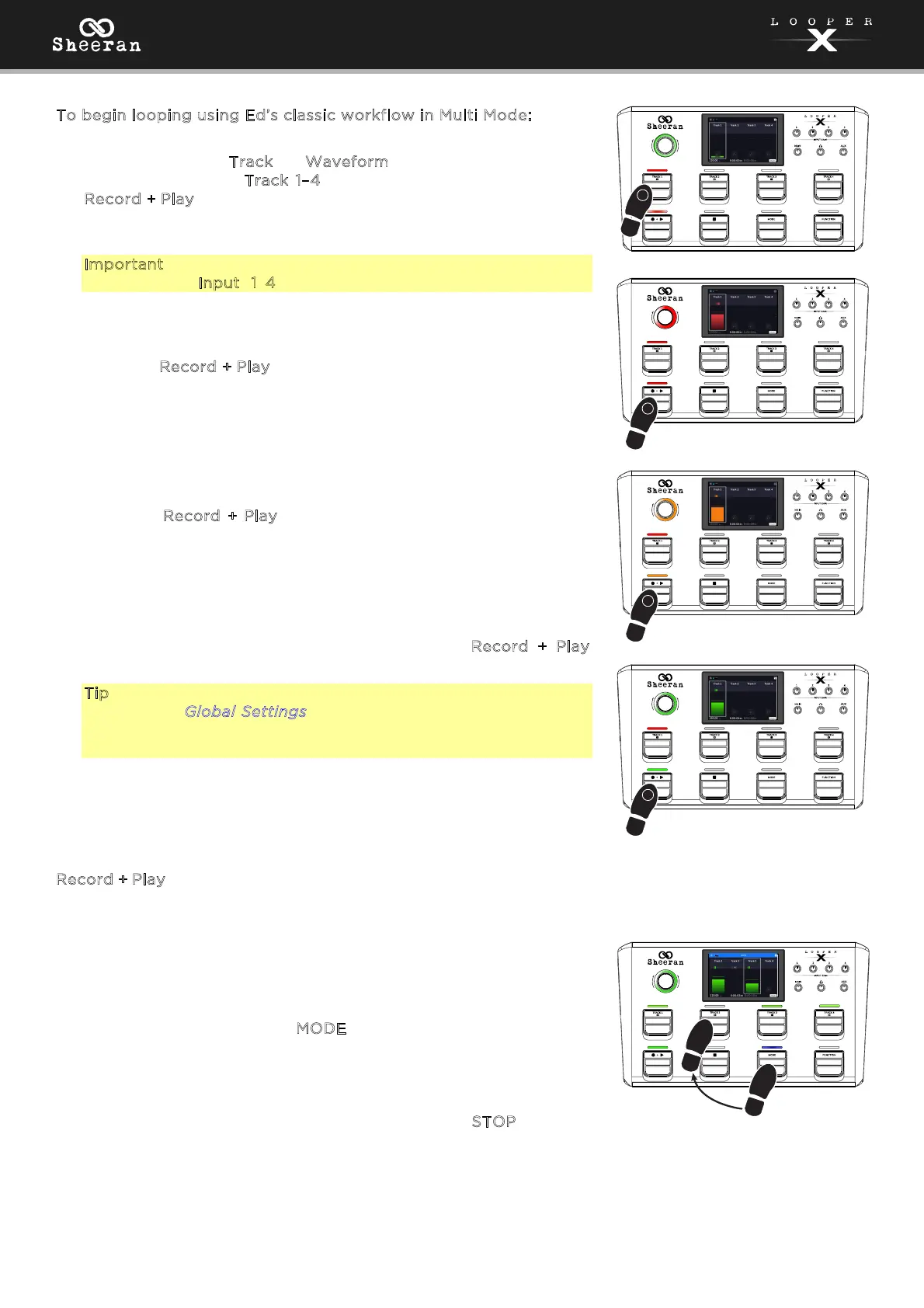
o begin looping using Ed’s classic workflow in Multi Mode:
1. Begin with either T
rack or Waveform views. Select a track by
pressing one of the T
rack 1–4 pedals. The Track pedal LED and
R
ecord + Play pedal LED will both turn red to indicate the track is
armed for recording. The encoder LED will slowly pulse green to
indicate playback is paused.
Important: Before recording anything, set the input volume level
by turning the Input (1–4) knob for each input you want to use.
2. Press the R
ecord + Play pedal. The encoder LED will turn red and
begin spinning. The track level and loop progress indicators will
also turn red.
You can now play and record the first layer of your loop.
3. Press the R
ecord + Play pedal again to set the loop length and
begin overdubbing.
You can now add on to your first loop layer.
4. When you are finished overdubbing, press the R
ecord + Play
pedal again to enter playback.
Tip: You can change the pedal recording behavior in the General
menu of the Global Settings page. Instead of the default Record
> Overdub > Playback order, you can also set this to Record >
Playback > Overdub.
From here, you can continue to add on to your track by pressing the
R
ecord + Play pedal to alternate between overdubbing and playback.
You can also select a new track and begin this process again to create
new loops on Tracks 2–4 alongside your first track.
For creating dynamic arrangements with your recorded loops, try
using the Mute function of the M
ODE pedal. When pressed, all Track
pedal LEDs will turn green, and you can use the Track pedals to mute
and unmute your loops.
To stop playback of your loops at any time, press the S
TOP pedal.
4
1
2
3


 To Next Page