43
(5.11.2) Track
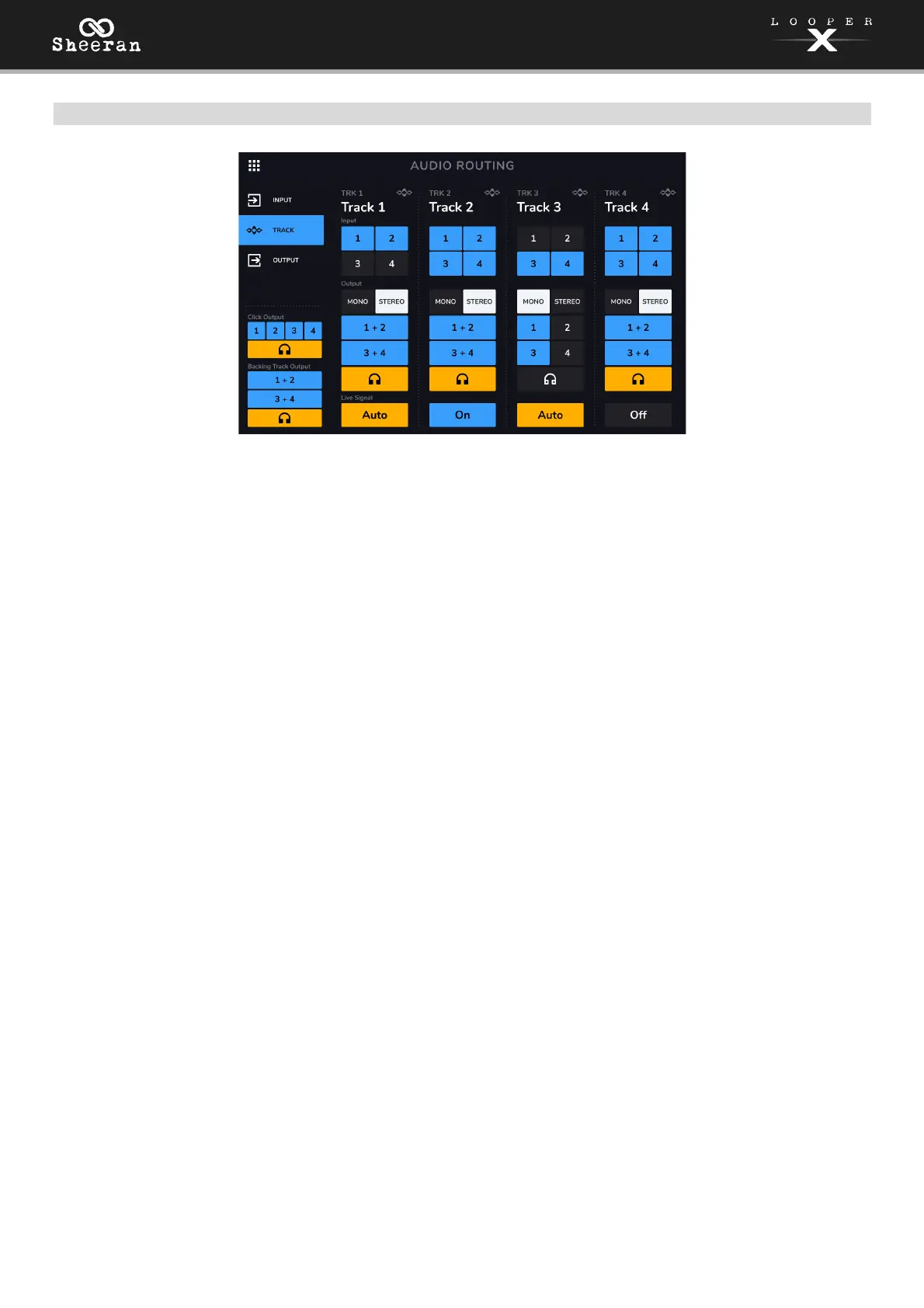
To route an input to a looper track, tap the desired Input 1–4 button. When Stereo Link is enabled, Inputs
1+2 and/or Inputs 3+4 will be selected together.
To select a track output mode, tap the Mono (monoaural) or Stereo (binaural) buttons.
To route a track to an output, tap the desired Output 1–4 button. If the output mode is Stereo, Outputs
1+2 and/or Outputs 3+4 will be selected together.
To route a track to the phones output, tap the headphone icon at the bottom of each track. Use the
Phones knob to adjust the output volume level.
To adjust the monitor behavior, tap the Live Signal icon at the bottom of the touchscreen.
• When set to Auto, track FX are monitored if the track is selected.
• When set to Off, the Input is not monitored, but you can still record on tracks that include FX.
• When set to On, track FX are always monitored, but will only affect the assigned track on the FX page.
For example, if Track 1 includes FX and its Input Monitor is set to On, the FX will be monitored on Track
2 if it shares the same input, but will not be recorded.
To route the click to an output, tap an Output 1–4 button under Click Output on the left side of the
touchscreen. Tap the headphone icon to route the click to the phones output. Use the Main and Phones
knobs to adjust the output volume level of the outputs and phones, respectively.
To select routing for the stereo backing track, tap the 1+2 or 3+4 buttons under Backing Track Output
on the left side of the touchscreen. Tap the headphone icon to route the backing track to the phones
output. Use the
Main and Phones knobs to adjust the output volume level of the outputs and phones,
respectively.


 To Next Page